
Document Viewer Toolbar
When viewing your documents in Review Wizard, you can use the provided toolbar located at the right of the document viewer panel to review its content.
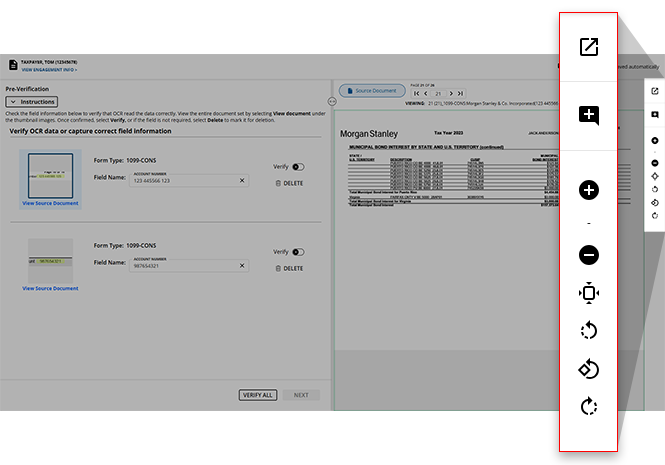
Toolbar icons
Here's a brief overview of the Document Viewer toolbar in Review Wizard:
Icon | Name | Description |
|---|---|---|
 | Open in New Window | Opens the currently displayed document in a new window. |
 | Add Comment | Places a comment on the document if you'd like to leave a note anywhere on the source document. |
 | Zoom In | Zoom into the source document. You can type a custom zoom percentage between 5% and 100% into the provided field that appears after the zoom in/out feature is selected. |
 | Zoom Out | Zoom out of the source document. You can type a custom zoom percentage between 5% and 100% into the provided field that appears after the zoom in/out feature is selected. |
 | Fit to Page | If you've previously altered the zoom percentage, you can revert your view to the default zoom view. |
 | Rotate Counterclockwise | When selected, you can rotate your view of the document by 90 degrees counterclockwise. |
 | Rotate 180 degrees | When selected, you can rotate your view of the document by 180 degrees counterclockwise. |
 | Rotate Clockwise | When selected, you can rotate your view of the document by 90 degrees clockwise. |
Verification stage
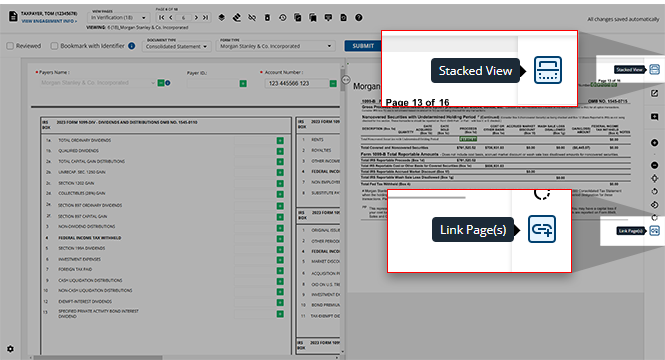
When in the Verification stage of the Review Wizard process, the option to switch to a  and
and  will appear in the Document Viewer Toolbar:
Stacked View
and Link Pages
will appear in the Document Viewer Toolbar:Icon | Name | Description |
|---|---|---|
| Stacked View | View the source document and input fields stacked on top of each other, rather than side-by-side. |
 | Link Page(s) | Link pages of the source document to ensure that these documents will be saved to the same folder of the binder. |
Opening in a new window
If you'd prefer the document you're reviewing to occupy your entire screen, you can select the icon to open the current page of the source document in a new window of your browser.
Open in New Window
icon to open the current page of the source document in a new window of your browser.note
Alternatively, you can hold
CTRL
+ SHIFT
+ 1
on your keyboard to open the source document in a new window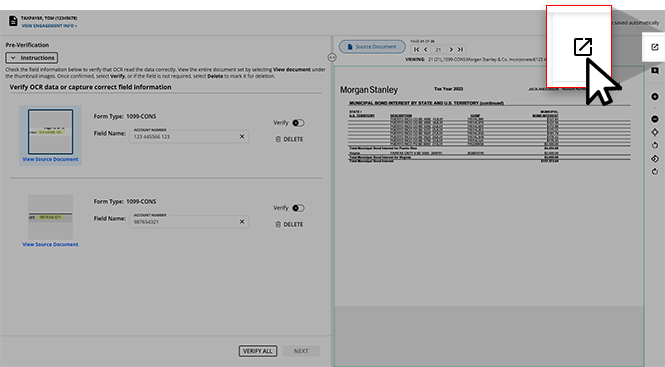
Once opened in a new window, you will still have access to all other icons in the Document Viewer toolbar to configure your document viewing experience.
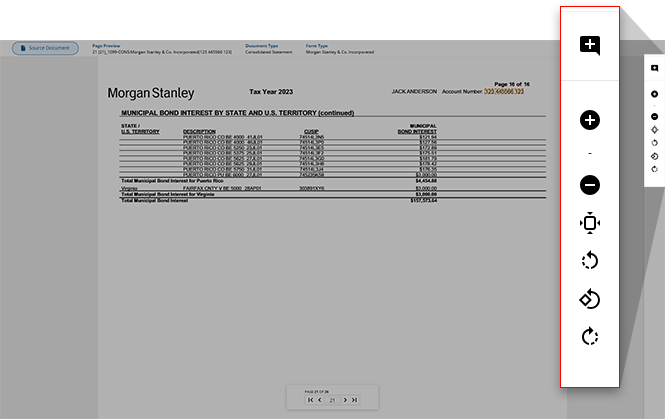
You'll also be able to navigate to other pages of the document as you see necessary using the navigation bar at the bottom of the document.
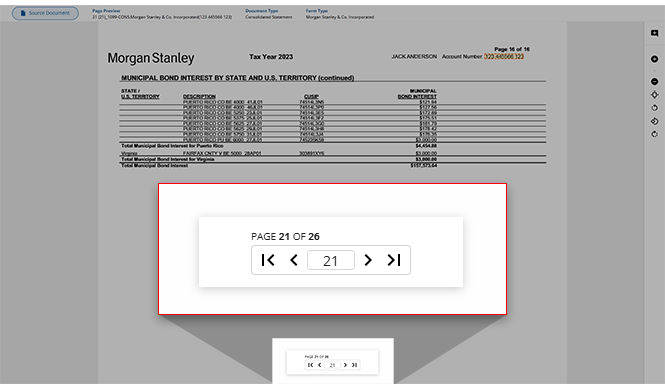
Once you've finished reviewing your document in its own window, you can close out of this window to return to the full Review Wizard view.
Adding a comment
When reviewing your source document, you have the ability to add a comment on any of its pages if you'd like to make a note regarding any of its contents. select the icon to begin making your comment. If this icon is selected on accident, select this icon again to revert to your standard cursor.
Add Comment
icon to begin making your comment. If this icon is selected on accident, select this icon again to revert to your standard cursor.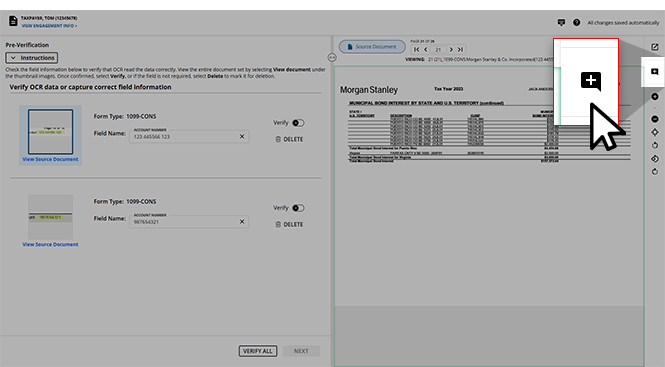
When
Add Comment
is activated, you can select anywhere on the current document page to leave a comment on the specified area. Switching to a different page of the document will revert you to your standard cursor.note
Users can press the
ESC
key on their keyboard to exit Add Comment
mode and return to the normal cursor.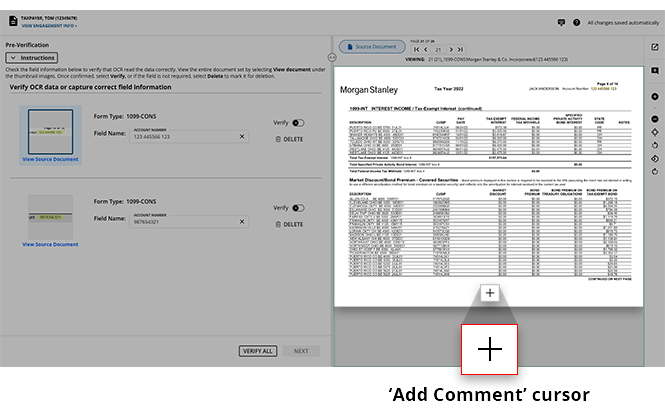
Once an area is selected to comment, you'll see the
Leave a comment
note appear where you can begin leaving your comment. If the wrong area of the document is selected, you can move the location of the comment using the blue comment icon.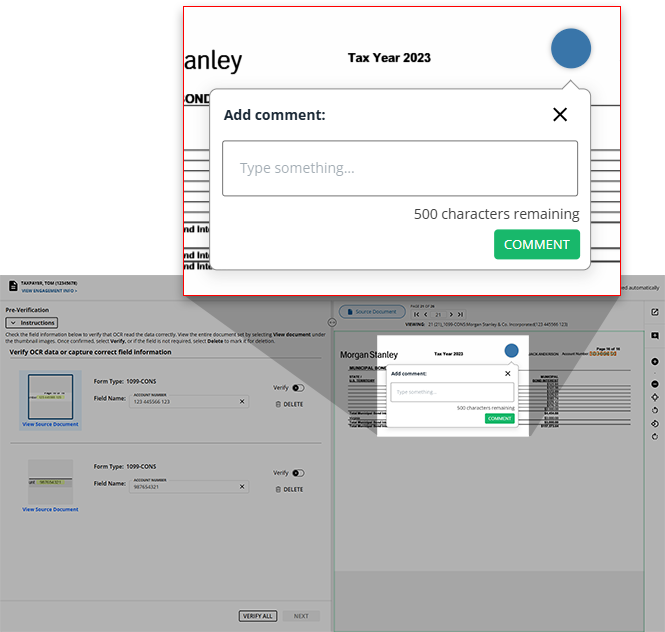
note
Each comment can be a maximum of 200 characters. The character count under the 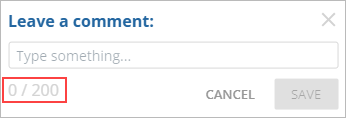
Type something...
field will update to show you the length of your comment.
After you've typed your comment, you can select
COMMENT
to add your comment to the document. If you've changed your mind and would not like to leave a comment, or select the X
to remove this.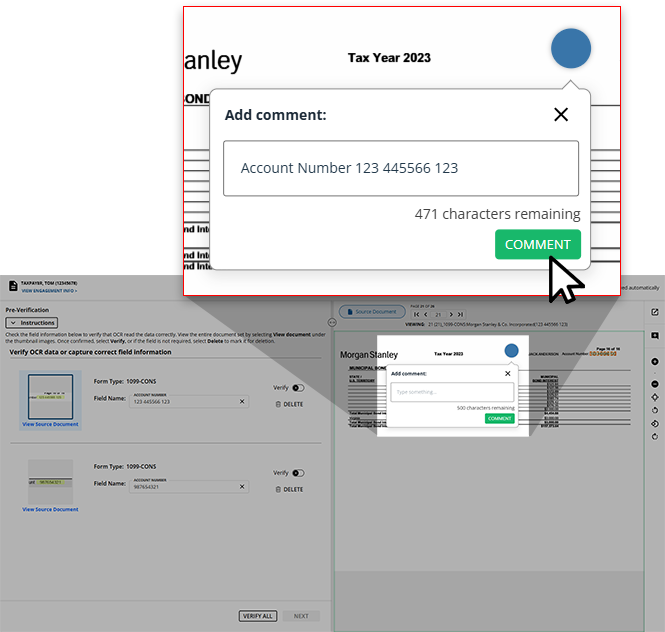
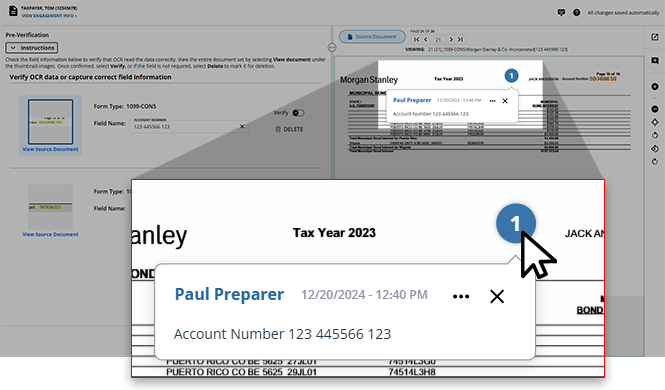
Once saved, comments will appear numbered in the order they were made. select the number of the comment to view its contents along with who made it and the date/time it was made.
Editing or deleting a comment
If you'd like to update its contents, select the
Ellipses
icon on the comment and select Edit
to begin updating the text.
note
Only the comment's original author can edit its contents.
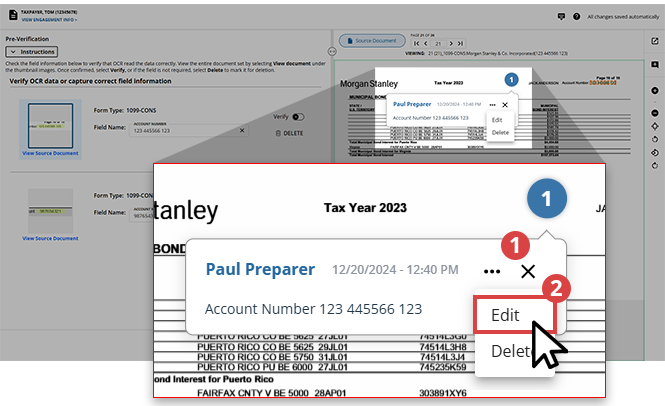
You can select
COMMENT
to save the updates or select the X
to revert the comment to its content before the Edit
feature was used.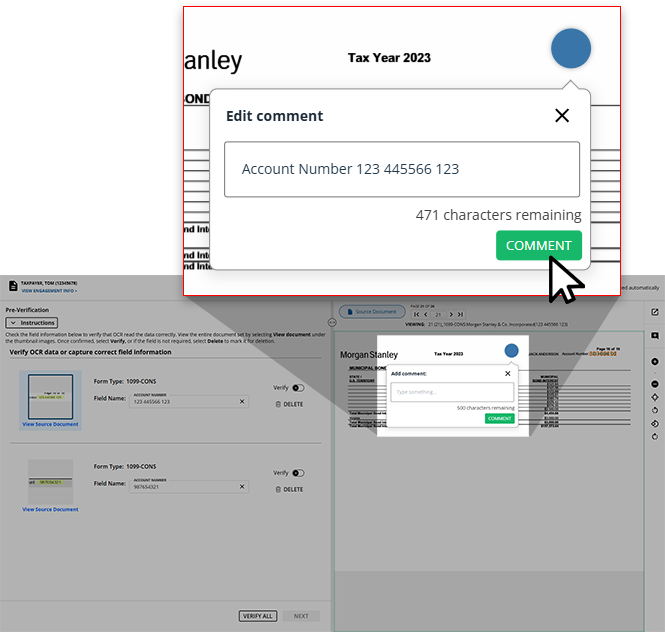
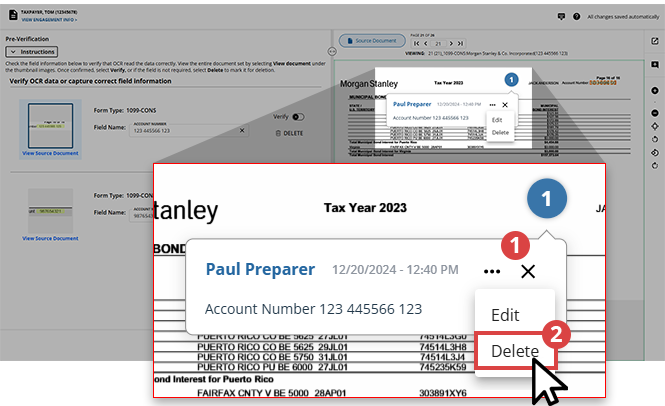
If you'd like to delete a comment, select the
Ellipses
icon and select Delete
.
The
Delete comment
dialog box will appear asking you to confirm your choice. If you'd like to delete the comment select YES
, otherwise, select CANCEL
return to Review Wizard.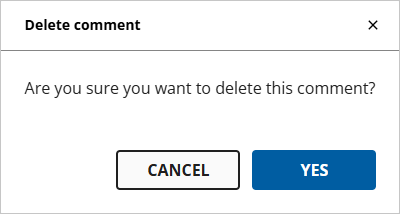
Related Content
-
Step 2 - Verification
Format: Article

