
Elimination of 'New Form Review Wizard' from the Review Wizard process
In the Verification wizard, you will be able to select the proforma’d description from the drop down to match with the source document description if incorrectly captured by OCR.
It allows you to eliminate the 'New Form Review' Wizard in case you do not wish to use the source documents that gets automatically associated with the proforma Input forms by the system.
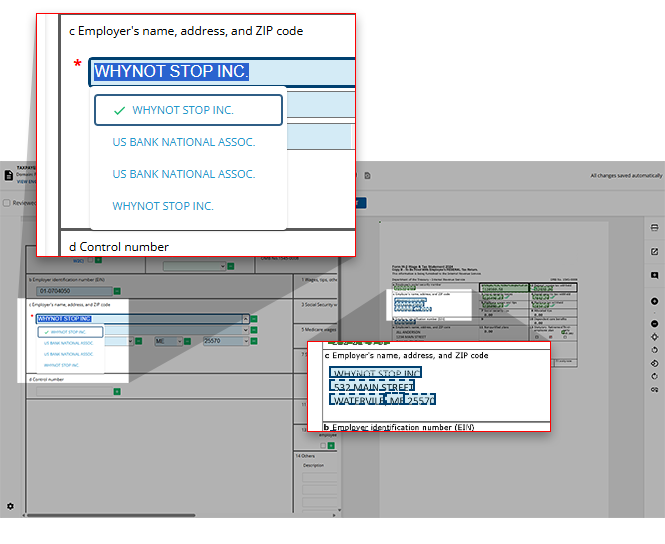
It will help you to avoid manual input of the description in the Verification wizard.
You can also manually type the description in case you do not find the required description in the drop-down list.
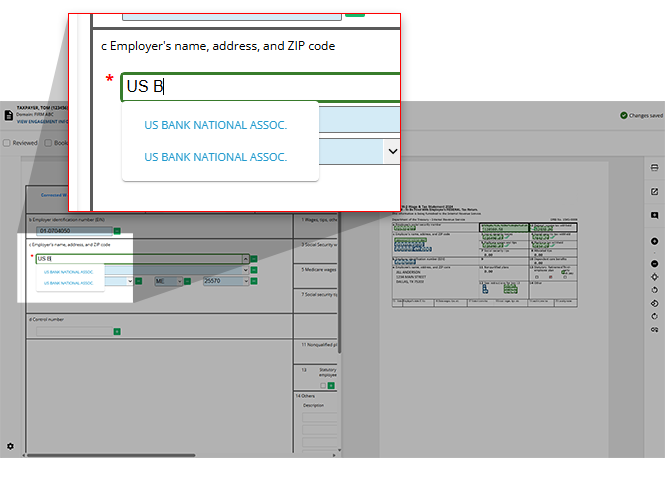
If the description captured by OCR matches 80% of the proforma’d description in the tax software file, then the description auto populates in the Verification Wizard.
In the drop-down, the proforma’d description appears depending upon the input form.
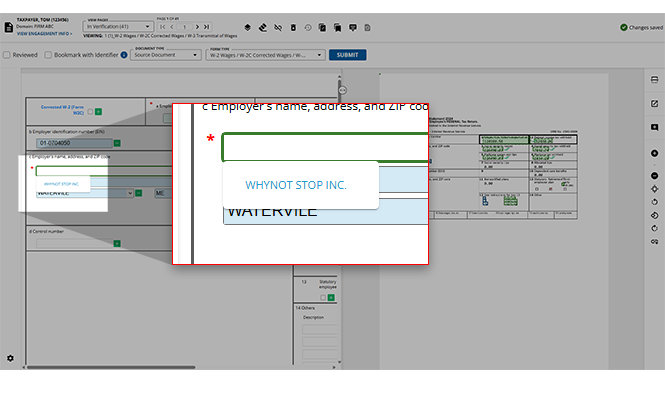
For some source documents, the proforma’d description will be displayed for related input forms.
For instance – If a source document showing Wages (Source or Organizer) gets displayed in the Verification Wizard, then the proforma’d description of wages will be displayed in the drop down.
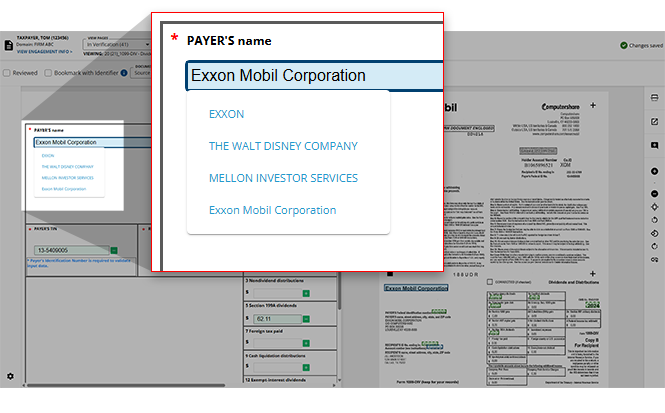
For some source documents, the proforma’d description will be displayed for multiple input forms.
For instance – If a source document showing interest income (Source or Organizer) gets displayed in the Verification Wizard, then the proforma’d description of interest and consolidated input forms will be displayed in the drop down.
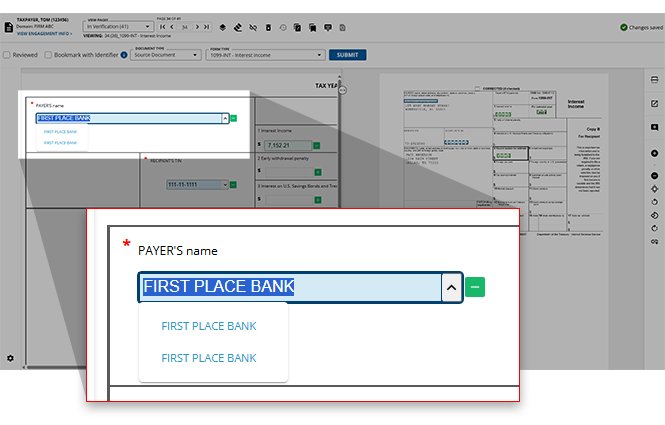
In case of child forms like 1099-MISC or Form 1098, the proforma’d description of all related parent forms will get displayed.
For instance – If a source document showing 1099-MISC gets displayed in the Verification Wizard, then the proforma’d description of 1099-MISC – 'Other Income, All Schedules' Entity name, the Other income field description will be displayed in the drop down.
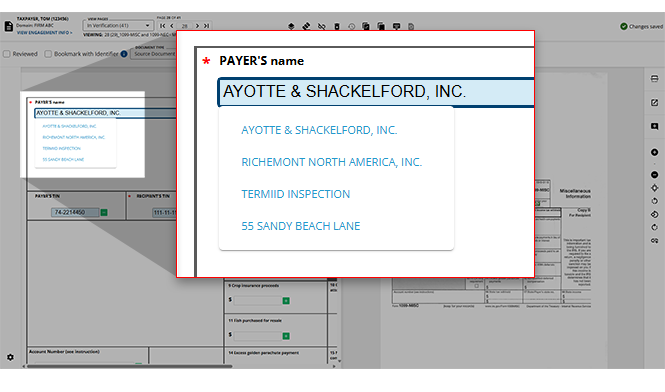
If you select the proforma’d description in the Verification wizard, then it will get automatically associated in the
Child Form Association
wizard.note
In the Child Form Association wizard, if the same description is proforma’d in more than one entity then it will not be auto associated in the Child Form Association and the New Form Review wizard but will be available in the right hand panel.
If the proforma’d description gets matched automatically, then this form will not appear in the
New Form Review
(NFR) Wizard.For instance - in tax software file, the input form for wages-employer name is proforma’d as 'ABC Incorporation' and on the source document which is captured by OCR it is represented as 'ABC INC'. If you select the 'ABC Incorporation' from the drop-down for 'ABC INC', then this form will not get displayed in the New Form Review Wizard.
If you do not select the proforma description from the drop-down and enter the documents description instead, then it will get displayed in the New Form Review Wizard, if any proforma’d form exists.
Related Content
-
Step 2 - Verification
Format: Article

