
Field types and highlight colors in the Verification Wizard
When in the Verification wizard, you can verify the OCR values to ensure your client's data is saved correctly. Imported and scanned values will be denoted in the source document through various highlight colors. A document's fields can be categorized as one of the following:
Symbol | Highlight color | Field Type | Meaning |
|---|---|---|---|
 | Blue | Proforma'd Data | Values that have been auto-verified using the PDF's text layer. |
 | Pink | Auto-Verified | Values imported from the taxpayer's proforma data. |
 | Green | OCR Read Value | Values that the OCR is fairly certain about, but still requires verification. |
 | Yellow | Uncertain Field Type | Values that the OCR is uncertain about, requiring verification. |
Follow these steps to open the
Field Types
window to review a count of each type of field in your clients' binders.- From the Verification Wizard, selectFIELD TYPES.

- TheField Typeswindow will appear. This window lists the 4 field types along with the icon associated with each type.
 noteThe field count in the parentheses will update as the fields in the binder are processed.
 - The icons for each field will appear when reviewing the binder's pages in Verification Wizard.

Verifying values from the source document
After identifying the various fields in a client's binder, you can verify these values based on the field's highlight color.
Reviewing pink values
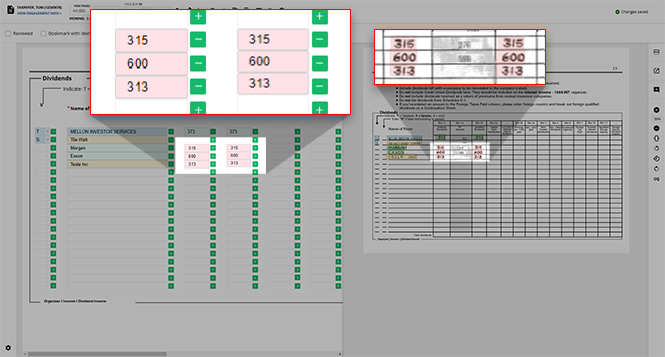
Fields highlighted in pink are auto-verified using the PDF's text layer. Auto-verified pages are hidden from verification by default.
To view auto-verified pages, select
Show Page(s)
menu on the toolbar, then select Auto Verified
or All
. 
note
Auto-verified (Native PDF) pages won’t be reviewed (that is, signed off) by SurePrep during verification unless it appears for review under the
In Verification
status of the VIEW PAGES
dropdown menu. You can add SurePrep barcodes on pages that require special attention from SurePrep.Reviewing blue values
Proforma options for identifier fields (
Name
, SSN
, EIN
) will be displayed with a blue highlight. 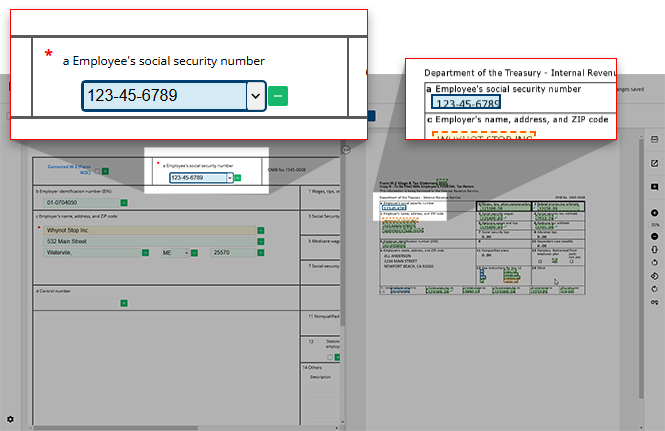
If the value in the field to the left of the screen is incorrect, you can select the  icon to open the dropdown menu and select the correct value from those listed.
Arrow
icon to open the dropdown menu and select the correct value from those listed. 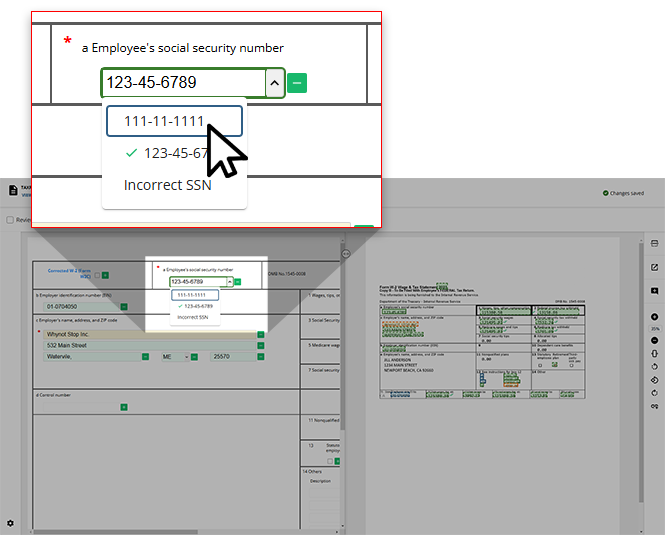
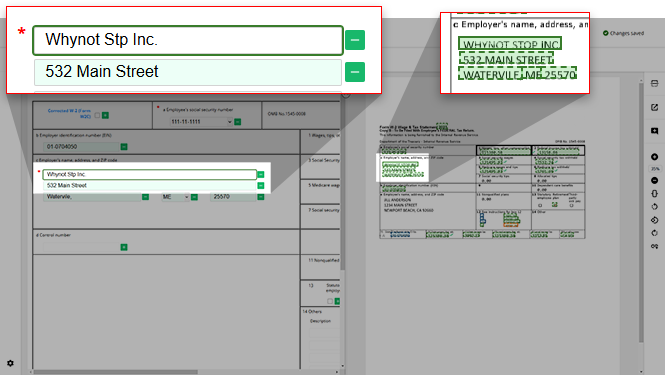
If the correct value is not listed as an option, you can manually type the correct value in the field. When this happens, the highlight within the source document will be updated to green to reflect this update.
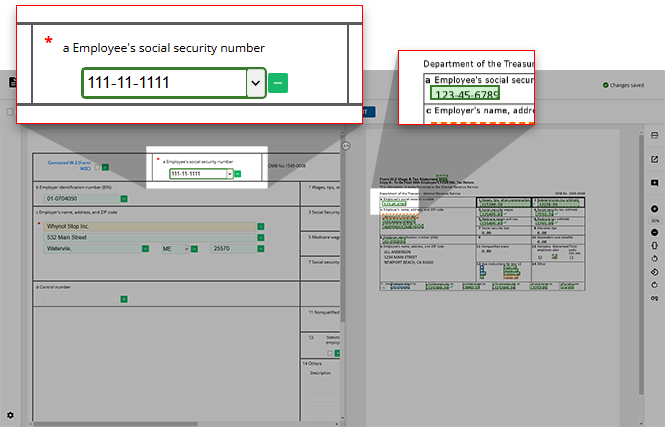
note
You can select a proforma value from the dropdown to revert the highlight to its original blue color.
Reviewing green and yellow values
Green and yellow values have been scanned by the OCR. A green highlight indicates that the OCR is fairly certain the correct value has populated the template value, while a field highlighted in yellow is unsure and requires your review.
note
Even though the green highlighted values are fairly certain, users can still review these fields if they'd prefer to manually verify these values as well.
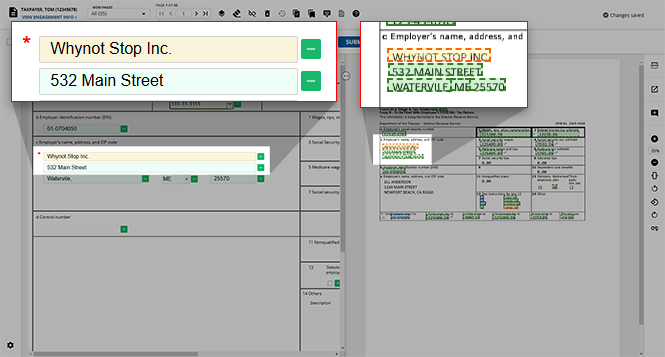
If necessary, you can make any updates to the fields highlighted in yellow to ensure your client's information is recorded accurately. Once updated, a yellow highlight will become green to denote that the value in the field is now certain.
note
You can use the
CTRL
+ .
key on your keyboard to move between the fields on a template. Related Content
-
Step 2 - Verification
Format: Article

