
Matching security descriptions
You can choose the settings for Tax Exempt Income allocation for state purposes. The muni-bond data is captured based on your firm-wide settings or customized on individual binders. This article will highlight the criteria for matching securities that determine if the security is marked state-taxable or non-taxable.
You can decide from one of the three options:
- SurePrep automatically determines state taxability
- State non-taxable
- State taxable
When creating a binder, firm-level options are selected by default across the firm. However, you can select a different option when creating a binder.
Tax Exempt Income: Automatically determine state taxability
Auto-calculation of Muni Bond Interest as State Taxable/Non-Taxable for Tax Exempt Dividends/Interest and Bond Premium:
If the
Automatically determine state taxability
option is selected, then 1040SCAN completes the following steps to match the security descriptions with a predefined list, in the Pre-Verification process.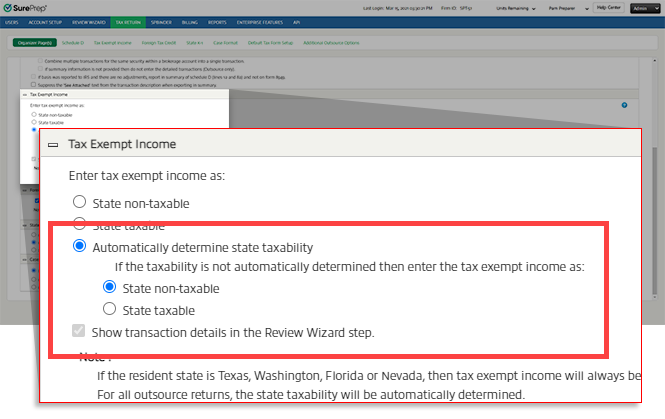
note
The ability to automatically determine state taxability begins processing for new binder around Feb 15th of the calendar year.
The security descriptions are displayed in the Verification Wizard as per the following criteria:
- Security Description matches with the predefined list
- Recognition of Security Description based on state
'Security Description' matches with the predefined list
When the security description on the source document matches the security description provided in the predefined list, an  icon is placed to the right side of the
  icon indicates that the system has automatically calculated the percentage in the
icon is placed to the right side of the Security Description
. The icon indicates that the system has automatically calculated the percentage in the EXEMPT % OR AMOUNT
column based on the amount captured by the OCR in the State Exempt Amount
column.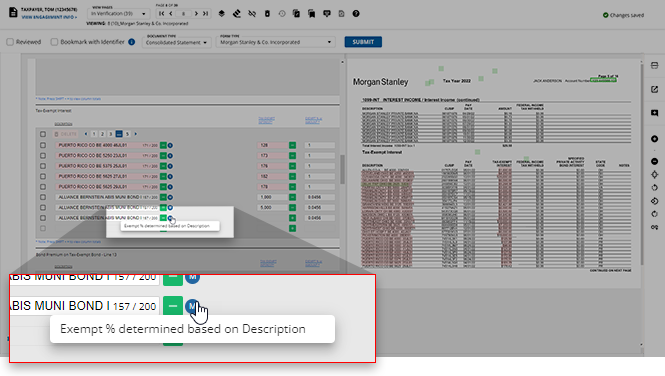
You can point to the icon to see the tooltip:
icon to see the tooltip: Exempt% determined based on Description
.note
The icon disappears if the verifier manually edits a value in the '
icon disappears if the verifier manually edits a value in the 'EXEMPT % OR AMOUNT
' column.The
Security Description
gets replaced automatically with the security description found in the predefined list.If the
Security Description
matches with more than one security description from the predefined list, the highest matched security description among the two or more matches found will be considered for calculating the EXEMPT % OR AMOUNT
value.Recognition of Security Description based on State
1040SCAN will check for the proforma resident state code (Home State) and will consider that as a base state. Next, it will search for the base state name /state abbreviation /state short form within the
DESCRIPTION
field captured during the OCR process (i.e. California, CA).- Home State of California
- Search for 'California' or 'CA' in theDESCRIPTIONfield.
A match must have a space after/before it. It should not have any spaces or special characters between them.
When the state name/abbreviation/short form is found, an  icon gets displayed on the right side of the
icon gets displayed on the right side of the DESCRIPTION
field, indicating that the taxability is determined based on the state.Use your mouse to point to the icon to see one of the following messages:
icon to see one of the following messages:- Deemed Non-Taxable as Resident State is found in Description.
- Deemed Taxable as Non-Resident State is found in Description.
Deemed Non-Taxable as Resident State is found in Description.
Deemed Non-Taxable as Resident State is found in Description.
The taxability is determined based on the resident state. The
DESCRIPTION
is marked as state taxable/state exempt based on the resident state.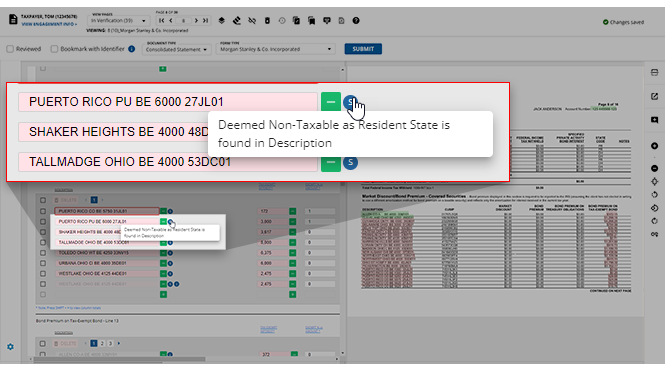
If the security description is matched with the proforma’d resident state then:
- State Exempt Amountfield =State Non Taxable
- EXEMPT % OR AMOUNTfield = 1 (to indicate state non taxable)
- In theState Taxableoption checkmark will not be cleared.
For
Puerto Rico
, Guam
, Virgin Islands
, and Samoa
, the DESCRIPTION
field will be considered State Non Taxable:- State Exempt Amountfield =State Non Taxable
- EXEMPT % OR AMOUNTfield = 1 (to indicate state non taxable)
- In theState Taxableoption checkmark will not be cleared.
Deemed Taxable as Non-Resident State is found in Description.
Deemed Taxable as Non-Resident State is found in Description.
If there is no resident state(s) in the security description, the taxability will be determined based on the Non-Resident state. The security description is marked as state taxable/state exempt.
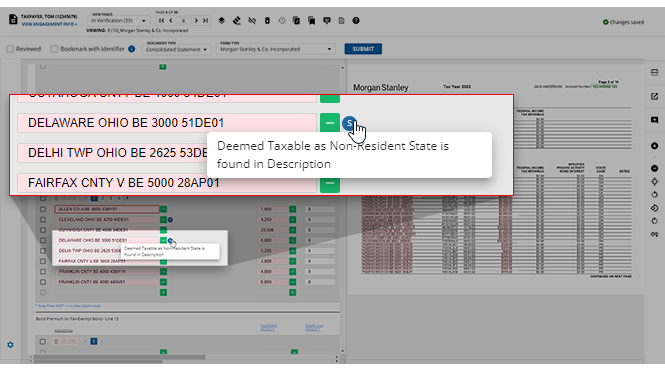
If any state name/short form/abbreviation other than the resident state name is found in the security description, it will consider the 'State Exempt Amount' as 'State Taxable', with populating
0
in the EXEMPT % OR AMOUNT
column and the State Taxable
checkbox will be checked automatically.note
If more than one state name/abbreviation is found from the security description, the resident state will be considered first for determining the taxability.
For example: If there exists a client with:
- the proforma'd home state ofNJ
- and aDESCRIPTIONin which two state abbreviations are found (i.e.NYandNJ)
then the state abbreviation
NJ
will be considered because it is the resident state and
it is the same state found in the security description. Consequently, the State Exempt Amount
will be calculated as Fully Exempt
.note
For some specific resident states like FL, TX, NV, WA where determining the state taxability is not required, the amount inEXEMPT % OR AMOUNT will always be considered asState Non-Taxable.
The security descriptions that do not match the predefined security description, and were read as certain by the OCR will directly appear in the Verification wizard.
- If none of the state name/abbreviations/short form is found in the security descriptions, and no proforma’d state information is provided, then the security description will be shown under the Verification Wizard and the amount will be shown in theState Exempt Amountcolumn asState Nontaxable.
- When the verifier corrects that description and to the next, the system will begin matching it to the security descriptions in the predefined list. The process will end once the verifier provides a value in the 'EXEMPT % OR AMOUNT' field or moves on to the next security description.
- The 'EXEMPT % OR AMOUNT' field is editable. If the security description is state taxable then '0' appears automatically in that field along with a checkmark in the 'State Taxable' check box. Once you edit the 'EXEMPT % OR AMOUNT' field, the checkmark for 'State Taxable' will be removed.
- If you enter [0.1 to 1.0] in 'EXEMPT % OR AMOUNT' field, it will be treated as an Exempt percentage and more than 1 will be treated as an Exempt amount. If you enter a negative amount, a message 'Invalid amount or %' is displayed.
- Those security descriptions matched with the predefined list will have an icon on the right side of security description and those which are determined based on state will have an icon on the right side of the security description.
- If the verifier clicks the 'Submit' option without verifying the uncertain security description, a message pops up for verification 'There are some uncertain fields to verify. Would you like to skip verification and continue?'
- If the verifier clicks on the 'Yes' option, then all the uncertain security descriptions will get converted to certain, but will not be processed for the determination of taxability. Clicking the 'No' option will take the verifier to the uncertain security descriptions.
- Alternatively, you can also change the security transactions as 'State Taxable' or 'State Exempt' manually by entering '0/0.1' in the field of 'EXEMPT % OR AMOUNT' to make the whole State Exempt Amount as 'State Taxable'/ 'State Exempt' or can also enter the calculated exempt amount or percentage (should not be a negative amount) and the balance will be considered as 'State Taxable'.
note
If in some cases, descriptions appear in more than one line then the determination of taxability will not be applied.
Tax Exempt Income: State non-taxable
When the
State non-taxable
option is selected in the Create New Binder
window, or through the Admin > TAX RETURN >
Tax Exempt Income
tab of FileRoom, then it will not
follow the steps mentioned above.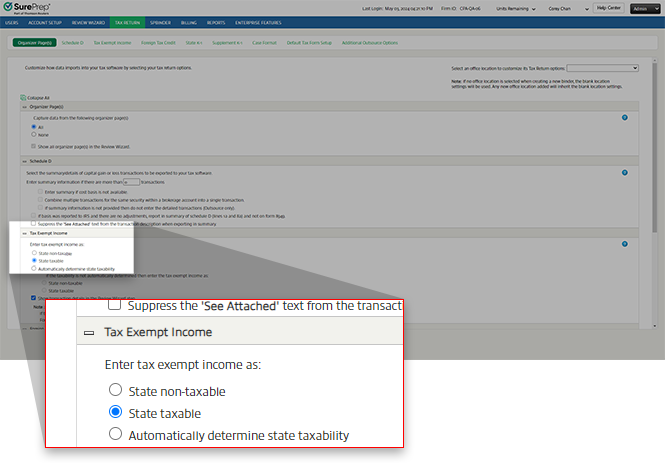
- The security descriptions as captured by the OCR appears in theDESCRIPTIONfield.
- TheTAX-EXEMPT INTERESTfield will display the amount of the tax-exempt interest.
- TheEXEMPT % or AMOUNTfield will populate with1indicating the amount as 'State Non Taxable'.
- TheState Taxablecheckbox will be unchecked.
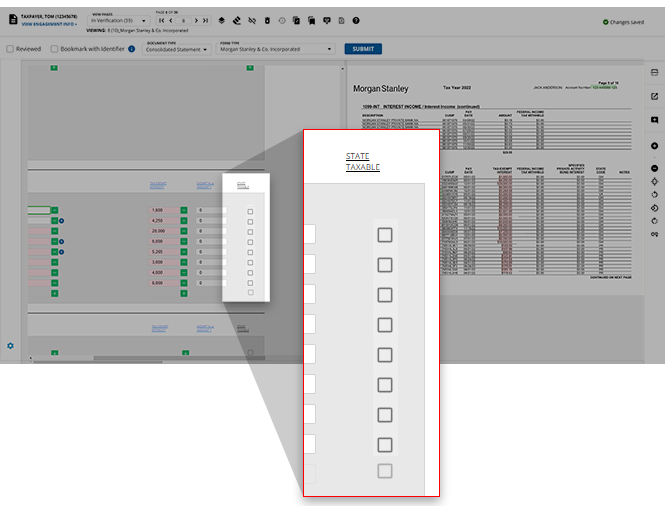
- To change the security descriptions toSTATE TAXABLE, you can select the STATE TAXABLE checkbox. As a result, the value in the correspondingEXEMPT % or AMOUNTfield will automatically update to0.
- If you enter any amount greater than1, it will be treated as anEXEMPT AMOUNTand the balance will be treated asSTATE TAXABLE.
Tax Exempt Income: State taxable
When the
State taxable
option is selected in the Create New Binder
window, or through the Admin > TAX RETURN >
Tax Exempt Income
tab of FileRoom, then it will not
follow the steps mentioned above.- The security descriptions captured by the OCR will appear in theDESCRIPTIONfields.
- TheTAX-EXEMPT INTERESTfield will display the amount of the tax-exempt interest.
- TheEXEMPT % or AMOUNTfield will populate with0indicating the amount asState Taxable.
- STATE TAXABLEcheckboxes will be selected.
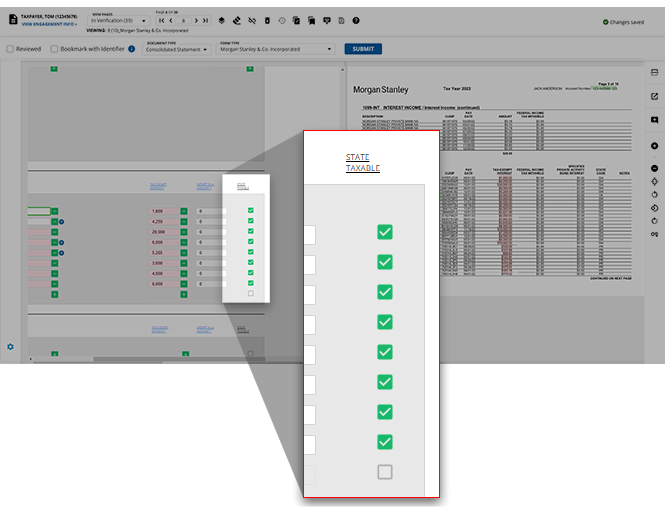
- To change the security transactions as State Non-Taxable, you can enter [0.1 - 1] and it will be treated as a percentage equal to or more than 1, and the same will be treated as an exempt amount, but it should be less than or equal to the State Exempt Amount. This will deselect theState Taxablecheckboxes.
- If you enter the Exempt percentage or Amount in the 'Exempt% or Amount' field, the check mark will be removed and the State Exempt Amount will break down on the basis of the exempt percentage or the amount entered and the check box of the 'State Taxable' field will be inactive.
- If the verifier does not verify the uncertain description in the Verification wizard and submits the wizard, then the same security transactions will be displayed in the Tax Exempt Interest Income Wizard.
Related Content
-
Step 2 - Verification
Format: Article

