
Overriding amounts verified by business rules
Some data in a client's source document may appear in the Verification Wizard with a  icon. This
double checkmark
icon. This double checkmark
icon indicates that this value has been auto-verified by Business Rules. Business Rules are built-in logic that automatically check if amounts match up and make sense according to standard tax calculations. For example, if a form shows wages in one box, the Business Rules will estimate what the related tax amount should be and verify if the captured amount is reasonable. When amounts pass these automatic checks, they receive the double checkmark to show they've been additionally verified and are most likely correct.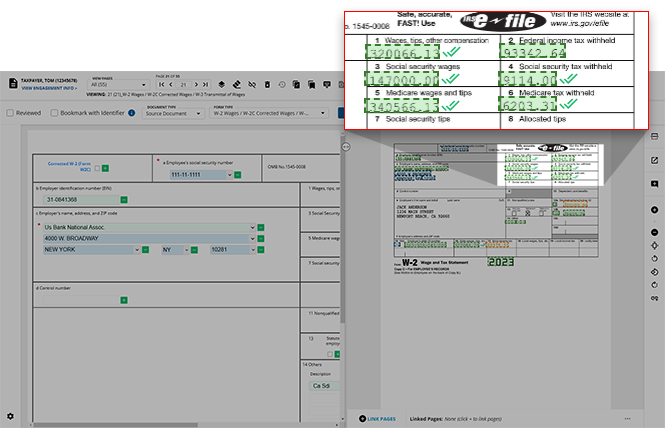
Even though these values were verified by business rules, you can overwrite these amounts when necessary. To overwrite an amount, select the value in the template and re-type the correct value into the field.
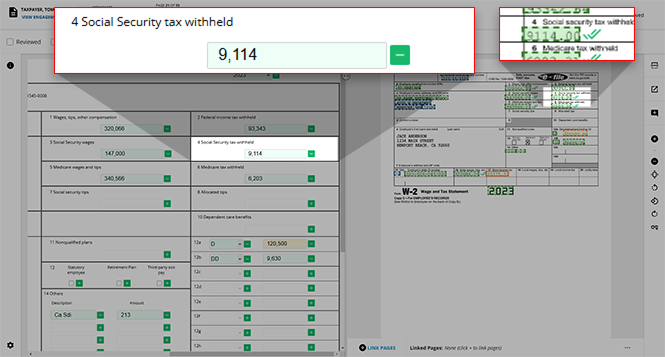
If a user has overwritten any fields in the document, you will see the
Override Failed Business Rule Confirmation
window appear when you attempt to submit the return. Select OVERRIDE
to overwrite the values and proceed with the submission.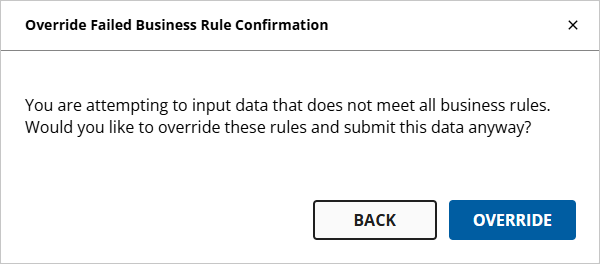
If you've selected
OVERRIDE
to overwrite the updated values, the Verification Wizard will navigate you to the impacted fields where you can confirm these changes on a case-by-case basis.Related Content
-
Step 2 - Verification
Format: Article

