
Replicate Template
The Replicate Template feature allows you to copy/add data from one page to another page. Replicating templates can be useful when a multi-page document (e.g. 1099 Consolidated Statements, Schedule K-1) is missing a template on one or more pages. You can use Replicate Template to copy the template information from another page to another page without individually selecting Document Type, Form Type, and identifier field for each page.
The replicate feature copies the following information:
- Document Type
- Form Type
- Identifier field data (Name, SSN, Account Number)
- Certain non-identifier field data(Tax Year)
Follow these steps to replicate template a template and identifier data from one page to another:
- Click theReplicate Template
 icon in the Verification Template toolbar.
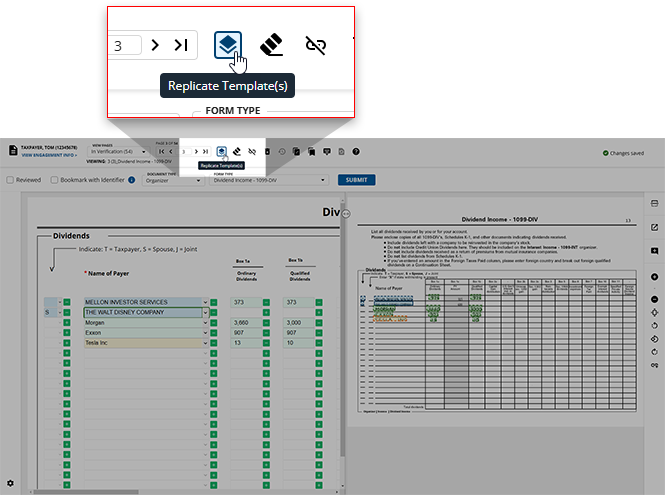
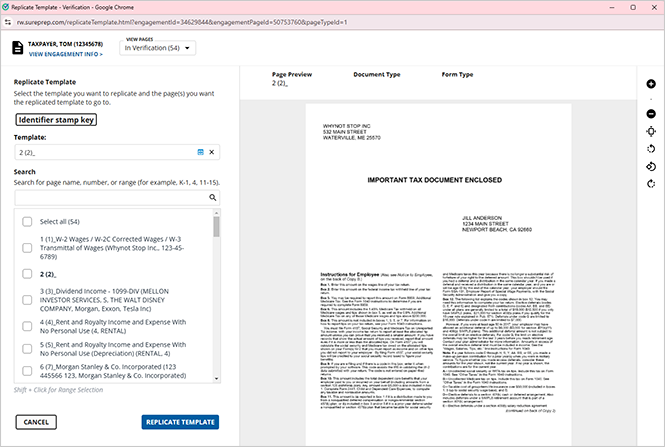
- TheReplicate Templatewindow will appear.If necessary, specify the type of pages you'd like to view with theVIEW PAGESdrop-down menu.
- Select the template you'd like to duplicate from theTemplatedrop-down menu. You can click theEye
 icon to display the selected template in the document viewer to the right.
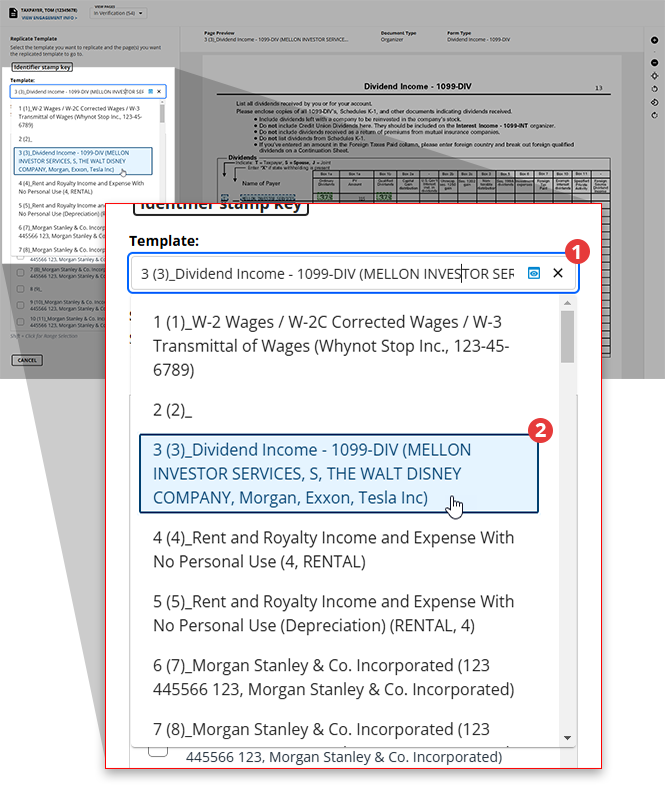 noteYou can use the toolbar to the right to adjust your view of the document for your comfort.
 - Provide the pages that you would to duplicate your selected template to in theInput Page(s)field. The provided pages will be listed in theClick Pages to Previewsection.
 noteYou can clickIdentifier stamp keyto open theIdentifier stamp keydialog box that lists the various stamps a document could have, depending on what it was marked as.
- Once you're ready to replicate the pages listed, clickREPLICATE.

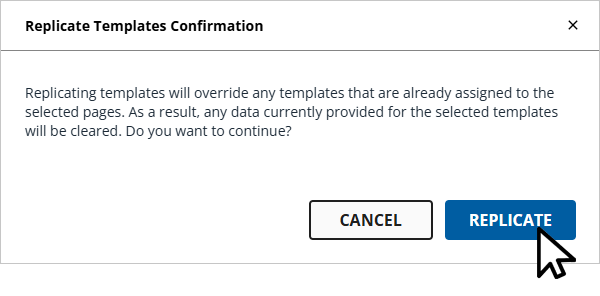
- You'll see theReplicate TemplatesConfirmation dialog box appear indicating that replicating the template will override any template currently assigned to the pages you provided in theInput Pagesfield. If you wish to continue replicating, clickREPLICATE, otherwise clickCANCELto return to theReplicate Templatewindow.
- Once replicated theDocument Type,Form Type, and identifier fields data (Name,SSN,Account Number) will be applied to the selected page.
Related Content
-
Step 2 - Verification
Format: Article

