
Reviewing data in Verification
Using Review Wizard, users can navigate to each page of their client's binder to ensure that any data read from the source documents by the OCR has been accurately saved to the document's template.
Once you've verified the data (and made corrections where necessary), you can then select the
Reviewed
Select the checkbox in the Verification Wizard toolbar to confirm that you have verified all the information as correct. After you mark the page as Reviewed
, you can move to the next page.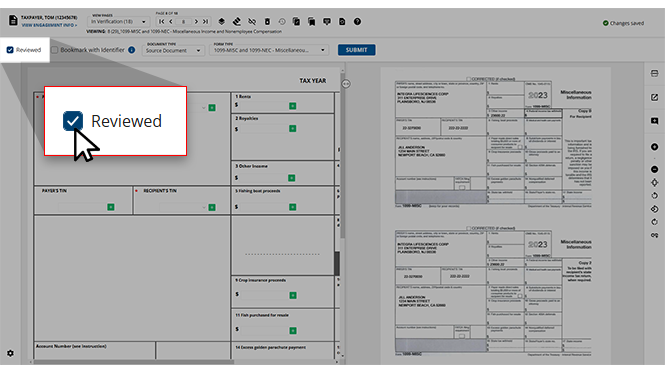
When in the Verification wizard, you can verify the OCR values. imported and scanned values will be denoted in the source document through various highlight colors:
Highlight color | Meaning |
|---|---|
Pink | Values that have been auto-verified using the PDF's text layer. |
Blue | Values imported from the taxpayer's proforma data. |
Green | Values that the OCR is fairly certain about, but still requires verification. |
Yellow | Values that the OCR is uncertain about, requiring verification. |
Reviewing pink values
Fields highlighted in pink are auto-verified using the PDF's text layer. Auto-verified pages are hidden from verification by default; to view auto-verified pages, click
Show Page(s)
menu on the toolbar, then select Auto Verified
or All
.
note
Auto-verified (Native PDF) pages will not be reviewed (i.e. signed off) by SurePrep during verification unless it appears for review under the
In Verification
status of the VIEW PAGES
drop-down menu. You can add SurePrep barcodes on pages that require special attention from SurePrep.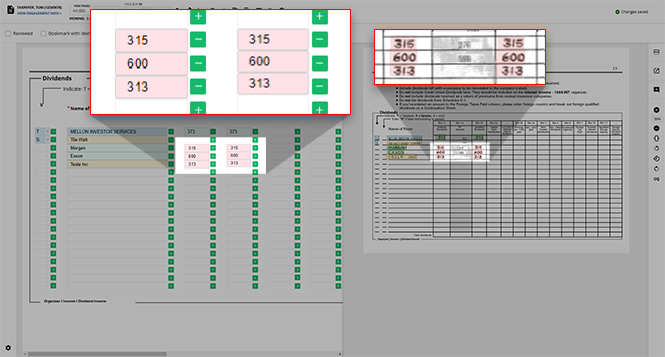
Reviewing blue values
Clients' information may be available from the prior year as 'proforma' information for certain fields. This proforma information appears as pre-populated options with a blue highlight. For example, you may see proforma options for identifier fields (
Name
, SSN
, EIN
, etc.) for documents that were submitted last year. We highly recommend selecting the correct proforma option when it's available.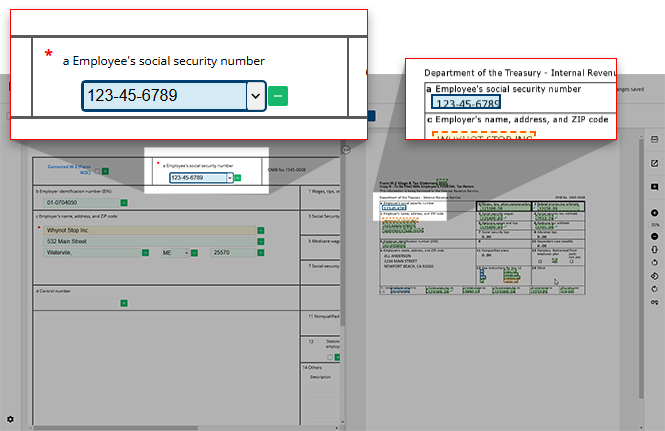
If the value in the field to the left of the screen is incorrect, you can click the
Arrow
icon to open the drop-down menu and select the correct value from those listed.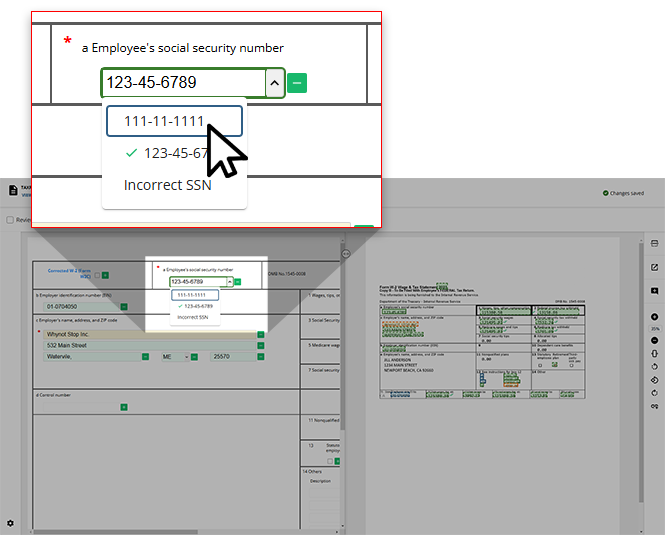
If the correct value is not listed as an option, you can manually type the correct value in the field. When this happens, the highlight within the source document will be updated to green to reflect this update.
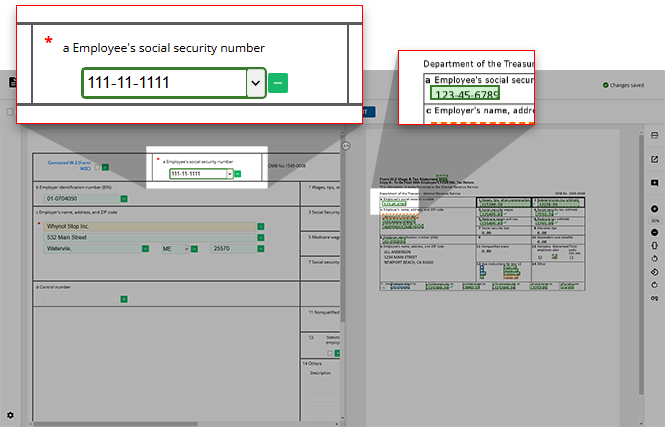
note
You can select a proforma value from the drop-down to revert the highlight to its original blue color.
Reviewing green and yellow values
Green and yellow values have been scanned by the OCR. A green highlight indicates that the OCR is fairly certain the correct value has populated the template value, whereas a field highlighted in yellow is unsure and requires your review.
note
Even though the green highlighted values are fairly certain, users can still review these field if they'd prefer to manually verify these values as well.
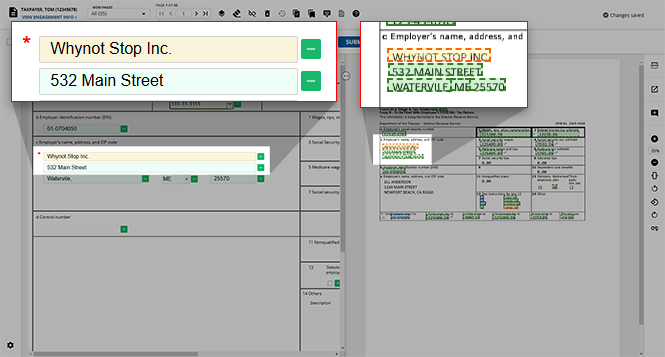
If necessary, you can make any updates to the fields highlighted in yellow to ensure your client's information is recorded accurately. Once updated, a yellow highlight will become green to denote that the value in the field is now certain.
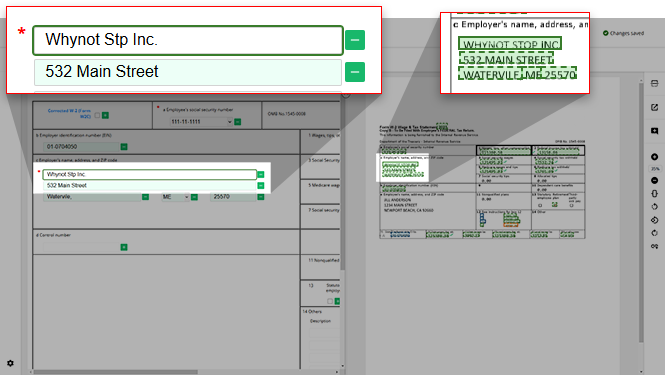
note
You can use the
TAB
key on your keyboard to move between the fields on a template.The amounts/data captured by OCR are verified and ready to export to the tax software.
note
From the Verification Wizard toolbar, you can identify the User-modified fields and auto-verified fields appear as reviewed in SPbinder. This includes fields auto-verified by pre-defined business rules or using the PDF's text layer.
Document type
and Form Type
for a particular document. After completing the verification for the entire page, you can select the Reviewed
checkbox to mark this page as reviewed.Group-verifying amounts
Certain fields of
Consolidated Statements
such as Account Numbers
, descriptions of capital gain transactions, foreign income, SSN, dates can be group verified.For example: If a description for a foreign income is verified the first time in a consolidated statement and it reappears in the same consolidated form, it will get auto-verified (meaning that you will not have to verify it again). This field will be disabled moving forward. All these group-verified fields will now have a blue informational  icon placed next to them. You only need to verify this once on the first page.
icon placed next to them. You only need to verify this once on the first page.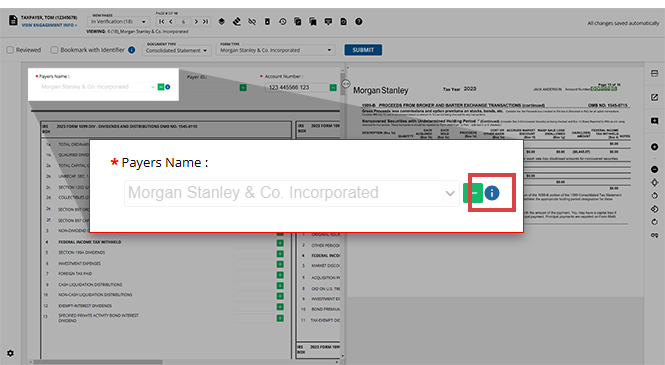
Encountering Superseded documents
A superseded document will be marked with the
SUPERSEDED
stamp on every page, and all fields for these superseded pages will be deactivated.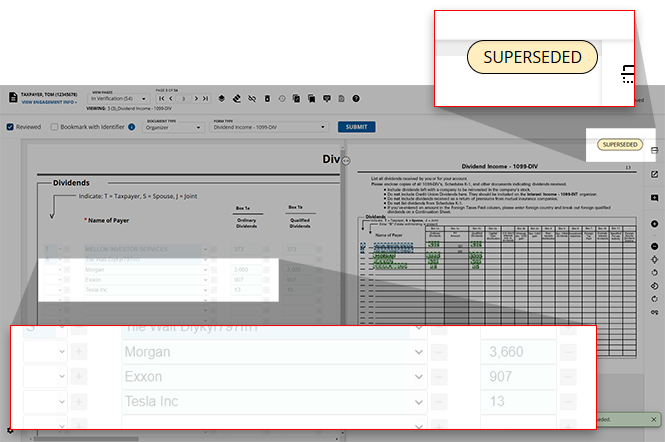
If you want to capture data from a superseded page and unmark it as superseded, you must remove the stamp using the
Bulk Supersede
feature.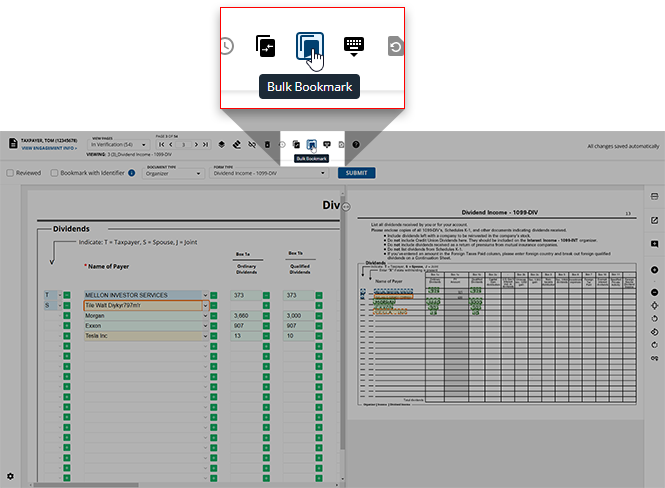
Once the superseding has been removed, the
SUPERSEDED
stamp will disappear and all fields will return to their enabled state.Selecting a placeholder SSN for spouses
If a binder engagement belongs to a client that is married filing jointly and the spouse SSN is missing from proforma, then the Verification wizard will allow you to select a temporary placeholder SSN for the Spouse user. Spouse's SSN placeholder will be 222-22-2222.
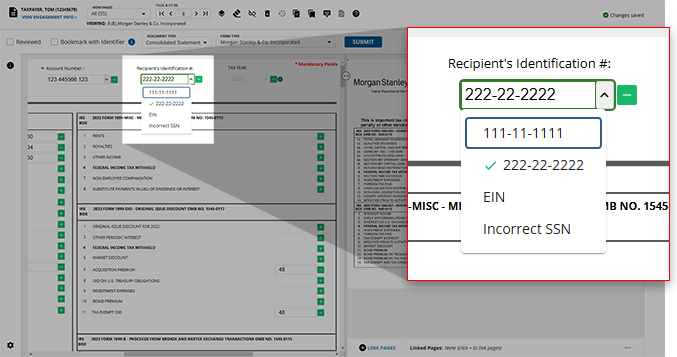
Matching taxpayer SSN records for K-1 form
When reviewing K-1 forms, the Review Wizard will first try to match the
Partner's identifying number
to the proforma SSN saved to their record.If no match is found, the Review Wizard will then attempt to compare the TIN
found in the H2
field of the K-1 to the proforma SSN. If no match is found again, the Partner's identifying number
field will remain blank.
note
Updates made to the
Partner's identifying number
field based on H2
values will be denoted by a yellow banner appearing at the top of the K-1 form.Related Content
-
Step 2 - Verification
Format: Article

