
Skipping the Verification Wizard
When skipping the Verification Wizard, users may encounter the Resolve Fields window, prompting them to review any pending values they may have in the binder. These pending values can be due to unverified fields that require verification, or missing values in required fields altogether.
Follow these steps to skip the verification wizard and submit the client's binder:
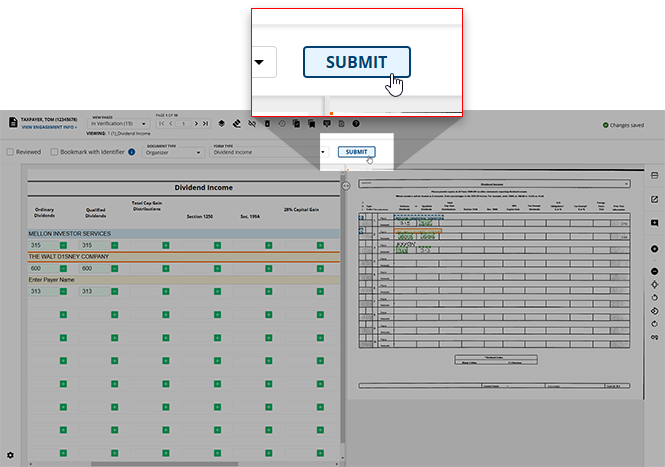
- SelectSUBMITon the Verification Wizard toolbar.
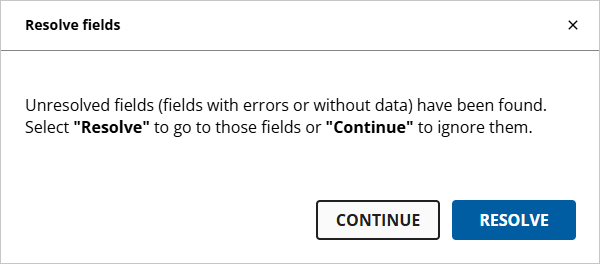
- TheResolve fieldswindow will appear if there exist any fields containing incorrect records (or no records at all). You can selectRESOLVEto be instantly navigated to the unresolved fields. If you'd prefer to proceed with submittingwithoutrectifying these values, you can selectCONTINUEto do so.
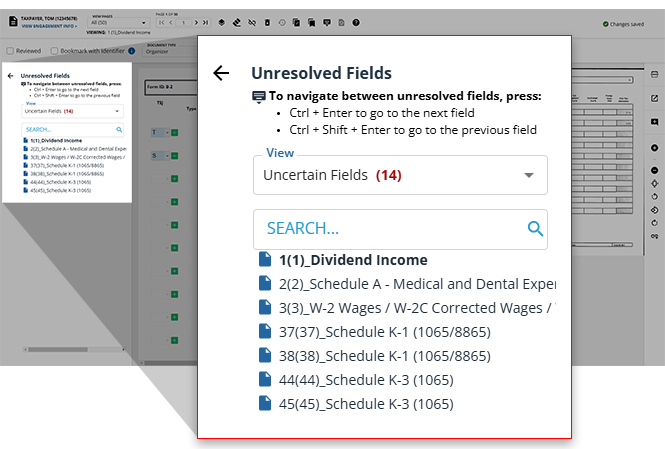
- If you choose to resolve these erroneous values, a list of these fields will appear in theUnresolved Fieldspanel to the left of your screen.
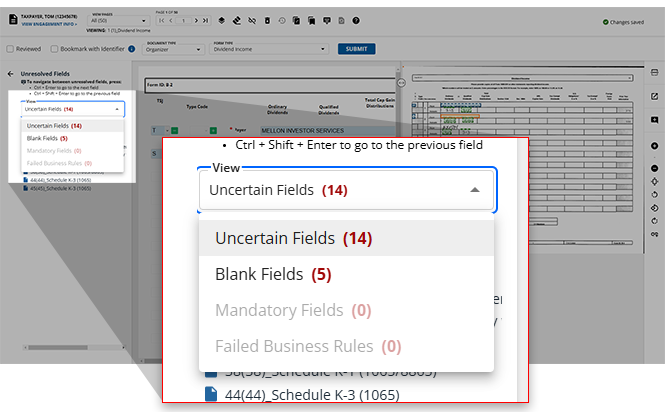
- If you'd like to find a specific value to resolve, you can select a type of unresolved field using theViewdrop-down menu or type the specific document you'd like to resolve into theSEARCHbar.Unresolved field typeDescriptionUncertain FieldsThe OCR is unsure as to whether or not the recorded value is accurate. Please review these values for accuracy, then proceed.Blank FieldsThe OCR failed to capture a value from the source document. Please review these fields and provide values wherever necessary.Mandatory FieldsThe OCR has failed to capture a field that is mandatory for submitting this binder. Please provide these mandatory values before proceeding.Failed Business RulesThe OCR has detected values that have failed business rules (wage discrepancies on a client's W-2, for example).
- The currently selected document will be bolded within theUnresolved Fieldsand the value field will be highlighted in the document template.
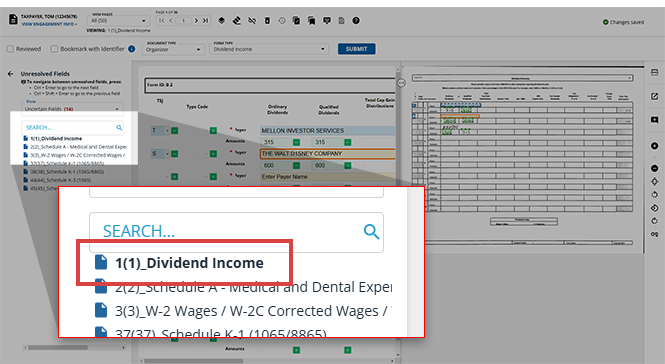
- Once a document is selected, the unresolved value in the template as well as its value in the source document will be selected to highlight the area in need of attention.
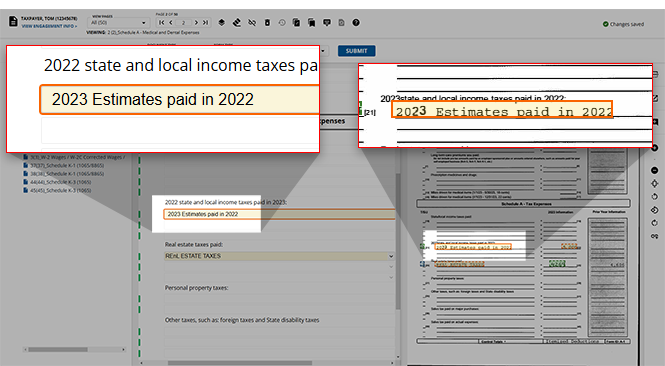
- Compare the value from the template to the highlighted value in the source document, making corrections to the value in the template as necessary.
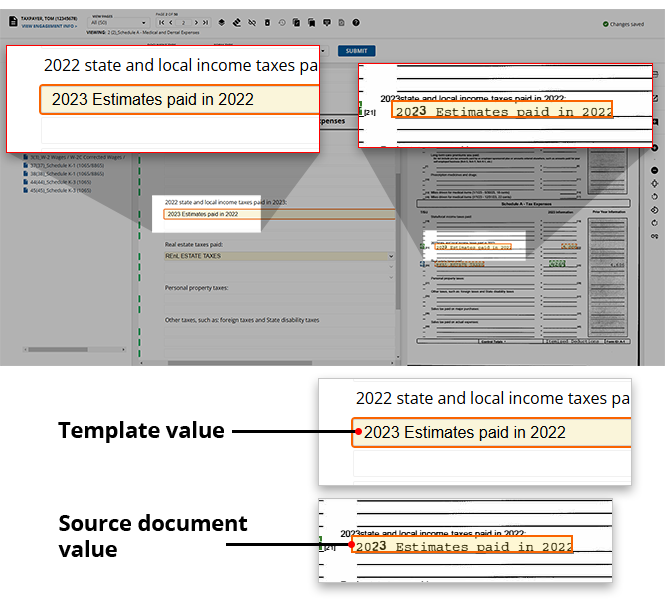
- Make any updates to the unresolved values as you see fit then press theCTRL+.keys on your keyboard to proceed to the next document listed.noteIf you'd like to revisit a previous value, you can press theCTRL+,keys on your keyboard to return to a previous value.
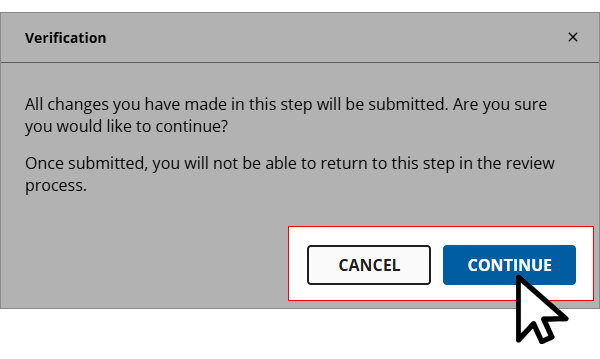
- Once all values have been resolved, theVerificationdialog box will appear asking for final confirmation before submitting this binder.
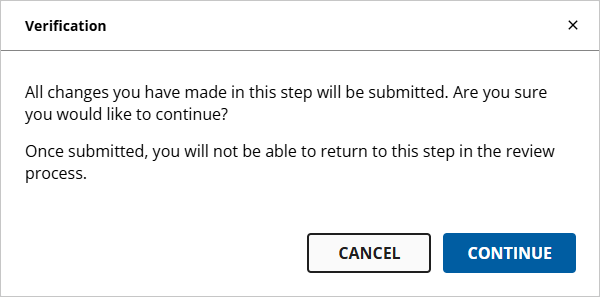
- If you'd like to proceed with submitting the binder selectCONTINUE, if there are any final changes you'd like to make to the document's content selectCANCELto return to the Verification Wizard.
What happens when values are not reviewed properly?
The references of the uncertain fields that were skipped for verification appear with an exclamation on the source document.
In the
Review Tree
(SPbinder), Unreviewed OCR
fields will be displayed with an exclamation mark. Once you review them, the exclamation mark will disappear from both the
Review Tree
and the source document image.Related Content
-
Step 2 - Verification
Format: Article

