
Submitting clients' binders
After verifying all amounts and source document data, you can submit the client's binder to continue to the next step in the Review Wizard process. Before attempting to submit the binder, be sure that all of its pages have been verified.
note
Once a binder is submitted, you cannot return to the Verification step of the Review Wizard process. After reviewing all binder data, select
SUBMIT
to begin advancing to the next step.Once you are certain that all values have been verified for accuracy, select
SUBMIT
in the Verification Wizard toolbar.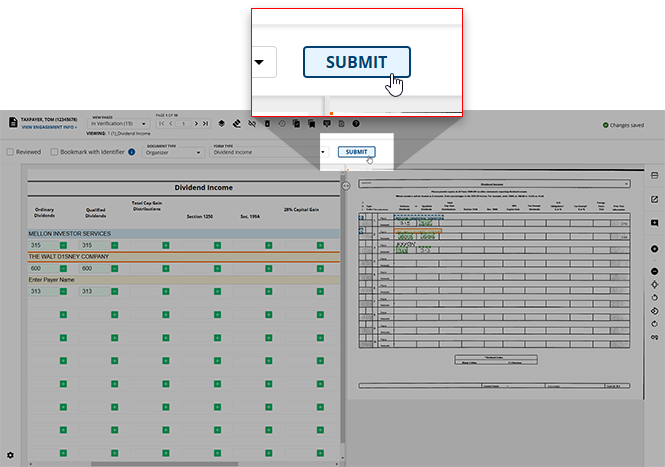
If there are any uncertain amounts in the binder, you'll see the
Resolve fields
dialog box appear to alert you of this. You will have the option to review these uncertain fields on a case-by-case basis. select RESOLVE
if you'd like to review these uncertain values, or select CONTINUE
if you'd like to proceed without. note
Pages marked as
Bookmark with Identifier
, Prior Year
, Not In Proper Order
, or Incorrect SSN
will not trigger the Resolved fields dialog box if the fields are uncertain, empty, mandatory, or do not meet business rules.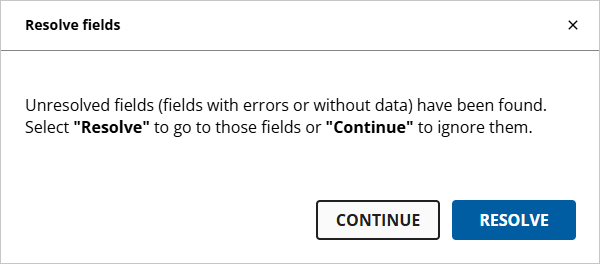
Once you've resolved all uncertain fields and all data has been verified, the
Verification
dialog box will appear asking you to confirm your choice to submit.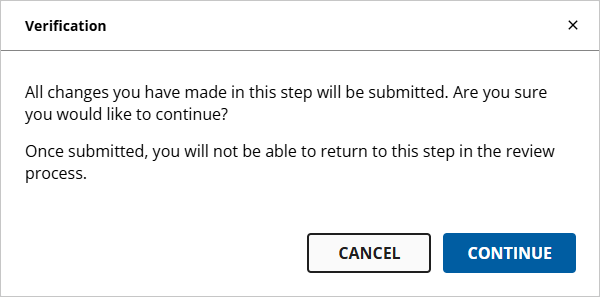
If you'd like to proceed to the next step in the Review Wizard, select
CONTINUE
. If you'd like to remain in the Verification step, select CANCEL
to return to the Review Wizard.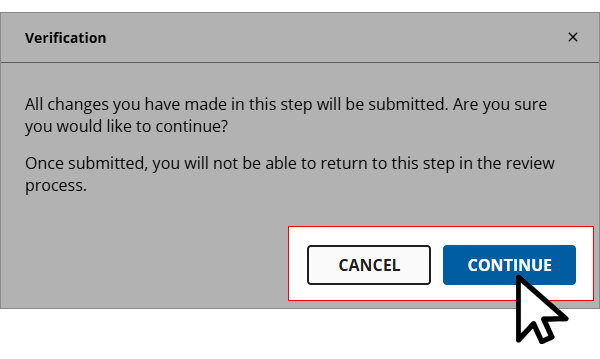
Related Content
-
Step 2 - Verification
Format: Article

