
Working with references
When working on documents, the OCR may have inaccurately captured a source document's data to populate the template. When this happens, users can add and delete references from these source documents in order to properly capture your client's data.
Adding references
If the OCR has failed to capture a value from the source document, you can manually place a reference for the overlooked value.
- To begin adding a reference, select theAdd Reference
 icon next to the field where you would like to add information.
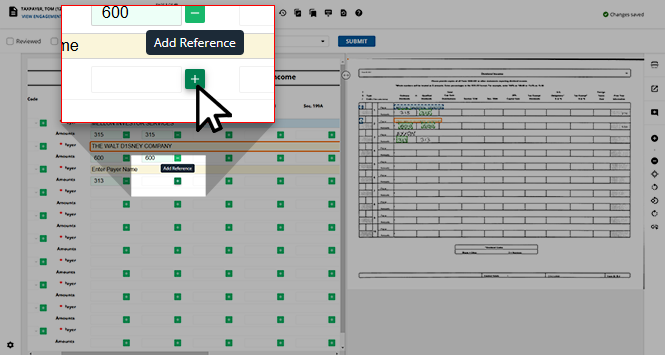
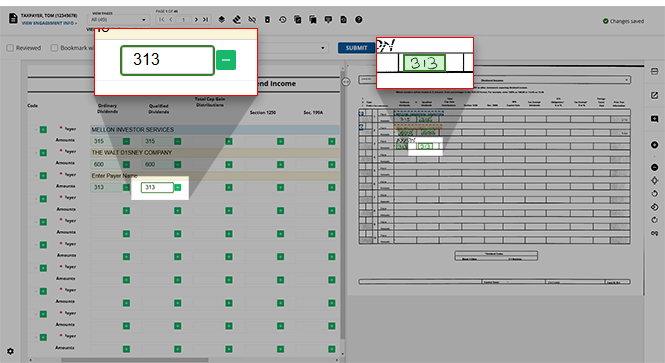
- Move your cursor to the scanned document, click and hold the mouse, and drag your cursor to highlight the amount on the scanned document that you would like to add a reference for. A green highlight will appear on the source document indicating that you've made your selection. The field will become available to edit; enter the information as you see it on the scanned document.
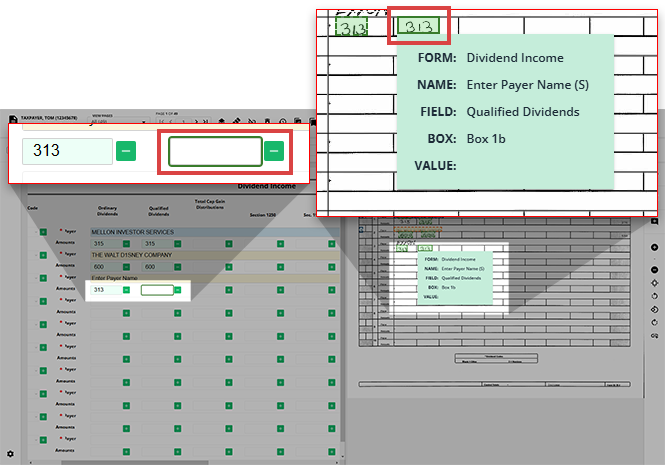 noteYou can place your mouse on the placed highlight to reviewFORM,NAME,FIELD,BOX, andVALUErecords.Select and drag your cursor to highlight the full text on the image. This method is recommended because it uses live capture technology to automatically capture what you highlight on the page.
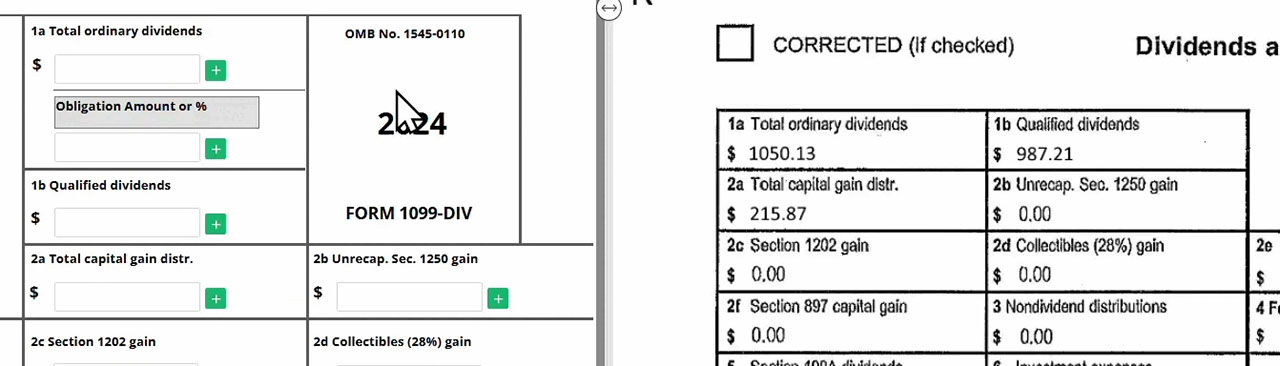 tipYou can click and drag the highlight to move it to another location if it was placed incorrect in the wrong spot.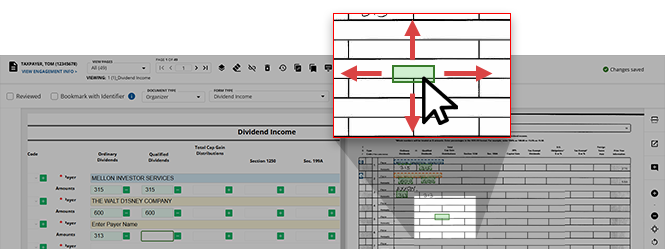
- Navigating back to the template, depending on the section you added a reference to, you can either type a value into the field or select a value from the field's drop-down menu.
Deleting references
If the OCR has erroneously added an unnecessary reference to the template, you can select the  icon on the template next to the intended field. The reference will be removed from the template.
Remove Reference
icon on the template next to the intended field. The reference will be removed from the template.
Alternatively, you can right-click on a reference you'd like to remove and click
Delete Reference(s)
to delete it from within the source document.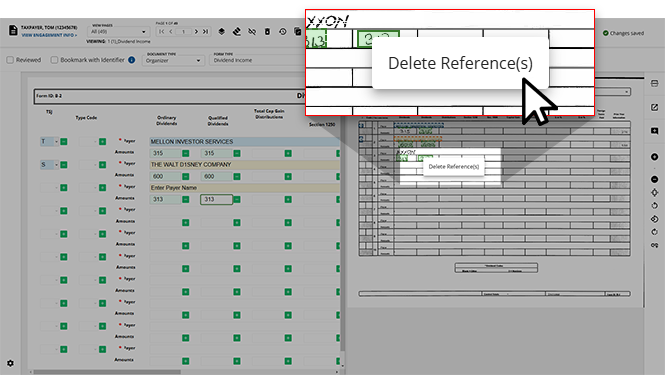
Related Content
-
Step 2 - Verification
Format: Article

