
Step 3 - Superseded Documents
When two or more documents contain duplicate identifier records such as Form Name or Ownership, Review Wizard will flag them as potentially duplicates. When this happens, the Superseded Document step will appear for users to review these cases and mark the necessary pages as superseded.
note
If no duplicate pages were detected, the Review Wizard will skip this step and proceed to the next wizard.
Superseded Documents wizard
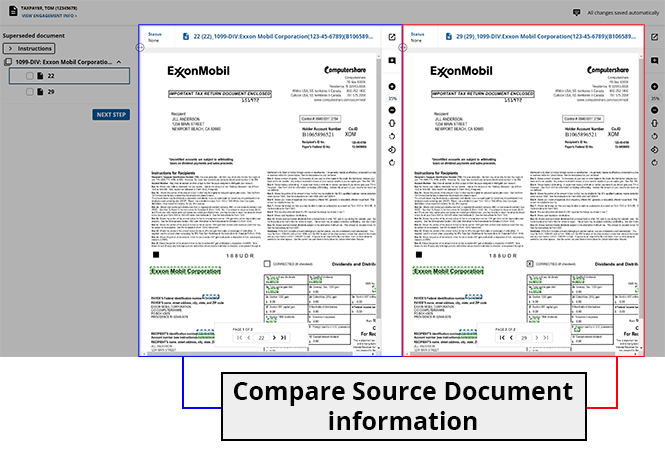
The screen will be segmented into 3 parts: the
Superseded Documents
panel listing the pages that were flagged as potentially duplicates, and the 2 document viewer panels to compare the flagged pages.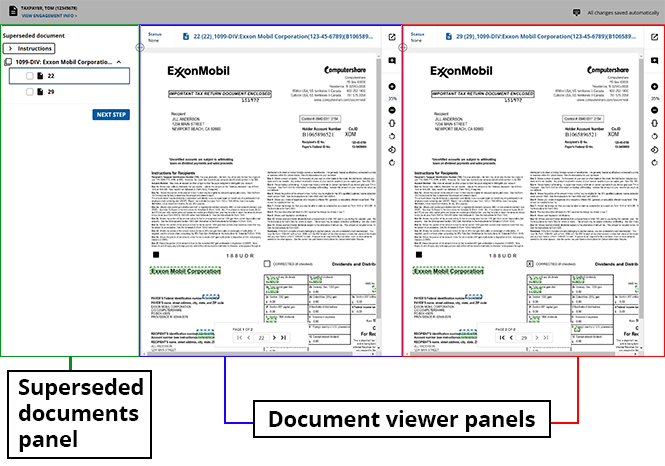
To view the shortcut keys for this review wizard, select the  .
.
Keyboard Shortcut
icon .note
A summarized version of instructions will appear in the 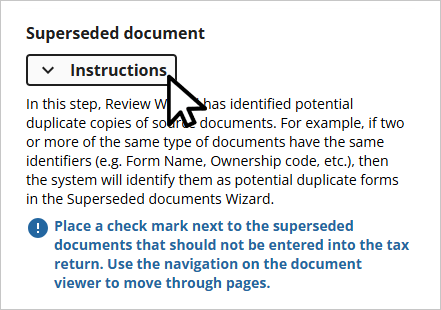
Superseded Documents
panel. You can review these instructions, then select the -/+ icon to collapse or expand these instructions and make space for more pages.
The pages that Review Wizard believes to be duplicates will be sorted based on their  icon for a given
Form Type
and listed in the Superseded Document
panel to the left. You can select the Arrow
icon for a given Form Type
to collapse this folder and view another one.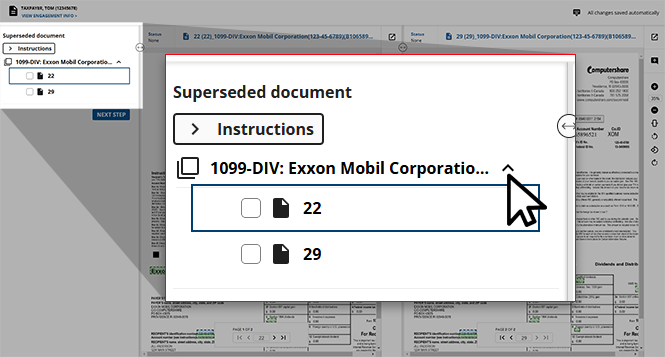
Marking pages as Superseded
After locating a
Form Type
that you would like to review, you can select the page number you'd like to review first. This selected page will become bolded in the Superseded Documents
panel and will appear in the left-most document viewer panel.note
Duplicate pages will be listed next to each other in the
Superseded Documents
panel.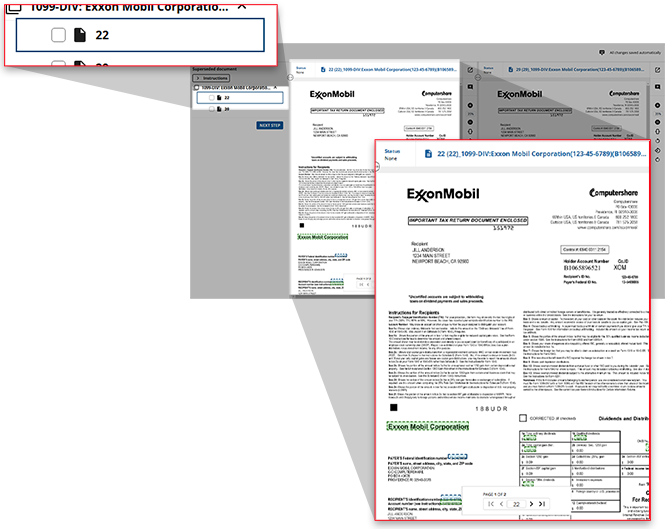
Once the duplicate pages are next to each other, you can compare each document's values to ensure that they are indeed duplicates of each other.
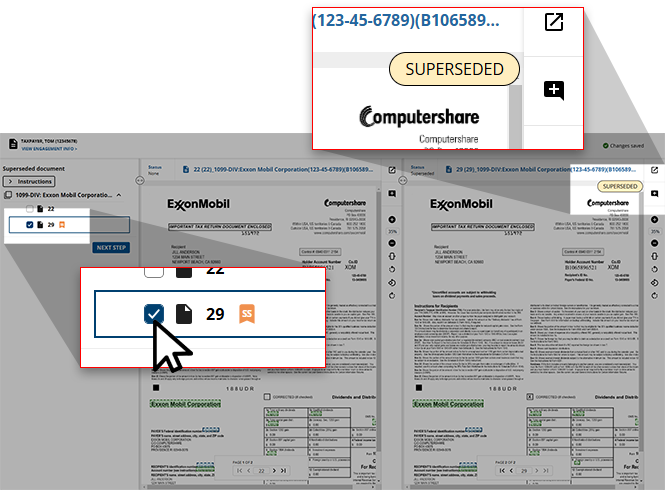
If you deem a page a duplicate, select the checkbox next to this page in the  badge will appear next to this page to indicate that this is superseded.
Superseded Documents
panel. This will mark the page as SUPERSEDED
in the document viewer panel, and the SS
badge will appear next to this page to indicate that this is superseded.note
Data from superseded documents is not entered into the tax return.
All forms marked as
SUPERSEDED
by the system are bookmarked in the Superseded Documents
category under the Unused
category of the DreamWorkpapers. In case of forms that are auto-duplicated and marked as SUPERSEDED
, then such forms are associated under the Superseded Documents
section of the Unused
node in SPbinder.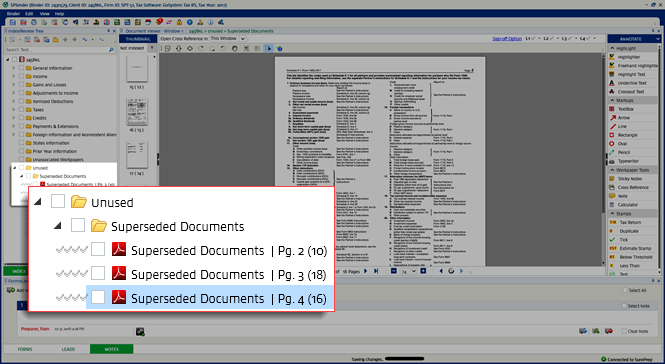
note
The data from the pages associated under the
Superseded Documents
folder gets deleted from all areas of the SPbinder like leadsheets.For In-house verification, select to refer to the matrix that will guide you on handling the documents appearing in this wizard.
Update field value
If you erroneously made a verification error in the
Step 2 Verification
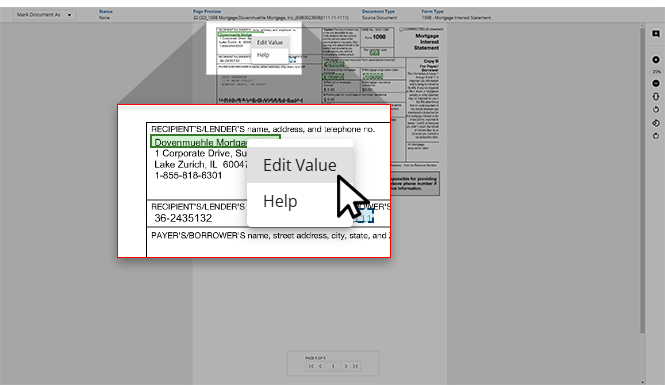
wizard then you now have the ability to correct the field or value in post-verification wizards like Superseded Documents, CFA (Child Form Association), Duplicate Data, NFR (New Form Review), and Tax Exempt Income.- To update the field in post-verification wizards, go to the document you'd like to update in the document viewer panel.
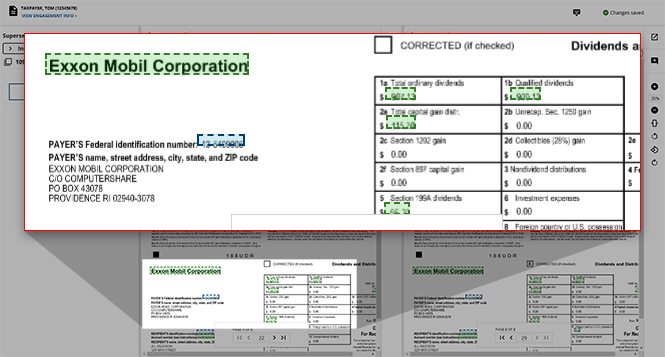
- Right-click the field that you want to update, then selectEdit Value.
- TheEdit Valuewindow will appear. Here, you can review theFORM,FORM NAME, andFIELDfor further context.
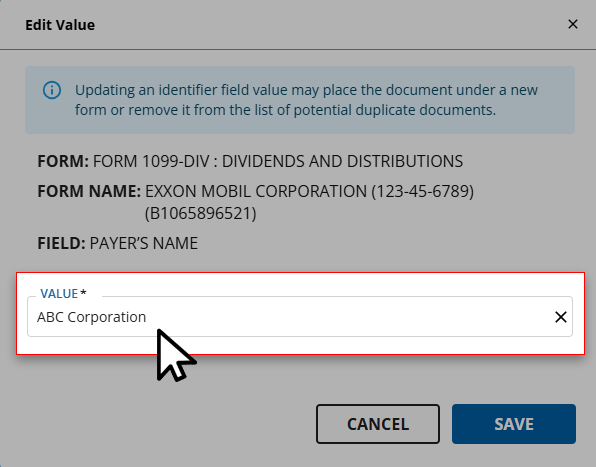
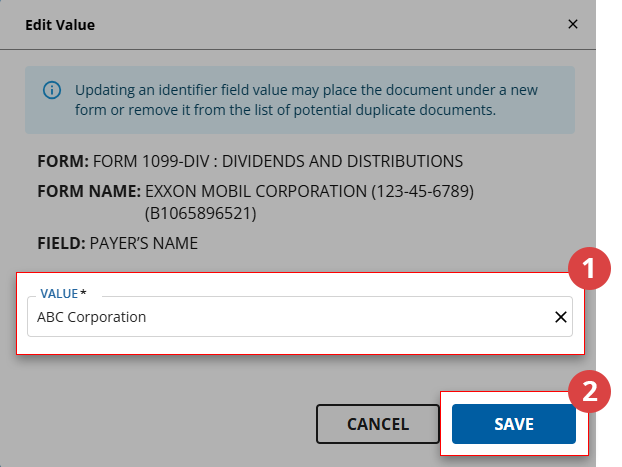
- Once the correct value is provided to theVALUEfield, selectSAVEto save your changes and return to the wizard.
What's next?
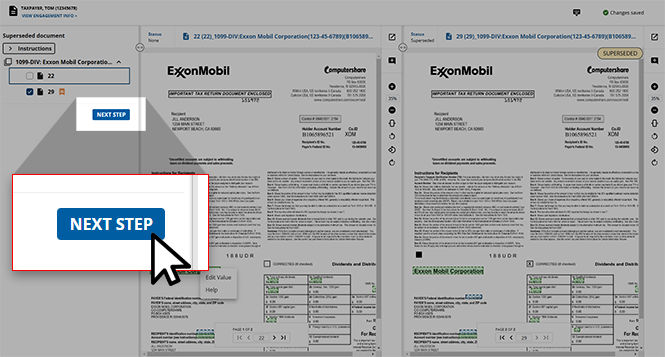
Once all of the values have been verified for accuracy, this binder is ready for the next step - Verification. Users can click
NEXT STEP
at the bottom of the screen to move this engagement to the next wizard.note
Once a binder advances to the next step, it cannot return to the Superseded documents wizard, so confirm that you are ready to proceed.
Related Content
-
Step 2 - Verification
Format: Article
-
Step 4 - Child Form Association (CFA)
Format:
Article

