Launching Review Wizard after creating a binder
You can open the binder in Review Wizard after you send the source documents (PDF files) for OCR pre-processing in the
Create New Binder
window. After the binder is uploaded, you will need to wait until OCR finishes processing and the status changes to In Verification
.Next, point to the  icon to open the Review Wizard.
OPTIONS
column until you see the icons appear, select the Open
icon to open the Review Wizard.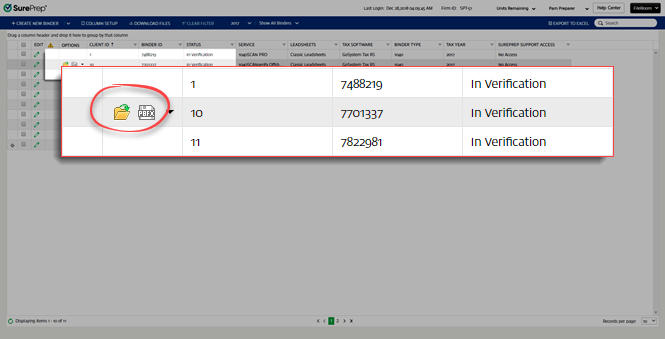
You can only view the Review Wizard while the binder status is
In Verification
and you submitted a 1040SCAN PRO service binder.note
If the binder is either in Image Conversion or Porting or in OCR pre-processing, then the icon will be deactivated and the status column will display
Open
icon will be deactivated and the status column will display SP Processing
. Once the download process is complete, you can open the .pbfx file from your browser's download window or your default download folder.

note
In Chrome, select
Always open files of this type
to automatically launch the binder or Review Wizard next time you attempt to open the document.The
1040SCAN Review Wizard
window will appear. The Review Wizard is split into separate wizards that will help you verify the binder. You can then review work done by OCR pre-processing.note
You may need to set the PBFX to open SPbinder. If you're unable still not able to open the binder and the binder status is
In Verification
, please contact SurePrep Support.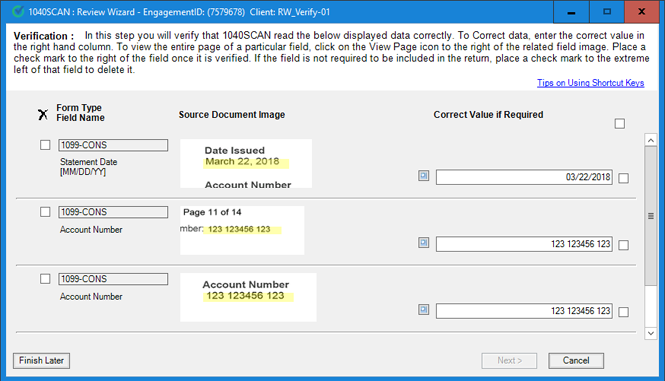
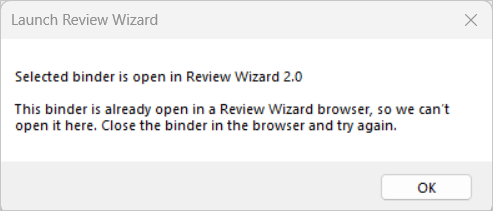
Selected binder is already open
When trying to open a binder in Review Wizard on desktop, you may see a warning indicating that the selected binder is already open in Review Wizard on Web:
"
This binder is already open in a Review Wizard browser, so we can't open it here. Close the binder in the browser and try again.
"When this happens, you must reopen it once the binder has been closed elsewhere.