
Skipping selected review steps
Follow these steps to specify which review steps should be skipped:
note
The
Pre-Verification wizard
(step 1) cannot be excluded from the review process because it appears when OCR is uncertain of the data.- Go toFileRoom,Admin, thenReview Wizard.

- Locate theSkip Selected Review Stepssection.
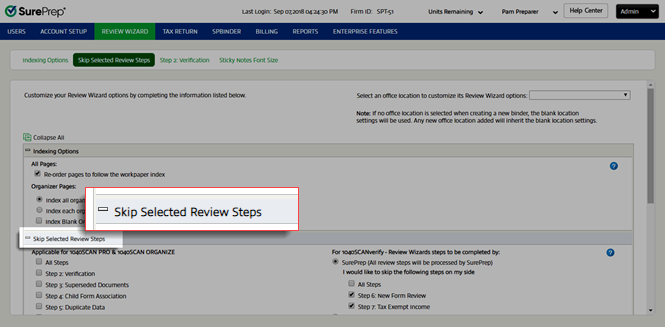
- UnderApplicable for 1040SCAN PRO & 1040SCAN ORGANIZE, select the check boxes next to the review steps that you'd like to skip when using1040SCAN PROor1040SCAN ORGANIZE.noteIf you skipStep 2: Verification, theStep 2: VerificationandSticky Note Font Sizesections in the Review Wizard options will be hidden.

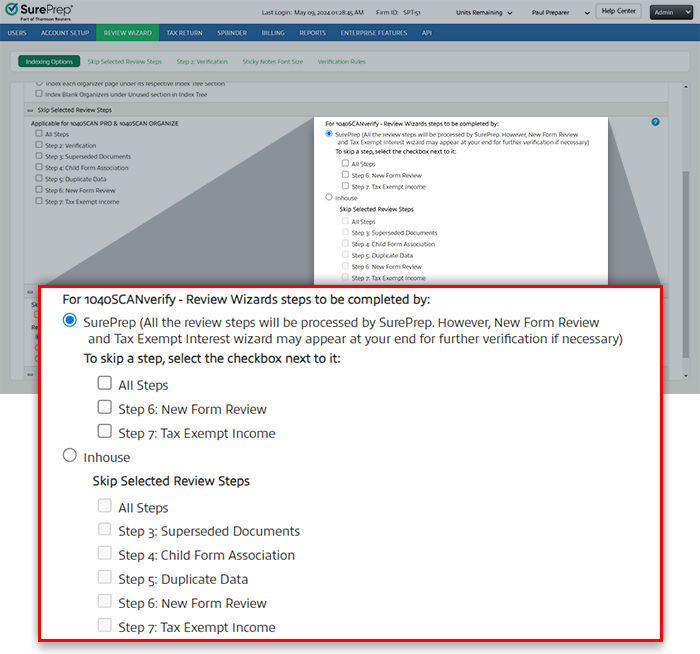
- UnderFor 1040SCANverify – Review Wizards steps to be completed by, select whether you would likeSurePrepto process the post-verification review steps or you would like to complete verificationin-house.
 noteIn the New Form Review (NFR) step, SurePrep verifiers (i.e. 1040SCANverify service) may leave some documents unmatched if a clear match cannot be found. However, if your firm has chosen to skip the NFR step, the unmatched forms will be added as a new entity in theINDEX TREEtab in SPbinder. The data exported to the tax software will appear as a new form instead of populating the existing proforma form. To avoid this, we do not recommend skipping the NFR step or exporting the data automatically.
 - If you selectedSurePrep, all the review steps after verification will be processed by SurePrep. However, in some instances, theNew Form ReviewandTax Exempt Interestwizards may appear at your end for further verification if necessary. You can select the checkboxes to skip the review on your side, however, we recommend not selecting the checkbox to skip these steps.
 You can also choose to auto-export binders to the tax software after they have been verified by SurePrep.
 - For binders without Leadsheets, if you select the checkbox to skip the review on your side, the data will auto-export directly to the tax software. As a result, some documents data may not export to the desired location in the tax software. We recommend not selecting the checkbox and reviewing the matched data inNew Form Reviewstep.
- If you selectedInhouse, underSkip Selected Review Steps, select the steps you'd like to skip. SurePrep will process only thePre-Verificationwizard (Step 1) andVerificationwizard (Step 2).


