
Disassociate documents
When you disassociate documents from templates, it deletes all data from the page and its associated template. To disassociate a document individually, delete the data on the page and change the document or form type. If you captured incorrect form types and need to remove multiple pages, disassociating pages in bulk can save time.
Disassociate documents individually
- SelectDelete Page Data
 to delete all the captured data on the template.

- SelectYeson the confirmation window to delete all the references on the page.

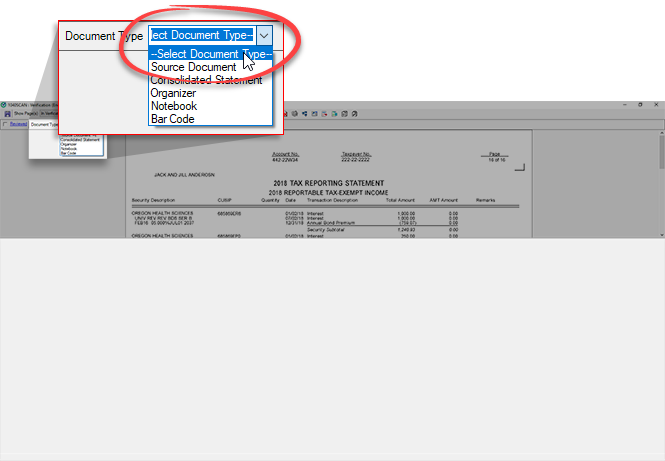
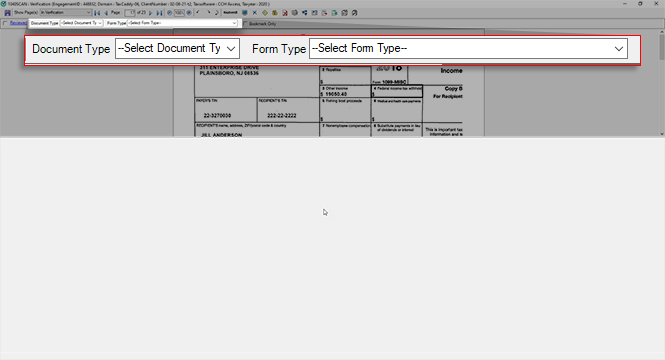
- You can change theDocument typetoSelect Document Typeto remove the template from the page after you remove the data.
Disassociate documents in bulk
- SelectBulk Disassociate
 to disassociate multiple documents at once.

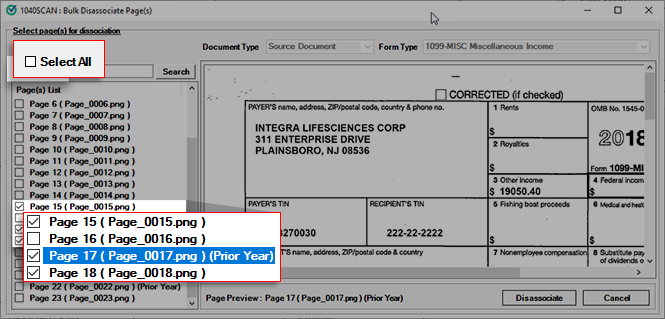
- Select the checkbox next to the pages you want to disassociate. You can also useSelect Allto select all pages at once.
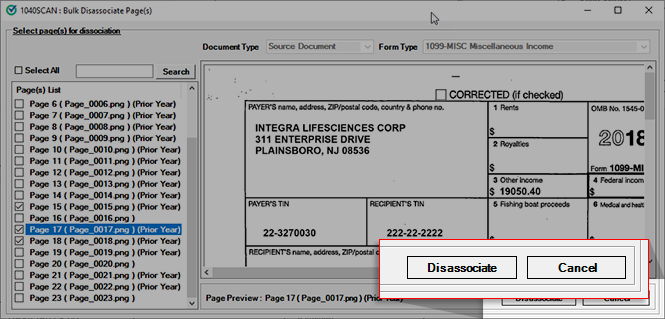
- SelectDisassociateto remove the page data and template from the selected pages.
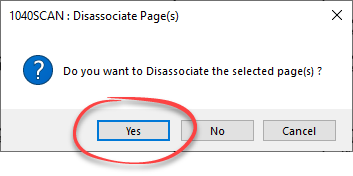
- SelectYesto disassociate the selected pages.
- All page data and the associated template will be removed from the page/document.
Related Content
-
Step 2 - Verification
Format: Article

