
Replicate templates
The
Replicate Template
feature lets you copy or add data from 1 page to another page. You can use this feature to replicate templates, which is useful when working with multi-page documents, such as 1099 Consolidated Statements or Schedule K-1. If a template is missing from 1 or more pages, you can copy it from another page. This eliminates the need to select each document type, form type, and identifier for each page.
The replicated feature copies the following:
- Document type
- Form type
- Identifier data (name, SSN, account number)
- Certain non-identifier information like the tax year.
Follow these steps to copy template and identifier data from 1 page to another:
- SelectReplicate Template
 .
.

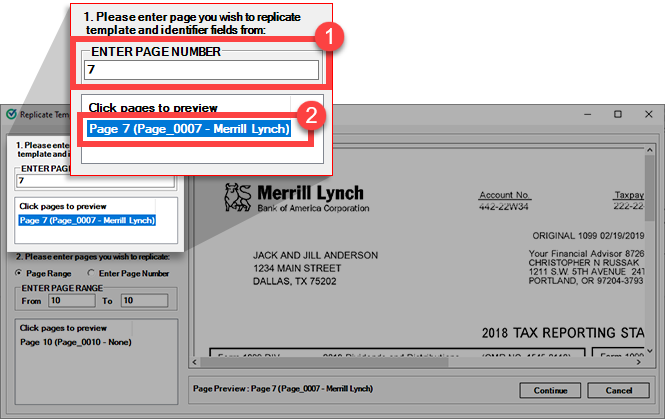
- On theReplicate Templatewindow, under Step 1, enter the page number for the origin page you want to copy the template from, then pressEnter. In the preview section, you can select the page to see the page preview.
- Select pages in a certain range or select the pages manually.
Select pages in a certain range
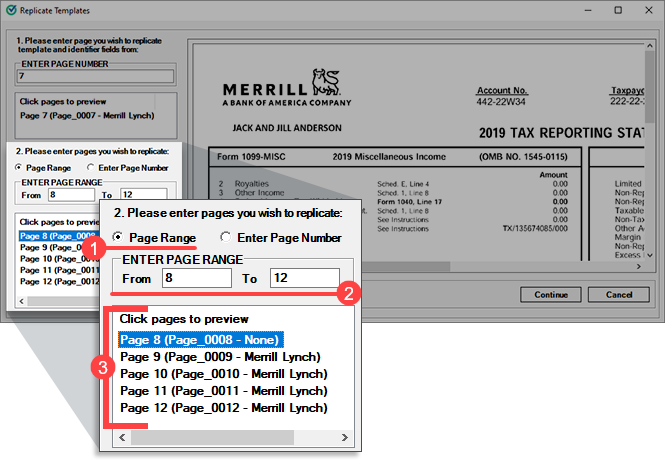
- Select thePage Rangeoption if you want to copy the template to multiple pages at once.
- Enter theFromas a starting page andToas an end page. Template and identifier fields will be copied to all the pages in that range.
Select pages manually
- SelectEnter Page Numberif you only want to copy the template to selected pages only.
- In theENTER PAGE NUMBERfield, enter the page number where you want to replicate the data.
- You can select multiple pages by entering a comma between page numbers.
- Example: 8,10,12 will only select pages 8, 10, and 12.

- SelectContinue.
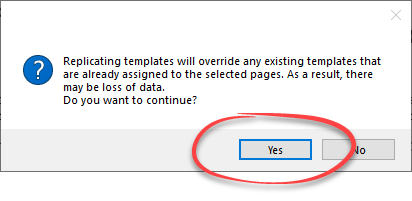
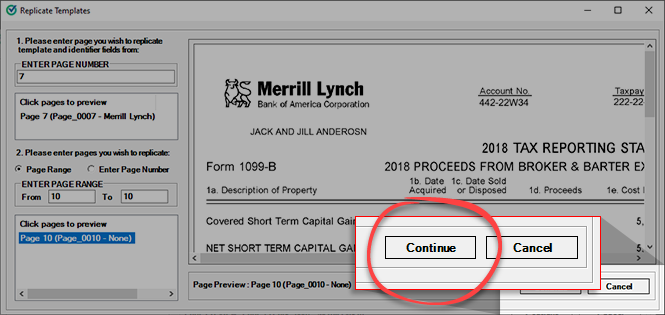 noteReplicate templates will override any existing templates that are already assigned to the selected pages. As a result, there may be a loss of data.
 - On the confirmation window, selectYesto continue.
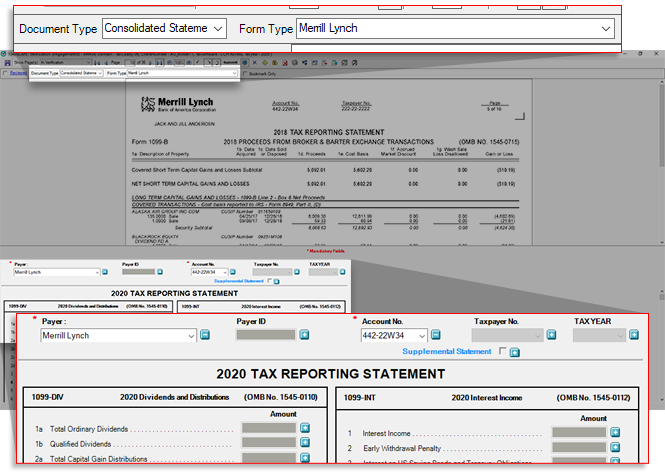
- TheDocument Type,Form Type, and identifier fields data (Name, SSN, Account Number) will be added to the page.
Related Content
-
Step 2 - Verification
Format: Article

