
Restore OCR data
In the Verification Wizard, you can use
Restore OCR
to retrieve deleted or modified data from a page template. This restores the template to its original state, as it was initially captured in the OCR. You can use
Restore OCR
to recover data in situations where you have accidentally deleted information from all fields or pages. This helps you correct mistakes by restoring original information that you may have inadvertently updated. Follow these steps to Restore OCR data back to the template:
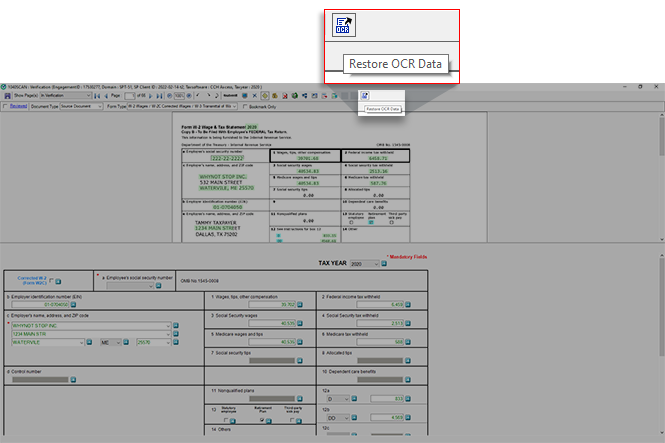
- Select theRestore OCR Dataicon.
- Select the checkbox for pages you want to restore the data for.
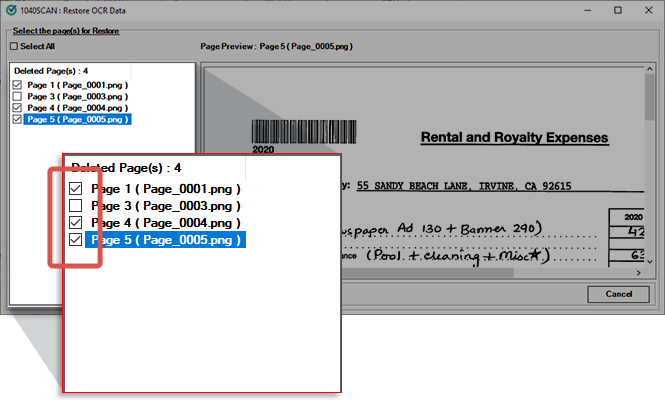 noteRestore OCR Data will undo any modifications you may have made to the selected page template and override them with the original OCR data.
 - On theRestore OCR Pagesconfirmation window, selectYes.
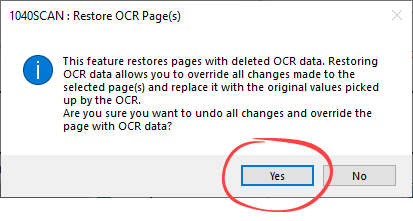 After confirmation, the selected page template will restore back to the original form.
Related Content
-
Step 2 - Verification
Format: Article

