
Step 3 - Superseded Documents
This
Review Wizard
step identifies potentially duplicate copies of source documents.
If two or more documents have the same
Form Name
and belong to the same individual, then they are identified as potential duplicate forms.To view the shortcut keys for this review wizard, select
Tips on Using Shortcut Keys
.
Select the checkbox next to the superseded document (that is, the one that is not going to be entered into the tax return). This will add the text
(Superseded)
after the document’s page number.
note
To view the source document, double-click on the page or press
F1
. To close the source document viewing window, select Close
or press Esc
. Multiple documents can be opened simultaneously. Data from superseded documents is not entered into the tax return.
Select
Cancel
or press Alt
+ C
to close the Review Wizard
without saving any of the work performed.Select
Finish Later
or press Alt
+ F
to close the Review Wizard
after saving all of the work performed.Select
Next
to continue or press Alt
+ N
.All forms marked as
Superseded
by the system are bookmarked in the category Superseded Documents
under the Unused
category of the DreamWorkpapers.
In case of forms that are auto duplicated and marked as
Superseded
, then such forms are associated under the Superseded Documents
section of the Unused
node in SPbinder.
note
The data from the pages associated under
Superseded Documents
folder gets deleted from all areas of the SPbinder like leadsheets. For In-house verification, refer to the matrix that will guide you on handling the documents appearing in this wizard.
Update field value
If you erroneously made a verification error in the
Step 2 Verification
wizard, then you now have the ability to correct the field or value in post verification wizards like Superseded Documents
, CFA (Child Form Association), Duplicate Data, NFR (New Form Review), and Tax Exempt Income.To update the field in post verification wizards, double-click the document to view the source document in the
Document Viewer
window.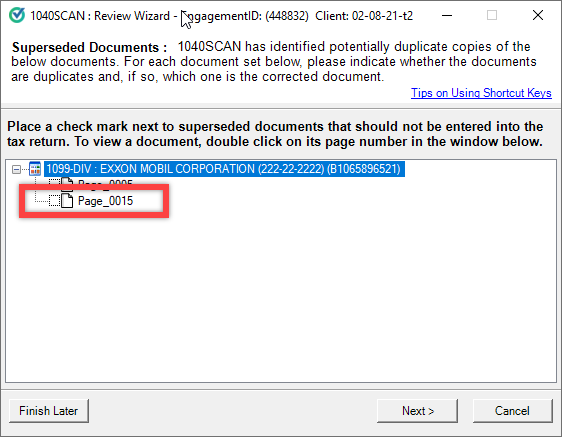
Right-click the field that you want to update, then select
Edit
on the shortcut menu.
On the
Edit
window, select or enter the correct value then select Save
.Example 1:

Example 2:

Related Content
-
Review Wizard overview
Format: Article

