
Add SurePrep barcode from TaxCaddy
SurePrep lets you place barcodes on uploaded 1040 documents that require special treatment from SurePrep. You can stamp a document with a barcode directly from TaxCaddy without manually downloading the document first. When a binder is submitted for verification, SurePrep's verifiers will process stamped documents based on the barcode type.
note
SurePrep doesn't review auto-verified (Native PDF) pages during verification unless they appear for review. You can add SurePrep barcodes on pages that require special attention from SurePrep.
Follow these steps to add SurePrep barcodes to uploaded documents in TaxCaddy:
- Select a client tile from theOverviewscreen.
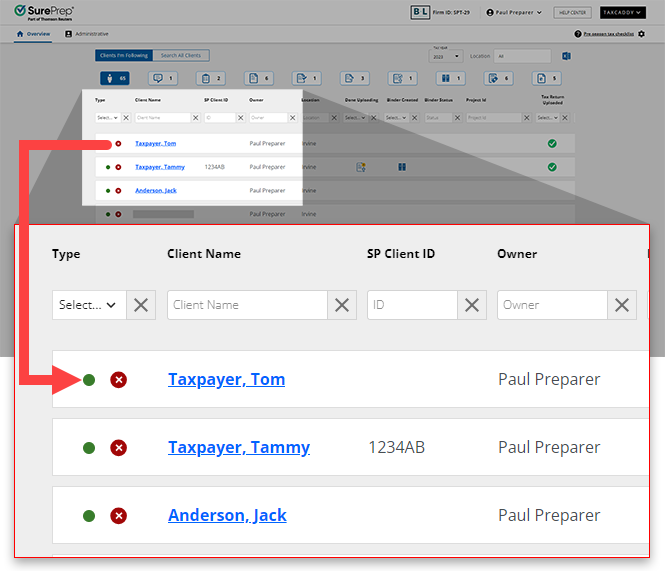
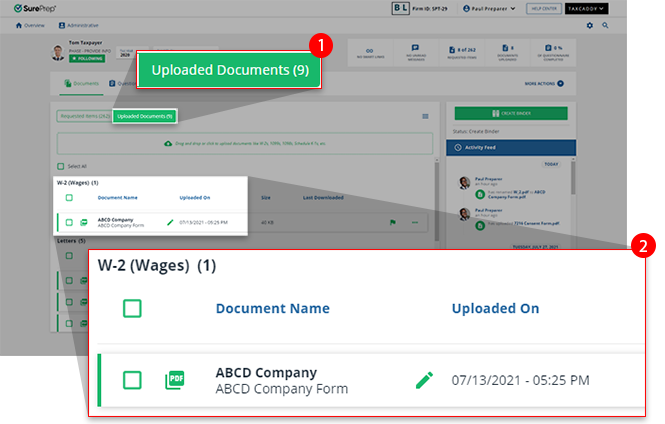
- SelectUploaded Documents. then the document tile.
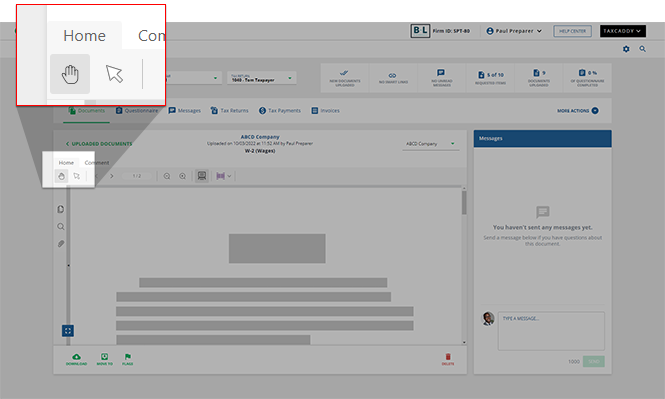
- Select theHometab it is not selected by default.
- Select theBarcode
 icon on the navigation bar.
noteTheBarcode icon will only appear in the navigation bar for uploaded 1040 documents. Barcodes can't be placed on 1041 documents.
icon on the navigation bar.
noteTheBarcode icon will only appear in the navigation bar for uploaded 1040 documents. Barcodes can't be placed on 1041 documents.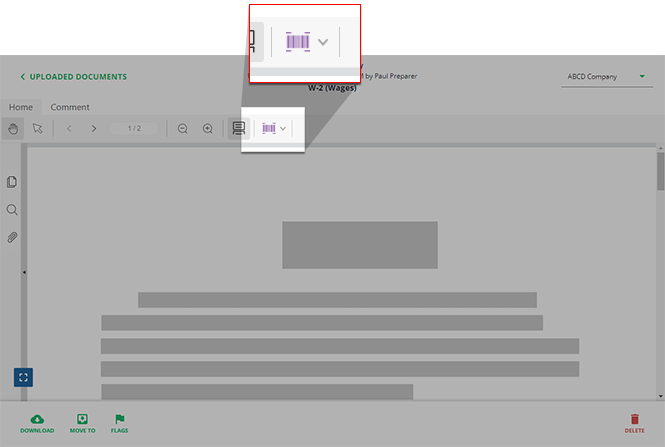
- Select the barcode from the dropdown.
 noteDon’t place barcodes on non-standard documents not supported by SurePrep. Non-standard documents will appear in SPbinder's Thumbnail panel as a Not Indexed document.
 - Select the area of the document you want to place the barcode.
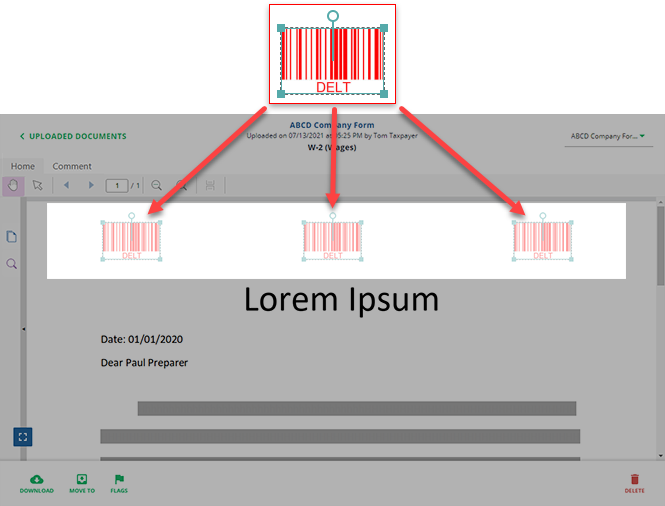 A notification will appear alerting you of the barcode placement.
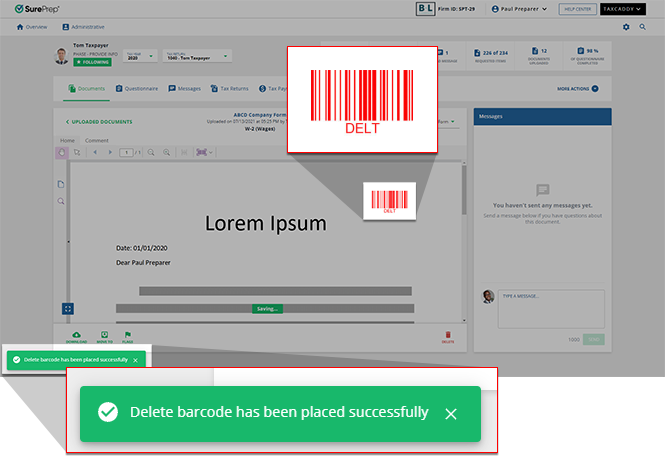 Place the barcode in the top 20% of the document. A notification will appear on your screen if the barcode is placed too low.
- If you need to move the barcode to a different area of the PDF, you can select the barcode and drag it to a new location.
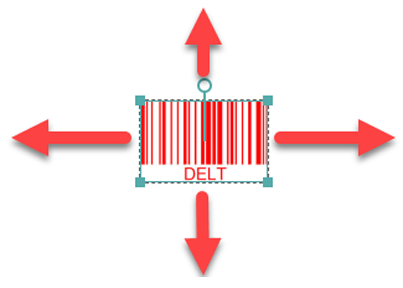 SurePrep is distributing the smallest barcode size that OCR can capture. Making the barcodes smaller may prevent OCR from capturing them.
 - To delete a barcode from the page, select the barcode, then press theDeletekey on your keyboard.
note
A barcode placed on a fillable form will be flattened when it gets submitted through TaxCaddy.
Related Content
-
SurePrep PDF Barcodes
Format: Article

