
Auto Export 1040SCANverify Onshore/Offshore binders
You can choose to auto-export 1040SCANverify binders to GoSystem Tax RS/CCH Axcess Tax after they’ve been verified from SurePrep. Once enabled, the data automatically exports to the tax software without manually selecting the option at the end of the Review Wizard.
note
To enable auto export, please contact SurePrep Support.
Prerequisites
To auto-export, the binder must meet the following criteria:
Settings | Details |
|---|---|
Firm Setting: | Contact SurePrep Support to enable auto-export for your firm. |
Services: | 1040SCANverify Onshore/Offshore. |
Leadsheet types |
|
Binder type | 1040 or 1041 |
Tax software | GoSystem Tax RS or CCH Axcess tax software |
Admin | Enable the option to skip All Steps on the Review Wizard. |
Navigate to
Admin
, Review Wizard
, then select the office location you would like to auto-export from. The settings you apply to the office location will apply to binders created from it.
Scroll down to the
Skip Selected Review Steps
section, then select the All Steps
checkbox.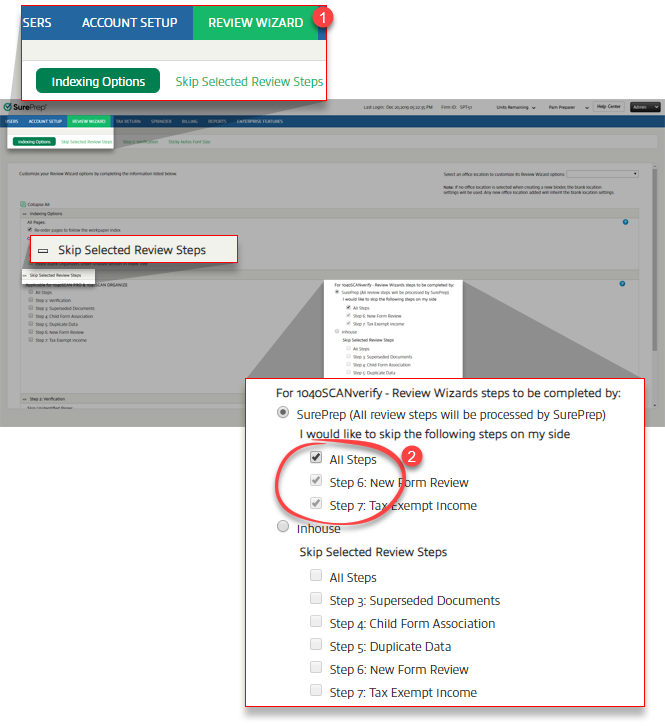
note
In the New Form Review (NFR) step, SurePrep verifiers (1040SCANverify service) may leave some documents unmatched if a clear match can't be found. The unmatched form will be added as a new entity in the
INDEX TREE
tab in SPbinder. Additionally, if you have opted to automatically export data to the tax software, the exported data will appear as a new form in the tax software instead of populating the existing proforma form. To avoid this, we don't recommend skipping the NFR step or exporting the data automatically.Auto Export Binders using SurePrep API
If you are using SurePrep API to automatically export binders to the tax software, then follow these steps in addition to those above:
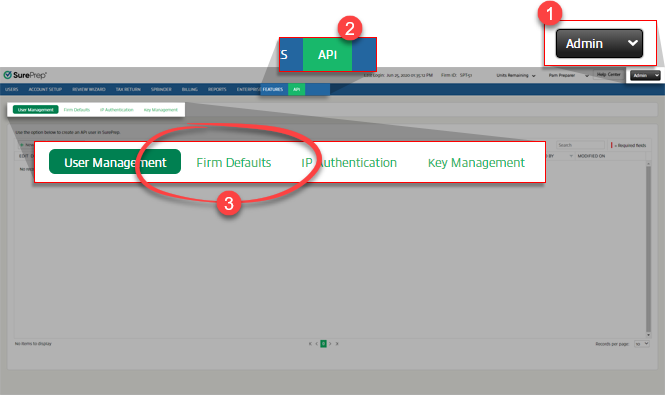
Go to
Admin
, API
, then Firm Defaults
.
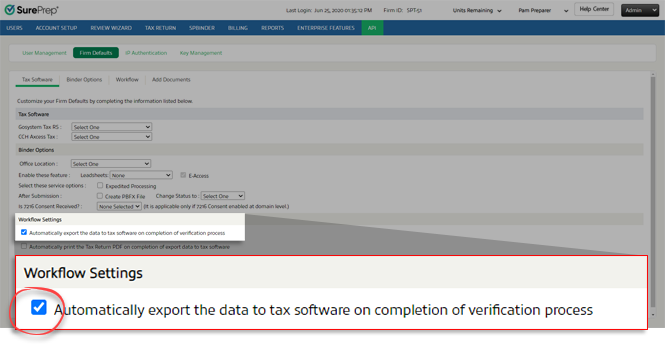
Select the check box for
Automatically export the data to tax software on completion of verification process
.
Additional Notes:
- Auto export and print functionality is enabled exclusively for the 1040SCANverify services with CCH, GoSystem, and UltraTax tax software.
- API Workflow Settings for auto-export override general FileRoom settings.
Summary
FileRoom submission
Service | Enabled by Default | Classic Leadsheets | Simplified Leadsheets | None (Without Leadsheets) | Tax Software |
|---|---|---|---|---|---|
1040SCANverify | No | No | Yes | Yes |
|
API submission
Service | Enabled by Default | Classic Leadsheets | Simplified Leadsheets | None (Without Leadsheets) | Tax Software |
|---|---|---|---|---|---|
1040SCANverify | No | Yes | Yes | Yes | CCH Axcess Tax |

