
Create verification rules for specified fields
Creating verification rules for specified fields allows your firm to control how certain documents are handled based on field level configurations. For example, if you don't want to capture Bond Premium on a Consolidated Statement then you can set a rule that blocks OCR and verifiers from capturing the field. You can set rules not to capture a field, exclude dependent documents, export to Schedule A, or bookmark a document when a specific field is captured in the Review Wizard (Step 2 Verification). Setting verification rules help save time and prevent errors.
Create Verification Rules for specified fields
Follow these steps to create verification rules on the Admin screen:
- Go toFileRoom, Account Admin, Review Wizard, then Verification Rules.

- On the office location menu to the top right, select the office location that the rule will apply to. Select the blank option if you want to set a default rule for all office locations. For example, if you want to set a rule for the Los Angeles office location, then select Los Angeles from the dropdown menu.

- SelectSpecified Fields, then selectAdd New.

- On the row, select which binder type the verification rule applies to based onSERVICE TYPE, TAX YEAR,RETURN TYPE, andTAX SOFTWARE.

- Next, select theDOCUMENT TYPEthat the verification rule should apply to.
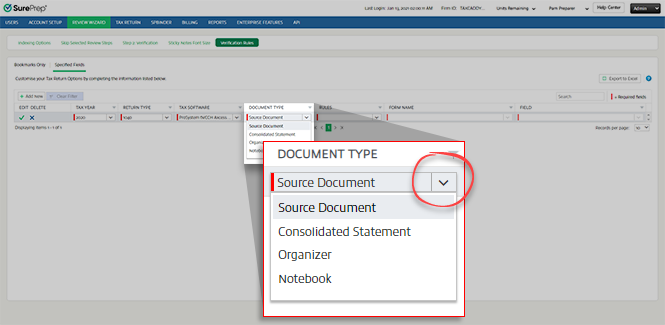
- On theRULEScolumn, select which of the following rules you want to apply:RULESDESCRIPTIONDo not capture(field)Disables the selected field from being captured in the Review Wizard.For example, you can select this option if you don’t want the verifier to capture Bond Premium on a consolidated statement.Exclude dependent documentsExcludes dependent documents and marks the document as Incorrect SSN in the Review Wizard. The rule activates when the SSN field on the document doesn’t match the taxpayer or spouse.Export to Sch-AExports data from a specific field (Line 13: Other deductions) to Schedule A. Applicable to Schedule K-1.Bookmark document when field capturedMarks the page asBookmark Onlywhen a specific field is captured. All fields will be disabled and the page can't be verified.Export to Other Income AdjustmentPopulates and exports Schedule K1 1065 lines 11a, 11i, and 13w to "Other Income/Adjustments" section.This rule is only applicable to CCH Axcess Tax binders.Mark as Incorrect SSN when EIN enteredFlags documents where an EIN appears in place of an individual's SSN.Rules are configurable by tax year, service type, return type, tax software, document type, form, field, and office location, and can be edited, deleted, or exported like any other rule.Flagged documents are bookmarked under an Incorrect SSN section in SPbinder.

- UnderFORM NAME, select the form that the verification rule should apply to. Dropdown options will vary based on previously selected columns.
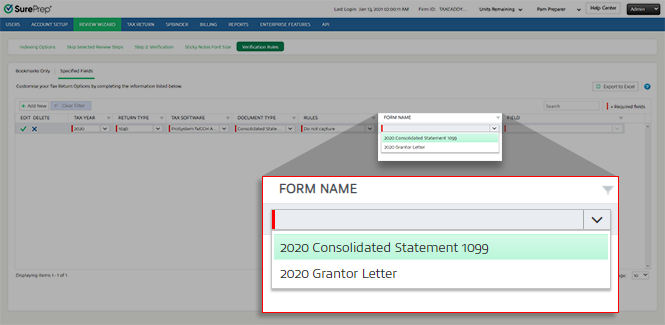
- On theFIELDcolumn, specify which field should trigger the verification rule.

- Select theSave
 icon to save the rule.noteThe new rule will only apply to all firm binders created after the rule is created/updated. The new rule won’t retroactively apply to existing binders.
- You can also modify or delete a verification rule. However, new changes won’t impact existing binders.
- Select theEdit
 icon to modify the existing verification rule.
 - Select theDelete
 icon to delete the existing verification rule.

Rules in Review Wizard (Step 2 Verification Wizard)
After the verification rules are set by the firm, the changes will apply to all new binders and services. The verification rules will automatically apply in the Verification Wizard.
Viewing firms verification rules in Verification Wizard
Follow these steps to review the verification rules in the Verificaiton Wizard:
- Select theEngagement Information
 icon on the toolbar.
- On theEngagement Informationwindow, select theVerification Ruleslink under theClient Informationsection.
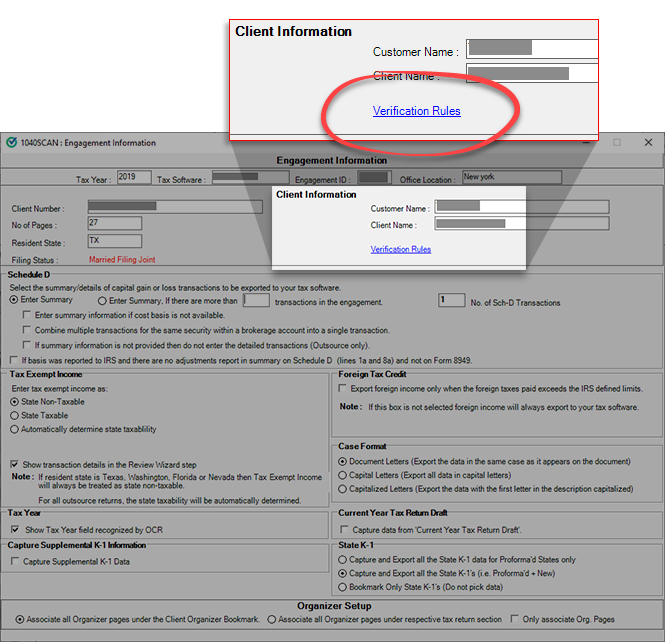 noteTheVerification Ruleslink won’t appear in the window if there were no verification rules set when the binder was submitted.
 - TheVerification Ruleswindow will show all the verification rules that were set by your firm when the binder was created. You can review verification rules for specified files on the upper panel. Verification Rules set to bookmark a document based on the form name are on the lower panel.

Do not capture
Do not capture
verification rule disables the selected field (in gray)  and can't be captured. Point to the
 Information
 icon to view the tooltip.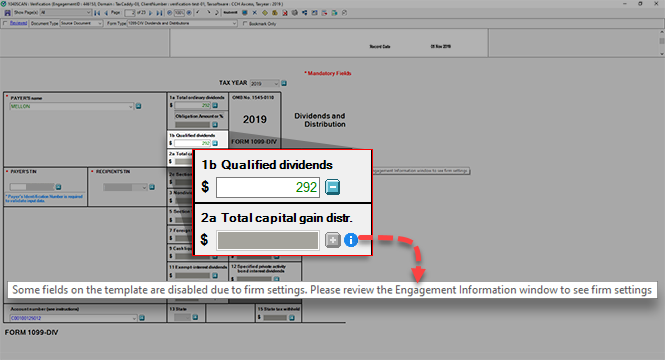
Exclude dependent documents
Exclude dependent documents
verification rule marks the document as Incorrect SSN
if the SSN doesn’t match the taxpayer or spouse (if applicable). Only mandatory identifier fields (Name, SSN, etc.) will be enabled, all other fields will be disabled and data won’t be exported to the tax software. 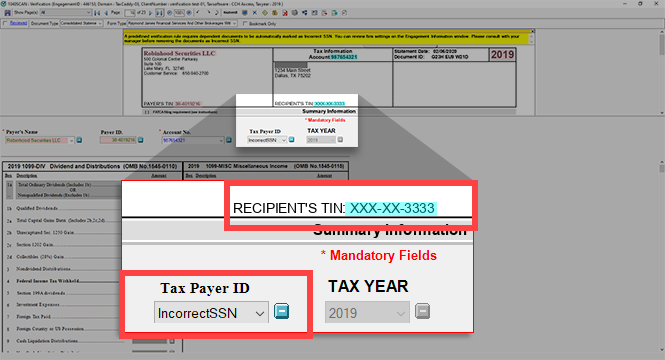
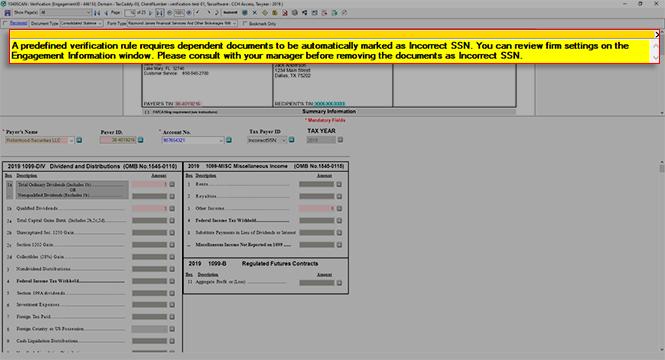
Additionally, the verifier will see the following message on top of the document to explain why fields are disabled:
A predefined verification rule requires dependent documents to be automatically marked as Incorrect SSN. You can review firm settings on the Engagement Information window. Please consult with your manager before removing the document as Incorrect SSN.
Export to Schedule A
Exports specific field data from Schedule K-1 (Form 1065 Line 13: Other deductions) to Schedule A when the data is exported to the tax software.
Bookmark when field captured
Bookmark when field captured
verification rule bookmarks the document only when a specific field is captured on the document. Setting bookmark rules through a specific field allows you to set the circumstances when a document should be bookmarked instead of always bookmarking the document automatically based on form type. However, if you prefer to always bookmark a document based on the form type then use the Bookmark Only
verification rules (Account Admin, Review Wizard, Verification Rules, then Bookmark Only
tab). 
Only mandatory identifier fields (Name, SSN, etc) can be verified. Amounts in disabled fields won’t export to the tax software. If necessary, a verifier can clear the
Bookmark Only
check box to capture the page data. The verifier will also see the following message on top of the document to explain why fields are disabled:A predefined verification rule for a specific field requires the page to be automatically marked as Bookmark Only. You can review firm settings on the Engagement Information window. Please consult with your manager before removing the bookmark.

Reviewing verification rules in SPbinder
To review verification rules in SPbinder, click the  icon on the Quick Access toolbar.
Binder Information
icon on the Quick Access toolbar.
On the
Binder Information
window, select Verification Rules
.
note
Verification Rules
tab won't appear in the Binder Information
window if there were no verification rules set (in Account Admin) when the binder was submitted. You will see verification rules set by your firm when the binder was created. Verification rules for specified files will appear on the upper panel under
Field Specified Rules
.
Use Case
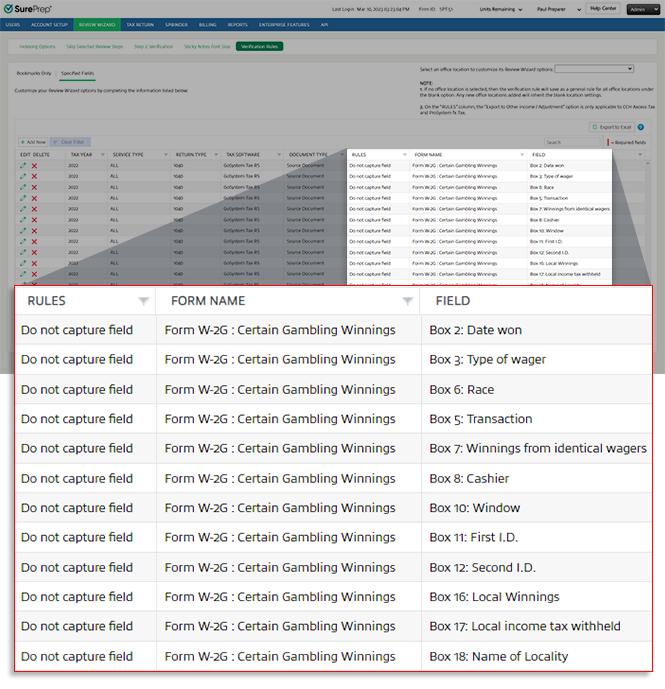
In certain scenarios setting verification rules can help your firm save costs and resources for each binder where the rule is applied. For example, you may get 100 W-2G documents from a client, however, only certain fields on a form need to be captured and verified.
- If you created a 1040SCANverify service binder then you will incur a fee for each field that was captured by OCR and verified by SurePrep.
- If you created a 1040SCAN PRO service binder then your firm users will lose time verifying the information on each W-2G.
To avoid verifying unnecessary fields, you can create verification rules for your firm not to capture a specific field on a form.
Fields required for W2-G | Fields not required for W-2G |
|---|---|
Payer’s name, address, etc. | Box 2: Date won |
Payer’s fed id number | Box 3: Type of wager |
Winner’s name (just to confirm if the taxpayer is a Taxpayer or Spouse) | Box 6: Race |
Box 1 | Box 5: Transaction |
Box 4 | Box 7: Winnings from identical wagers |
Box 13 | Box 8: Cashier |
Box 14 | Box 10: Window |
Box 15 | Box 11: 1st I.D. |
N/A | Box 12: 2nd I.D. |
N/A | Box 16: Local Winnings |
N/A | Box 17: Local income tax withheld |
You can save verification time and cost by setting verification rules not to capture certain fields on a W-2G document.

Requirements
You must meet the following requirements to use the verification rules feature:
User Group Permissions | Must have permission to access Admin then Review Wizard . |
Services | All services are supported except for SPbinder and 1040SCAN Organize |
Leadsheet | None (Without Leadsheets) Classic Simplified Leadsheets binders |
Binder Type | 1040 1041 |
Tax Software | GoSystem Tax RS CCH Axcess Tax UltraTax CS Lacerte |
Related Content
-
1040SCANverify FAQ
Format: Article

