
Create verification rules to bookmark documents
Creating verification rules to bookmark documents allows your firm to control how certain documents are handled based on the form type. Page data is discarded and doesn’t export to the tax software when the page is bookmarked.
For example, you can set verification rules that will automatically bookmark (and index) grantor letters without exporting data to the tax software. Setting predefined verification rules help save time and prevent errors.
Creating Verification Rules to bookmark form type
Follow these steps to create verification rules on the Admin screen:
- Go toFileRoom, Account Admin, Review Wizard, then Verification Rules.

- On the office location menu to the top right, select the office location that the rule will apply to. Select the blank option if you want to set a default rule for all office locations. For example, if you want to set a rule for the Los Angeles office location, then select Los Angeles from the dropdown menu.

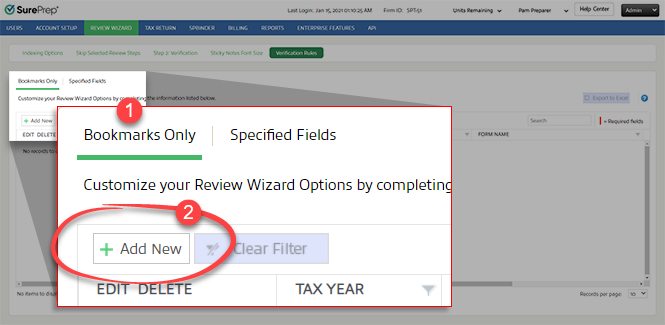
- On theBookmarks Onlytab, selectAdd New.
- On the row, select which binder type the verification rule applies to based onSERVICE TYPE,TAX YEAR,RETURN TYPE, andTAX SOFTWARE.


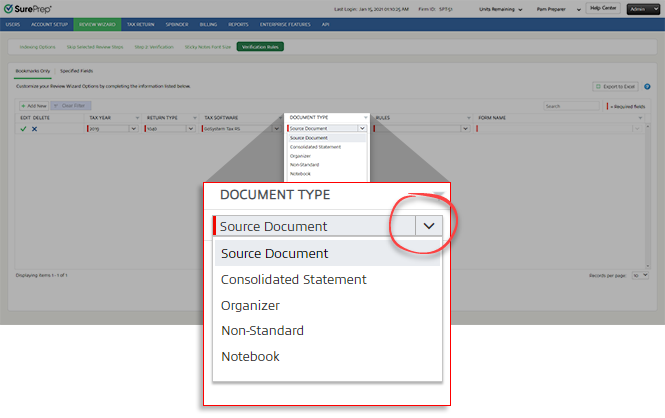
- Next, select theDOCUMENT TYPEthat the verification rule should apply to.
- On theRULEScolumn, select which of the following rules you want to apply:RULESDESCRIPTIONBookmark With IdentifierBookmarks the page and disables all fields except mandatory identification fields (Name, SSN, etc.). Data from disabled fields will be discarded and won’t export to the tax software.Bookmark OnlyBookmarks the page and disables all the fields. Data from disabled fields will be discarded and won’t export to the tax software.

- UnderFORM NAME, select the form that the verification rule should apply to. The selected form will be automatically bookmarked.

- Select theSave
 icon to save the rule.noteThe new rule will only apply to all firm binders created after the rule is created/updated. The new rule won't retroactively apply to existing binders.
- You can also modify or delete a verification rule. However, new changes won't impact existing binders.
- Select theEditicon to modify the existing verification rule.
- Select theDeleteicon to delete the existing verification rule.

Rules in Review Wizard (Step 2 Verification Wizard)
After the verification rules are set by the firm, the changes will apply to all new binders and services. The verification rules will automatically apply in the Verification Wizard.
Viewing firms verification rules in Verification Wizard
Follow these steps to review the verification rules in the Verificaiton Wizard:
- Select theEngagement Information
 icon on the toolbar.
- On theEngagement Informationwindow, select theVerification Ruleslink under theClient Informationsection.
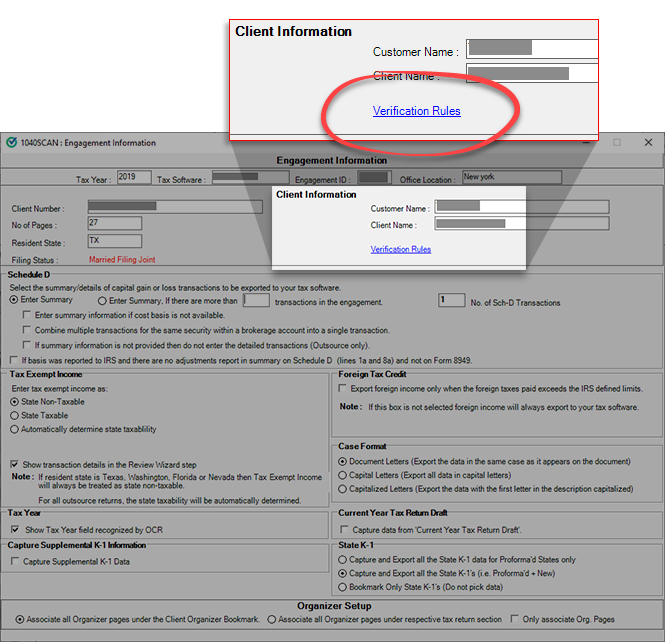 noteTheVerification Ruleslink won't appear in the window if there were no verification rules set when the binder was submitted.
 - TheVerification Ruleswindow will show all the verification rules that were set by your firm when the binder was created. You can review verification rules for specified files on the upper panel. Verification Rules set to bookmark a document based on the form name are on the lower panel.

Bookmark Only vs Bookmark With Identifier
N/A | Bookmark Only | Bookmark With Identifier |
|---|---|---|
Disables all input field? | Yes | No. Disables all input fields except mandatory identification fields like Name, SSN, etc. |
Can clear Bookmark Only check box? | No. The Bookmark Only check box is selected and can't be changed. | Yes. Verifiers can clear the Bookmark Only check box and capture the fields if necessary. |
SPbinder Index | Indexed in a general parent folder (W-2 Wages, 1098-Mortgage Interest Statement, 1099 Consolidated, etc.)  | Indexed under the specific entity.  |
Bookmark with Identifier
For
Bookmark with Identifier
verification rule, the verifier will see the following message on top of the document:A predefined verification rule requires this page to be bookmarked based on firm settings. Only mandatory fields can be verified (e.g. Name, SSN, EIN, etc.). You can review firm settings on the Engagement Information window. Please consult with your manager before removing the bookmark.

Bookmark Only
For
Bookmark Only
verification rule, the verifier will see the following message on top of the document:A predefined verification rule for a specific field requires the page to be automatically marked as Bookmark Only. You can review firm settings on the Engagement Information window. Please consult with your manager before removing the bookmark.

Reviewing verification rules in SPbinder
To review verification rules in SPbinder, select the  icon on the Quick Access toolbar.
Binder Information
icon on the Quick Access toolbar.
On the
Binder Information
window, select Verification Rules
.
note
Verification Rules
tab won't appear in the Binder Information
window if there were no verification rules set (in Account Admin) when the binder was submitted. You will see verification rules set by your firm when the binder was created. Verification rules for specified files will appear on the upper panel under
Field Specified Rules
. Verification Rules set to bookmark a document based on the form name are on the lower panel.
Requirements
You must meet the following requirements to use the verification rules feature:
User Group Permissions | Must have permission to access Admin then Review Wizard . |
Services | All services are supported except for SPbinder and 1040SCAN Organize |
Leadsheet | None (Without Leadsheets) Classic Simplified Leadsheets binders |
Binder Type | 1040 1041 |
Tax Software | GoSystem Tax RS CCH Axcess Tax UltraTax CS Lacerte |
Related Content
-
SurePrep PDF Barcodes
Format: Article

