
Notes
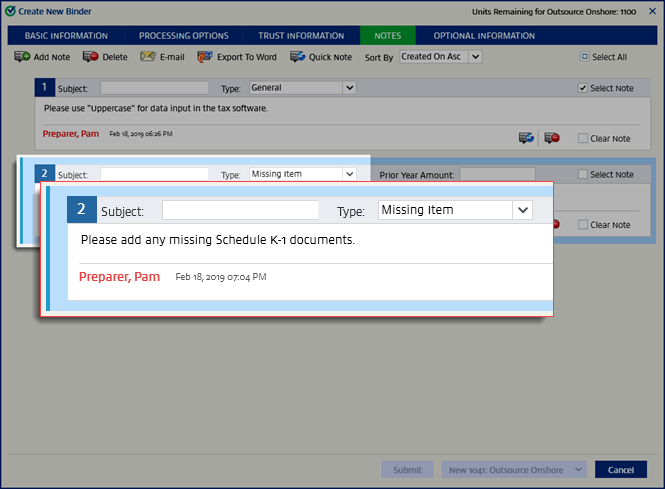
Notes can be used to communicate information to the preparer. On the
Create New Binder
window, you can select the NOTES
tab to add notes for your preparers and reviewers to view. You can type a new note or select from a pre-existing note (that is, Quick Note). 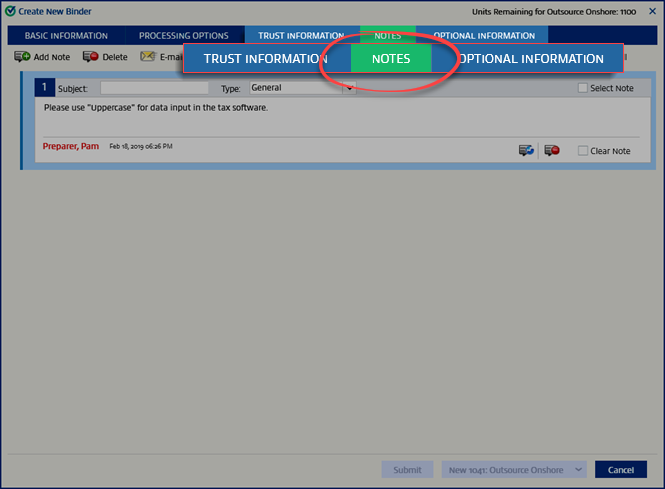
Add Note
Select
Add Note
to add new notes. Type the subject in Subject
, select the Type
menu, and select the note type.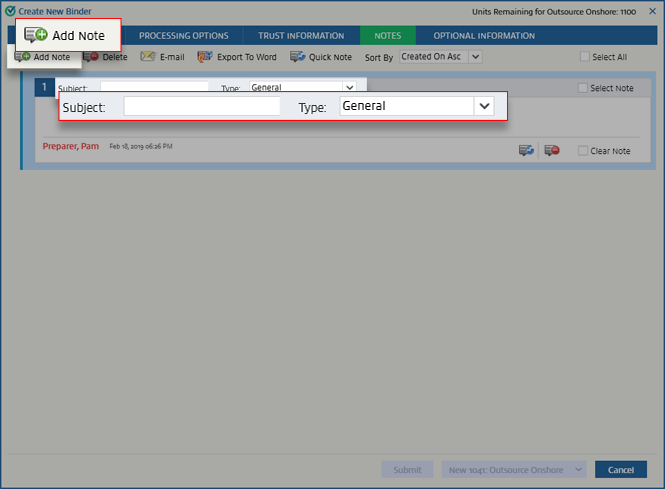
Delete Note
To delete a note, select the
Delete
icon on the note you want to delete.
You can also delete particular notes, by selecting them individually with  on the
Select Note
, or select all notes, by selecting Select All
. Once you've selected your notes, select Delete
on the Notes
tab.
E-mail
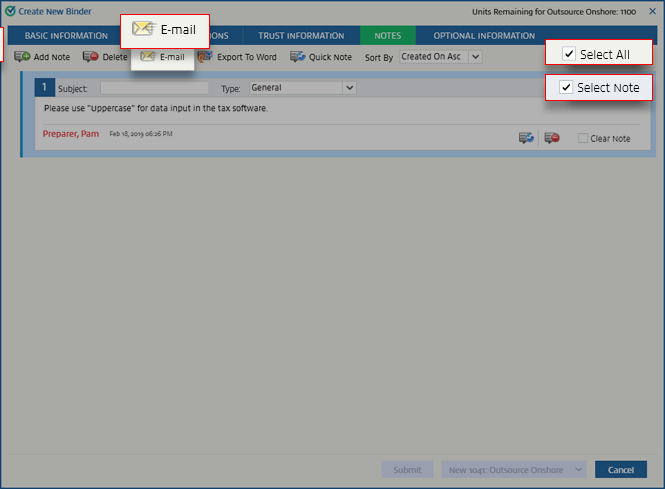
You can also select notes and send them via e-mail. To select a particular note, select
Select Note
. To select all notes, select Select All
. Once you've selected your notes, select E-mail
.
When the email window appears, fill the email fields, select
Send
to email the notes.Export To Word
Similarly, to export notes to Word, select
Export to Word
.
Quick Note
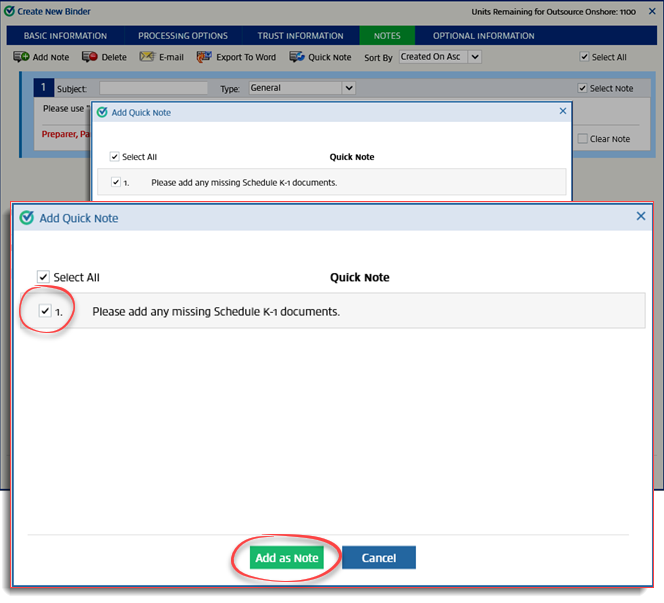
Quick Notes save you time by letting you select from pre-made notes. If your firm has set up  to add them. Select the notes you'd like to add on the
Quick Notes
, select the Quick Note
button to add them. Select the notes you'd like to add on the Add Quick Note
window, then select Add as Note
.
This will add the selected quick notes to the binder.
Sort By
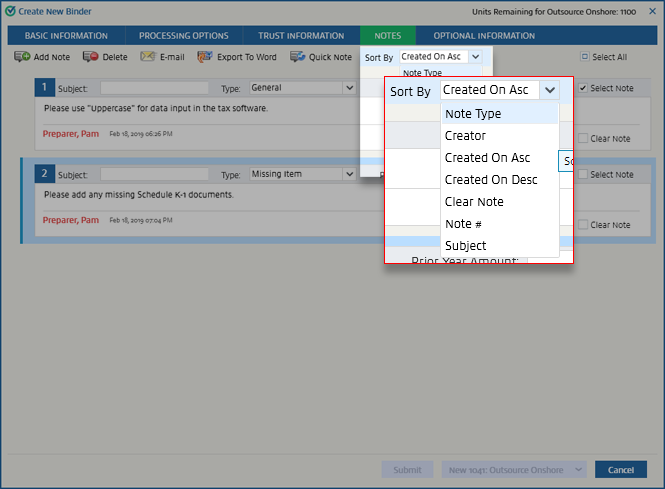
To sort notes, select the
Sort By
menu then select how you want these notes to be sorted. By default, notes are sorted by Created On Asc
.
Related Content
-
SurePrep Outsource
Format: Article

