
Sign Off Management
Use Sign Off Management to customize and define the sign-off rights for different levels. To configure
Sign Off Management
, go to . 
Sign Off Levels
Four text boxes are displayed under the Levels column. In this column, pre-defined values are displayed as L1 = Preparer, L2 = Reviewer, L3 = Signer and L4 = Partner.

Edit Sign Off Management
You can edit sign-off colors and roles according to your firm preference.
Follow these steps to customize and define the sign-off rights:
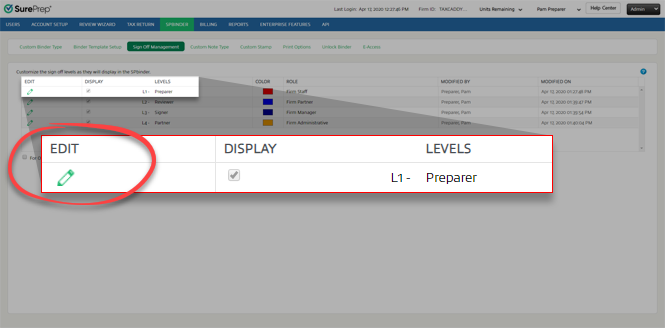
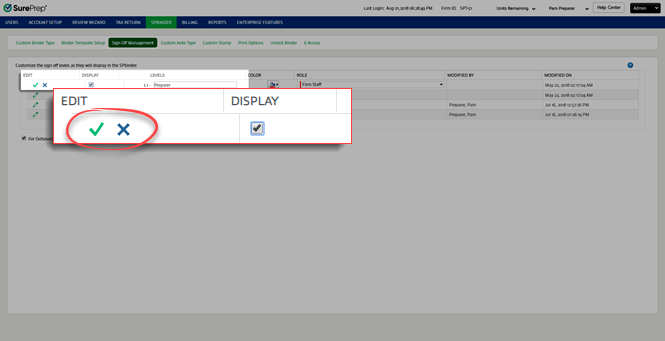
- Select theEditicon
 for the sign-off level you want to edit.
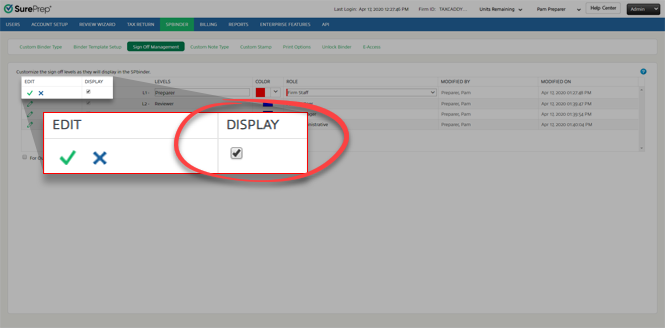
- Select theDisplaycheckbox, to enable or disable sign-off levels in the SPbinder toolbar.noteThe display column for L1 and L2 levels are selected by default.
 All enabled Sign Off levels will appear on the upper right side of the SPbinder.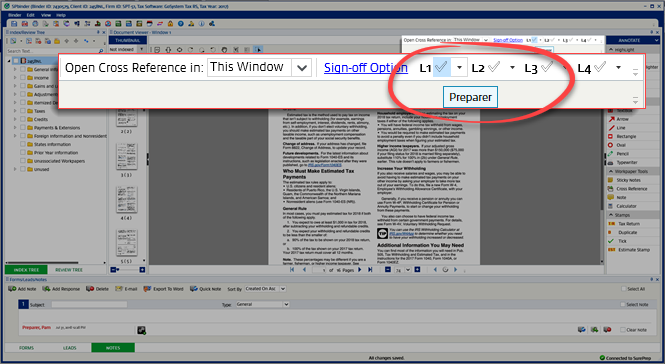
- Edit the input field underLEVELSto assign a Sign-off level with a new name.

- A specific color can be assigned to each level ranging from the Firm Administrator to Firm Staff. To edit the color for a sign-off level, select theColor Paletteicon, select the color by entering the HEX code or drag the color picker tool, then selectApply. The color palette in the sign-off set-up window will be reflected in the SPbinder.
- On theRolecolumn, select the dropdown menu to see options. The roles defined here are from . To assign a Sign Off Role to a group, select theRolecheckbox. SelectSaveto confirm the change.
 You can select a single group or multiple groups for each level to sign off. Only those users whose roles have been defined in theSign Off Managementwill be allowed to access the particular level in the SPbinder.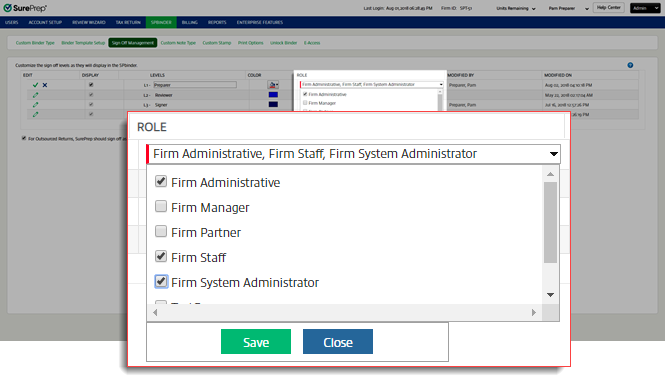
- Save
 and Cancel
 icons will be displayed to either save the changes made or to close without saving any changes.
note
When the roles, levels, and colors are changed in the sign-off management window, new changes will apply to the new binders as well as the old binders.
For Outsource returns, Verification services, SurePrep should sign off as Level 1
checkbox is always selected by default. Clear the checkbox, if you don’t want SurePrep to sign off as Level 1. 
If selected, binders submitted from SurePrep back to the client for "Level 1" review will be signed off, and the interior color will be in red (Defined color for Level 1). On a mouseover, it will show the following information:
Signed off by SurePrep
Signed off Date and Time (For date and time - It should show the time when the return was submitted).
Select the  icon to view the help page.
Help
icon to view the help page.Related Content
-
2024 1040SCANverify Policy - 1040 Return
Format: Article
-
2023 1040SCANverify policy - 1040 return
Format:
Article
-
2024 1040SCANverify Policy - 1041 Return
Format:
Article
-
2023 1040SCANverify policy - 1041 return
Format:
Article

