
7216 Consent > Restrict user access to binders and Client Profile without 7216 consent
note
7216 requires that tax preparers receive taxpayer consent before disclosing taxpayer information to third-party individuals who provide “substantive determinations or advice affecting the tax liability reported by taxpayers” or any individual located outside the United States. If the 7216 Consent feature is enabled, the 7216 access restriction will apply to all binder services and TaxCaddy Client Profiles.
If you want to restrict users from seeing binders that don't have 7216 consent, those users must be part of a user group with
Restrict Access
enabled under 7216 Consent
in User Group Management
. Any user with Admin privileges to user groups will be able to check or uncheck this permission for that firm.When a user group has
7216 Consent
, then Restrict Access
enabled, users in that group won’t be able to see binders and TaxCaddy Client Profiles that don't have 7216 consent. Users who are not restricted (that is, don’t have the checkbox enabled) will see a binder regardless of 7216 consent. Similarly, when a binder without 7216 consent is created or linked to Client Profile in TaxCaddy any user restricted from accessing binders without 7216 consent will lose access to the Client Profile.Follow these steps to restrict a user group from viewing binders without 7216 consent.
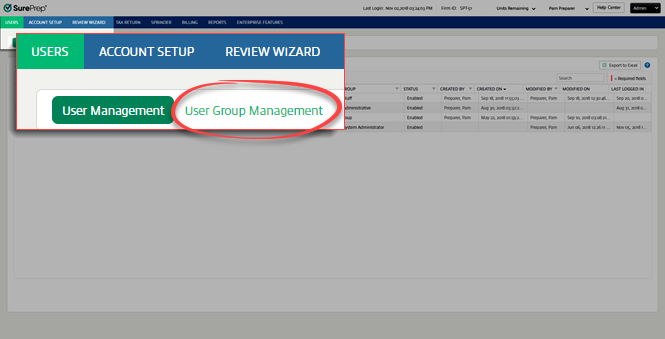
- Go to SurePrepFileRoom,Admin,Users, thenUser Group Management.
- Select theEdit
 icon next to the group you want to restrict from viewing binders without 7216 Consent.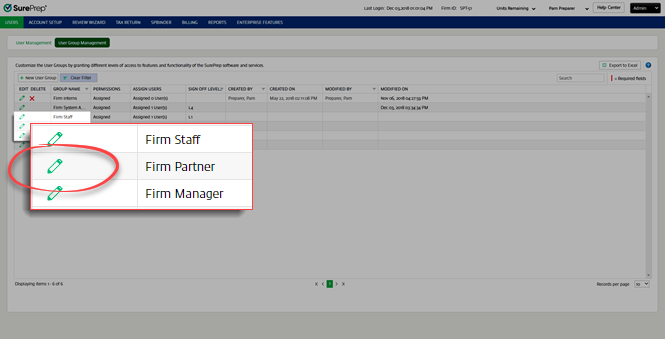
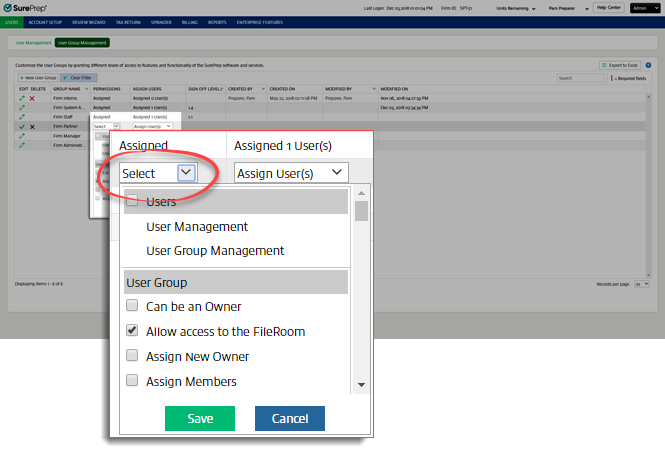
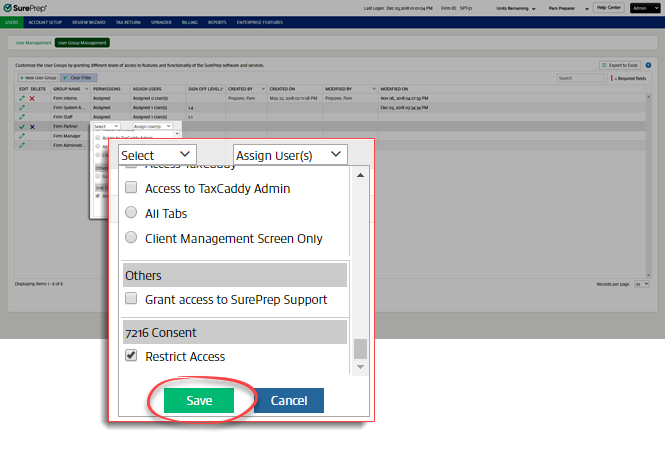
- On thePermissionscolumn, selectSelect. You'll now see a list of permissions.
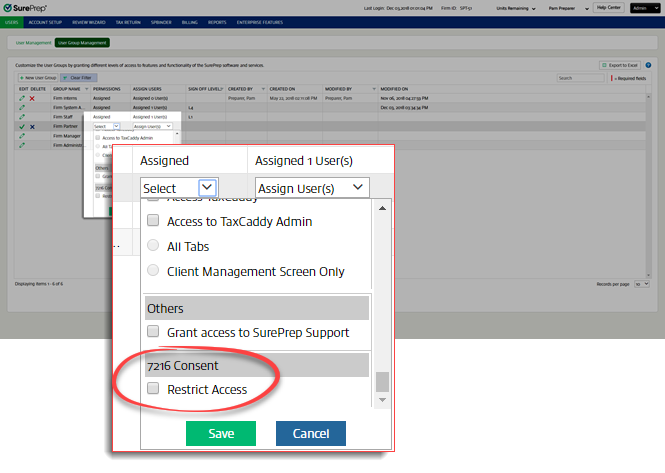
- Under7216 Consent, selectRestrict Access.noteThis restricts the user group to view binders and TaxCaddy Client Profile when 7216 consent is granted. If a user has the permissionRestrict Accessenabled under7216 Consentand the binder doesn’t have7216 Consent Receivedselected, that user can't be assigned as the owner of the binder. This applies even when the user has the permissionCan Be Owner. The user won’t see the binder in FileRoom.
- SelectSaveto save changes to the Permissions settings.noteUsers who are part of user groups that don’t have the permission selected aren't affected and can continue to view all binders irrespective of whether the 7216 consent is granted.
- Select theSaveicon
 to save all changes to the group. Then, select the Cancelicon
 to close without saving.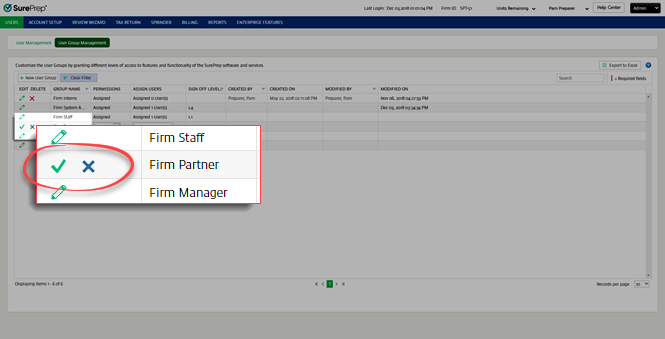
note
Firm System Administrators can always see all binders, so this permission is unchecked and grayed out for this group.

