
Set Firm Defaults for API
Set up the default values for the API can be useful to update any default settings without necessarily changing the code. You can also override the default values when making an API call.
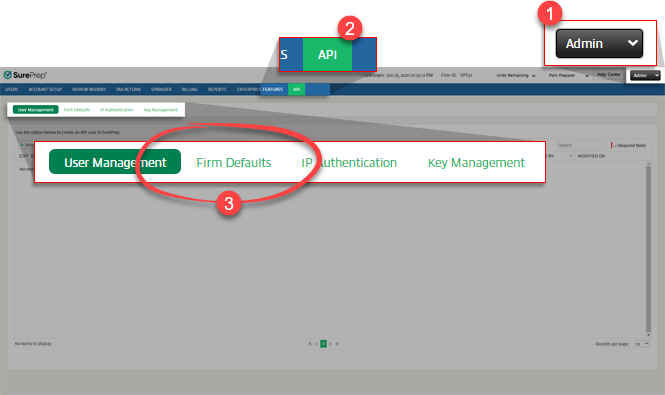
To set firm defaults, go to
FileRoom
, Admin
, API
, then Firm Defaults
.
You can set default values for the following:
- Tax Software
- Binder Options
- Workflow Settings
- Export to Tax
- Print Option
- Generate Report
- Add Documents
Tax Software
Under the
Tax Software
section, you can select the default tax software account associated with API submissions. When making a method call, the firm's default tax software number will be used if one is not provided. For example, if you make a CreateBinder
(POST) call without an Account number then the firm default Tax Account number will be used automatically.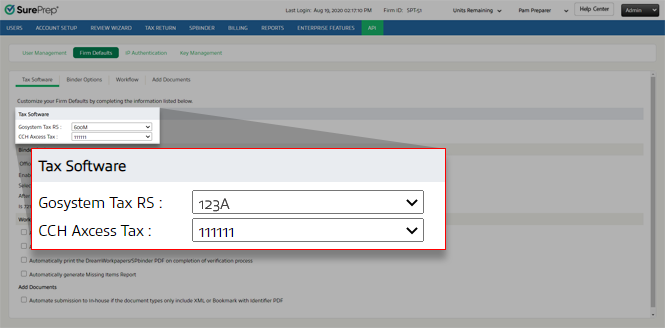
Binder options
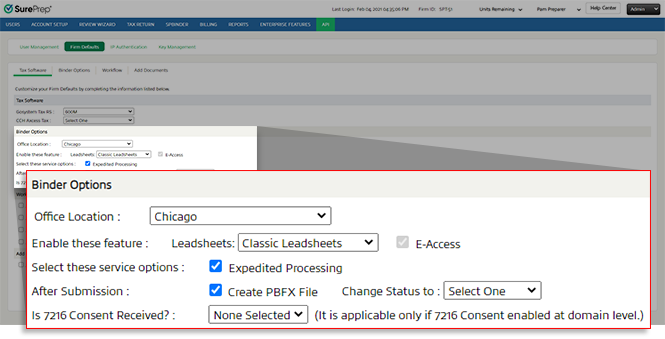
Under
Binder Options
, you can select the following default options for all API-submitted binders: Binder options | Description |
|---|---|
Office Location | Binders created without an office_Location_ID input parameter will use the default Office Location specified here.Office Location is required to calculate billing, API calls, and restrictions based on location (if enabled). |
Leadsheets | When a binder is submitted without specifying leadsheet type the Firm default setting will be used if the has_Leadsheet parameter is missing from the API call. View CreateBinder(POST). |
E-Access | Enabled by default. Lets you access SPbinder from any machine. |
Expedited Processing | SurePrep will process the binder at a faster pace compared to the standard due date. You can also check Account Usage History for expedited processing. |
Create PBFX File | Creates a PBFX file. You can use the DownloadBinderPBFX (POST) API call to download the PBFX file. |
Change status to | Automatically change the binder status to the one you want after binders complete SP Processing/In Verification. |
Is 7216 Consent Received? | The default setting used when the is7216ConsentReceived parameter is not passed when using the CreateBinder call . Only for firms that have 7216 Consent restriction enabled. |
Workflow Settings
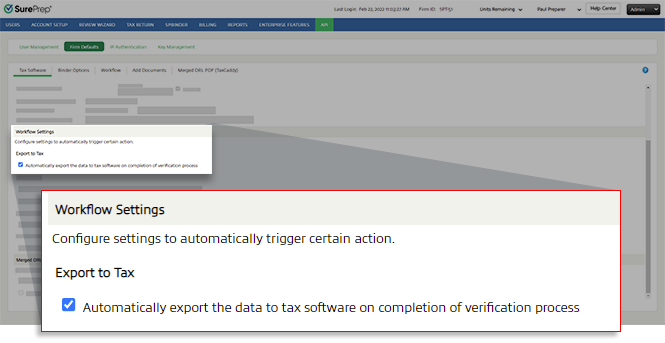
Under
Workflow Settings
, you can select options to automate certain tasks.Export to Tax
Automatically export the data to tax software on completion of verification process | Exports data to tax software after verification completes. This feature is useful if you want a binder submitted to SurePrep to export to the tax software after verification is completed. |
Print Option
Automatically print the Tax Return PDF on completion of export data to tax software | Automatically prints after the data exports to the tax software. |
Automatically print the DreamWorkpapers/SPbinder PDF on completion of verification process | Automatically prints after the verification completes. Tip : You can also set up your firm domain settings to automatically print a binder when a status changes to a specific status. Please contact SurePrep Support to enable this option. |

Generate Report
Automatically generate Missing Items Report | Creates a missing items report after the verification step is completed for binders without leadsheets. The report lists input Forms that are missing current year information. Use the GetReport (POST) call to get the missing items report if one exists in the Files window > 2000 Tax Workpapers . |

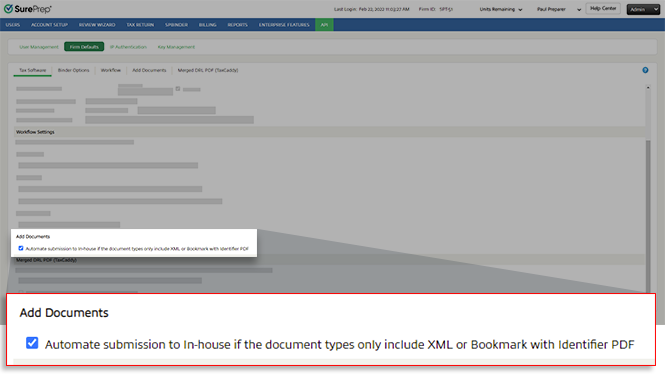
Add Documents
Automate submission to In-house if the document types only include XML or Bookmark with Identifier PDF | Automatically submit a binder to In-house (for example, 1040SCAN PRO) if the document types only include XML or Bookmark with Identifier PDF. |
Related Content
-
Get started with the SurePrep API
Format: Article

