
Set up SurePrep API integration in UltraTax CS
Setting up SurePrep API into UltraTax CS (local and Virtual Office/Software as a Service) can streamline your workflow from the tax software directly to SurePrep services. With UltraTax CS and SurePrep API integration, you can create 1040 clients in TaxCaddy from UltraTax CS.
Set up API integration with UltraTax CS
You'll need to complete a one-time set up to allow UltraTax the ability to create clients in TaxCaddy.
- Mark theEnable API accesscheckbox to enable API for your firm.

- Contact SurePrep Support to enableTaxCaddy APIfor your firm.noteEnablingTaxCaddy APIis required to complete the set up process. You won't be able to create TaxCaddy Clients from UltraTax without this step. Please contact SurePrep Support to enableTaxCaddy APIfor your firm.
- Go to theUser Managementtab and selectNew userto create an API user.
 noteOnly Firm System Administrators can access theAPItab inAccount Admin.
 - Generate an API key, then selectCopy Keyto copy the API Key to your clipboard.
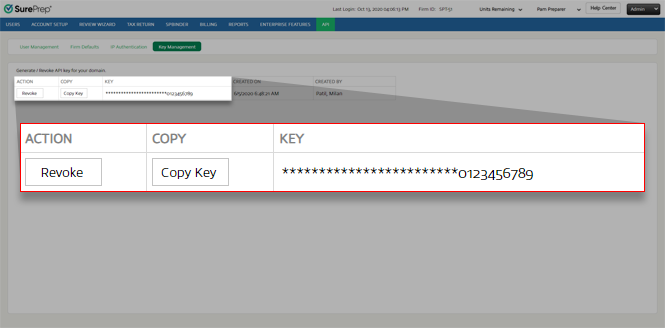
- Open UltraTax CS.
- SelectSetupthenSystem Configurations.

- Select theSurePrep APItab,Enable SurePrep Integration, thenImport API Key.
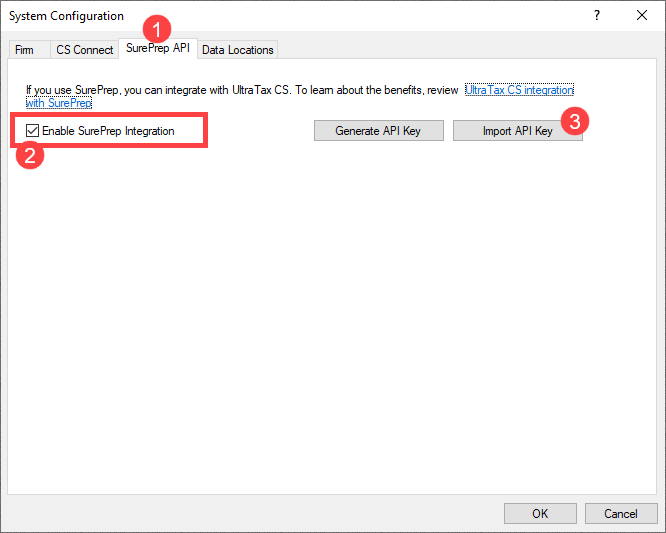
- On theImport API Keywindow:
- Enter the SurePrep API username you created earlier inAccount Admin.
- Enter the SurePrep API password you created inAccount Admin.
- ForStaff email, enter the name of a firm user with access to TaxCaddyClient Management. This user will be assigned the Owner of the client data.
- PressCtrl+Vto paste the SurePrepAPI keyyou generated and copied to the clipboard.
- SelectTest Connection. If you see the Connected status, selectSaveto complete the set up.

- Close and restart UltraTax CS for the changes to take effect.
What's next?
After you complete your one-time set up, you can now create TaxCaddy clients from UltraTax CS (local or Virtual Office/Software as a Service).
Related Content
-
Get started with the SurePrep API
Format: Article

