
Custom fields
Your firm can create a designated custom field for binders and TaxCaddy client profiles. For example, a custom field can help firms track clients by linking them to an internal client ID used at the firm. Your firm can set up 1 custom field as necessary.
The custom field will appear on the
Create New Binder
window, FileRoom columns, TaxCaddy Add Client
window, and Billing. Firms can use the custom field category to mark the binder with the correct ID/Information.Enable custom field
Follow these steps to configure a custom field:
- SelectFileRoom,Admin,Account Setup, thenCustom Fields.

- To turn on this feature, mark the "Display Project ID field in Create New Binder, FileRoom, Billing & TaxCaddy" checkbox and optionally enter a description.noteField description can have a maximum length of 256 characters.

Custom Field in FileRoom
Once you enable the
Custom Field
(that is, Project ID) feature for your firm, you can begin using this.In the
Create New Binder
window, the custom field becomes a mandatory field.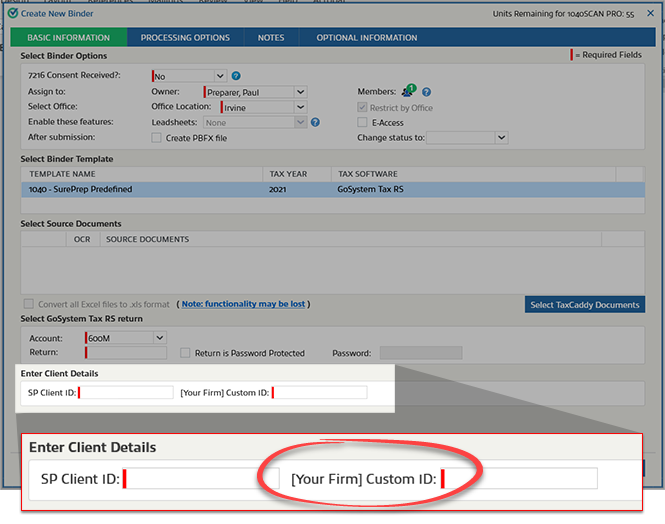
The custom field appears in FileRoom under
COLUMN SETUP
. 
The custom field appears in the FileRoom
Edit Binder
window.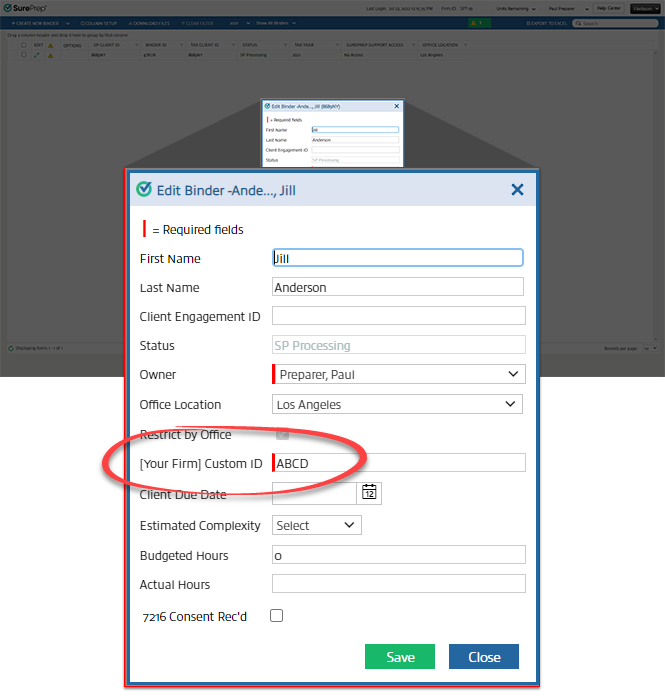
Custom Field in TaxCaddy
In TaxCaddy, the custom field appears in the
Add Clients
window as a mandatory field.
If your firm uses an import template to add clients, download a new copy of the template that includes the new custom field column. The custom field will also become mandatory on the import template.

The custom field information will also appear in a new column in Client Management.
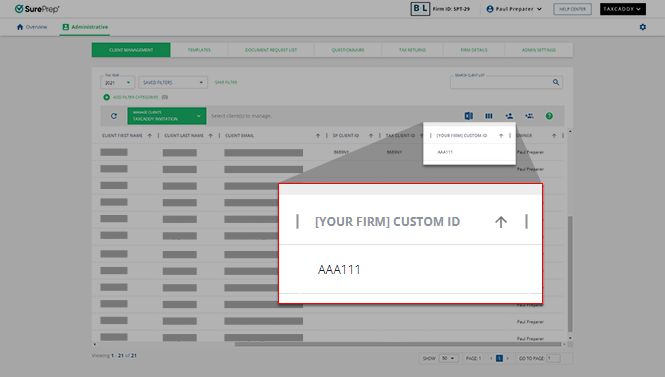
The custom field column may still be visible after you turn off the custom field feature from
Account Admin
. To remove the column from the Client Management
screen, there must be no client record with information saved to this field. You can also use column management to hide the column.
