
Bulk Update Office Location
Starting November 14, 2022, the
Office Locations
page will have 2 new fields: a mandatory ADDRESS LINE 1
field and an optional ADDRESS LINE 2
field. To calculate sales tax accurately, your firm will need to update the missing information for each required field that is missing. To provide the missing information, firms can either edit office locations on the Office Locations page or they can use the Bulk Update feature to update office locations in bulk.note
Bulk Update only updates existing office locations. It doesn’t let you add new office locations.
Bulk Update uses a template file to update all office locations in a single instance. If your firm has many office locations then bulk updating all office locations using a template file may be more convenient than editing each office location field on the
Office Location
page.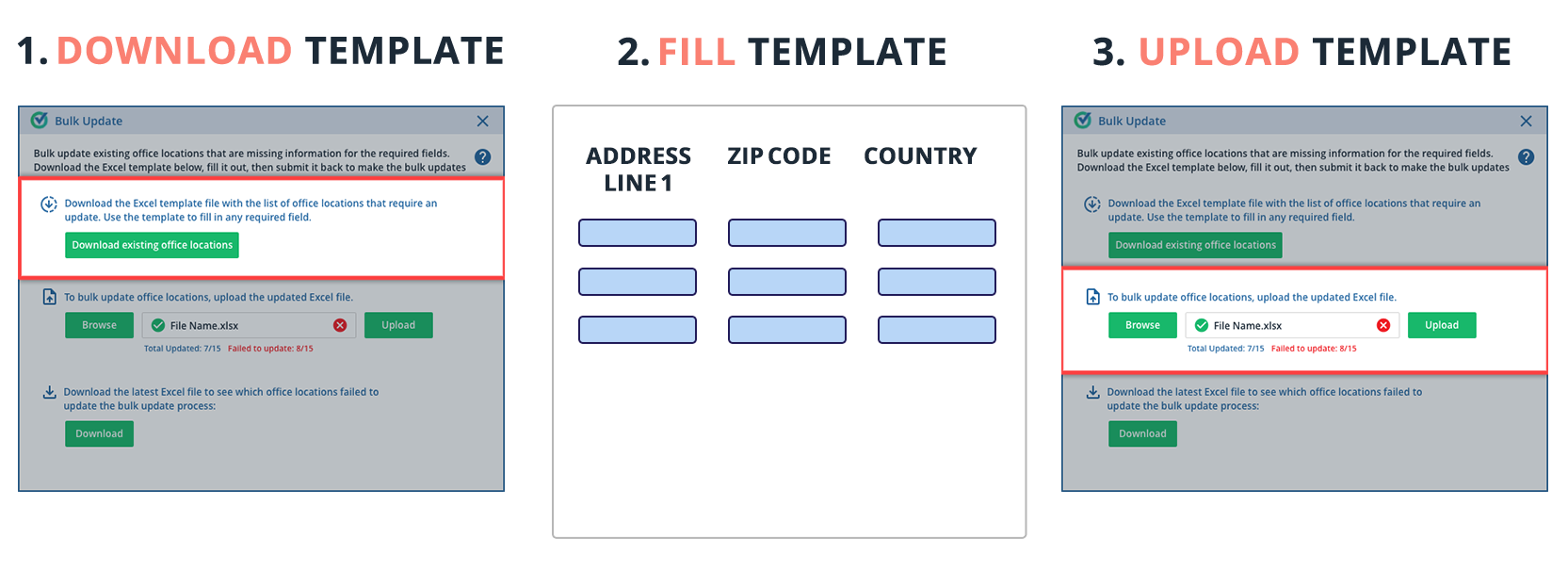
Bulk Update Office Locations
Follow these to bulk update office locations at your firm:
- SelectFileRoom,Admin,Account Setup, thenOffice Location.
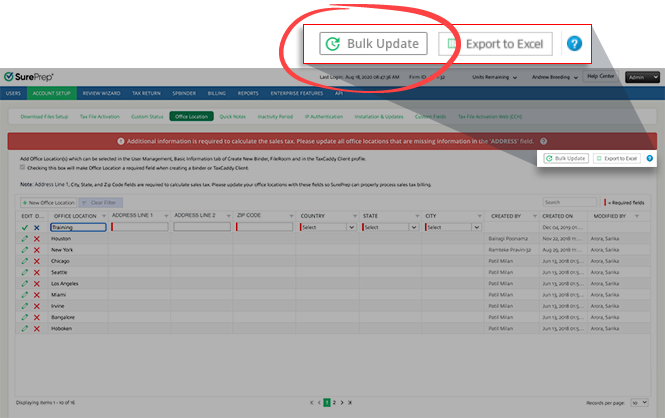
- SelectBulk Update.
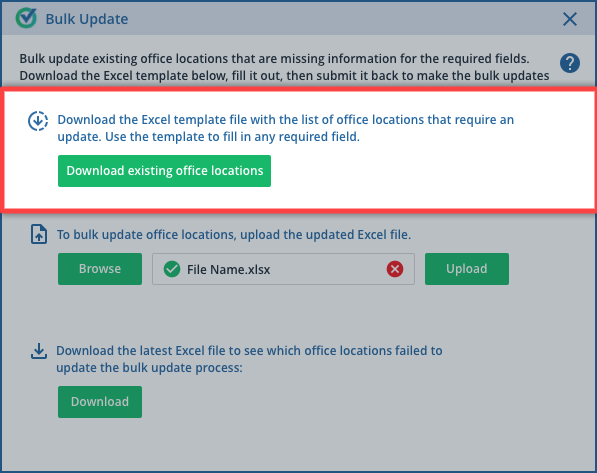
- In theBulk Updatewindow, selectDownload existing office locationsto download the template file.
- Open the template file, then selectEnable Editing.
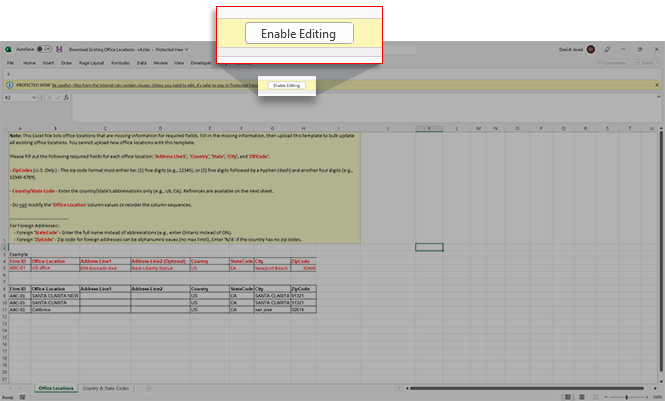
- Read the instructions.
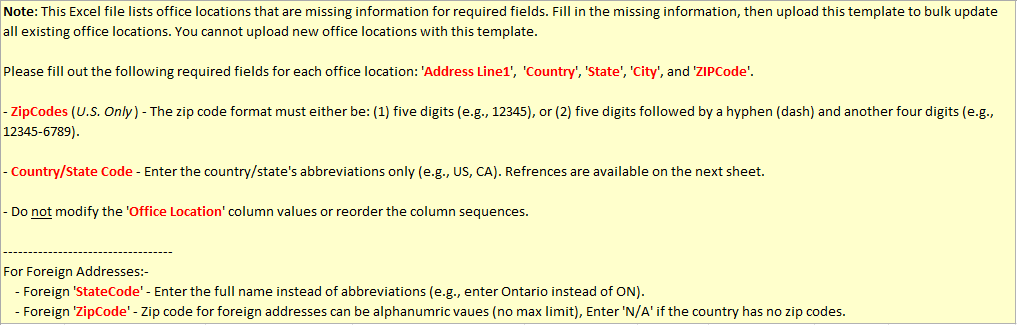
- Locate your existing office locations.noteThe template file only shows office locations that are missing information for required fields. You cannot use the template to upload new office locations.
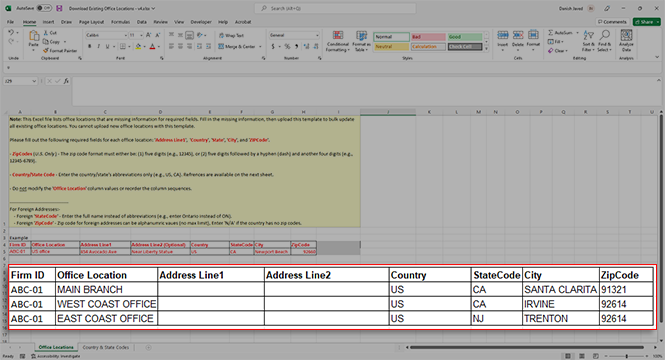
- For each office location in the list, enter any missing required information.
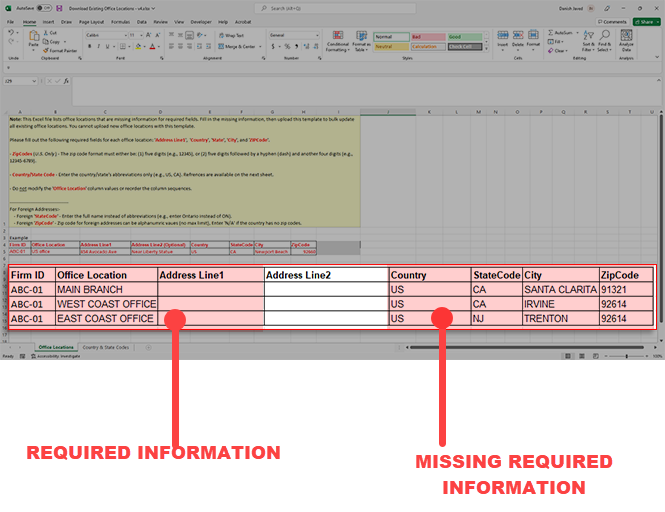 Column nameRequired?DescriptionSampleFirm IDYESDO NOT MODIFYOffice LocationYESDO NOT MODIFYAddress Line1YESEnter the exact office location address.17890 Sky Park CirAddress Line2NO(Optional) If you need more space to enter the address afterAddress Line 1.N/ACountryYESEnter the country's abbreviations only.Example: Enter US instead of United States.For foreign addresses, use the references on the next sheet tab to get the correct abbreviations.USStateCode(U.S.)YESEnter the state's abbreviations only.Example: Enter CA instead of California.Use the references on the next sheet tab to get the correct abbreviations.CACityYESEnter the city's name.IrvineZipCode(U.S.)YESIf the country is US, then the ZIP Code format needs to be 9 digits:The initial 5 digits followed by a hyphen (dash) and another 4 digits (for example, 12345-6789).92814-400Sample:
 noteDon’t modify theOffice Locationcolumn values or reorder the column sequences.The following changes apply to foreign addresses:Column nameRequired?DescriptionSampleCountryYESFor foreign addresses, use the references on the next sheet tab to get the correct abbreviations.GBStateCode(Foreign/Non U.S.)YESEnter the full name instead of abbreviations (for example, enter London instead of LDN)LondonZipCode(Foreign/Non U.S.)YESZIP Codes for foreign addresses can be alphanumeric values (no max limit),EnterNAif the country has no zip codes.SW1E 6SH
 - Save the template file.
- In theBulk Updatewindow, selectBrowse, the updated template file, thenUpload.
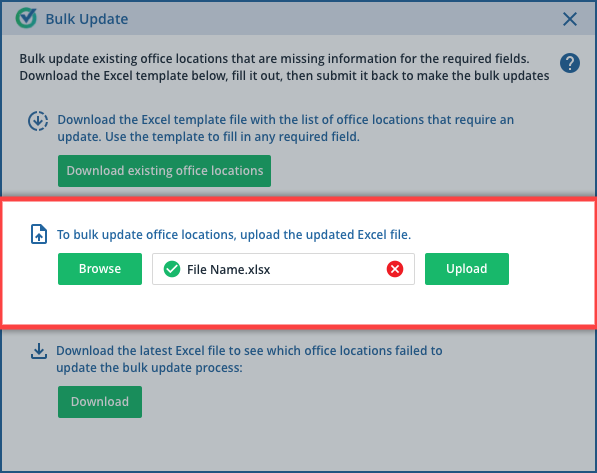
- Once the template file is uploaded, you will see the total number of office locations that were successfully updated or failed.
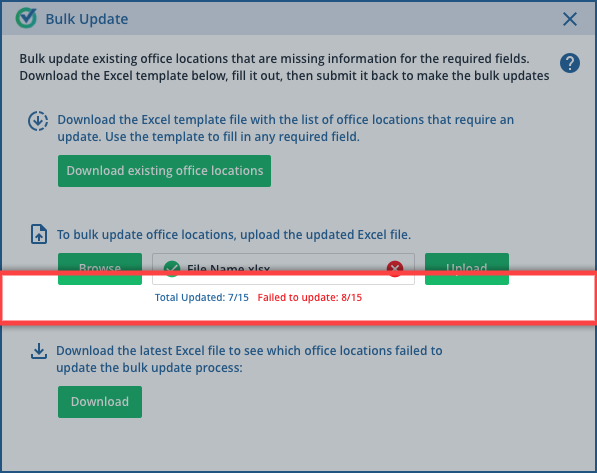
Troubleshoot Bulk Update
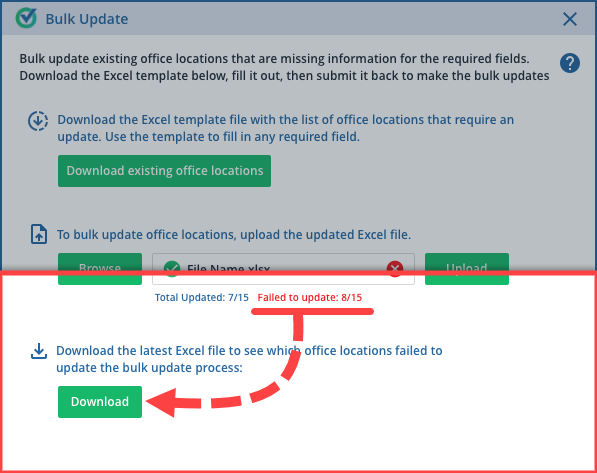
Some addresses may not bulk update if the information is misspelled/incorrect. To see which office locations failed to update, select
Download
.
After you have identified the issue, download a new copy of the Bulk Update template file and try again. On a subsequent attempt, you will only need to enter information for office locations that failed previously.
Related Content
-
About office locations
Format: Article

