
Delete an office location
Follow these steps to delete an office location:
- SelectFileRoom,Admin,Account Setup, thenOffice Location.
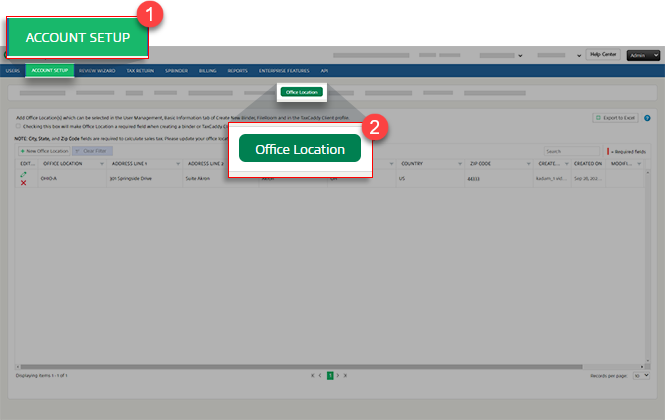
- SelectDelete
 to delete the office location on that row.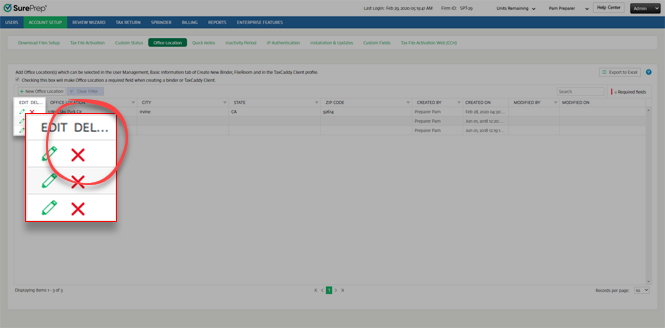
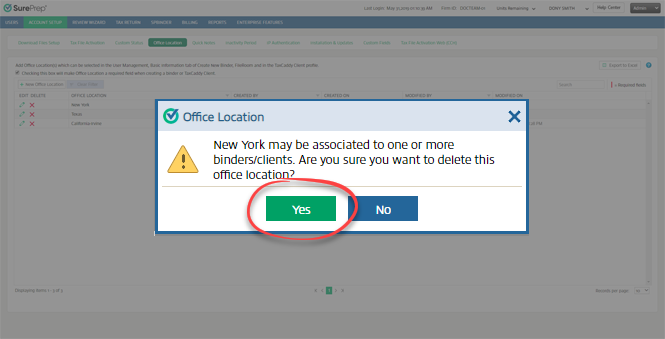
- In the confirmation window, selectYesto delete the office location.
Binders and users associated with deleted office locations
Binders
In
FileRoom
, binders associated with a deleted office location will be suffixed with (Deleted)
on the OFFICE LOCATION
column (for example New York (Deleted)).note
If you don’t see the
OFFICE LOCATION
column, then select COLUMN SETUP
to enable OFFICE LOCATION
. 
Deleted office locations won’t appear as an option when editing or creating a new binder.
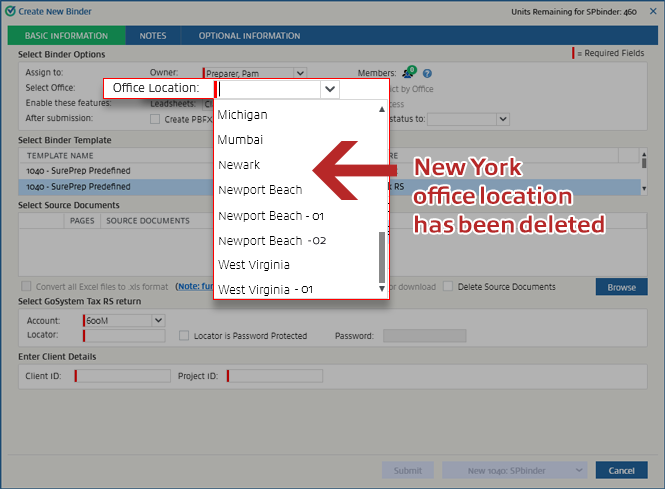
You can update a binder's deleted office location to a new location from the
Edit Binder
window.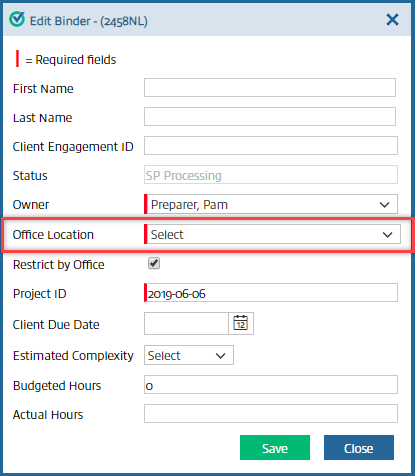
Users
In
Admin
, users associated with that office location will be suffixed with (Deleted)
on the OFFICE LOCATION
column (for example New York (Deleted)).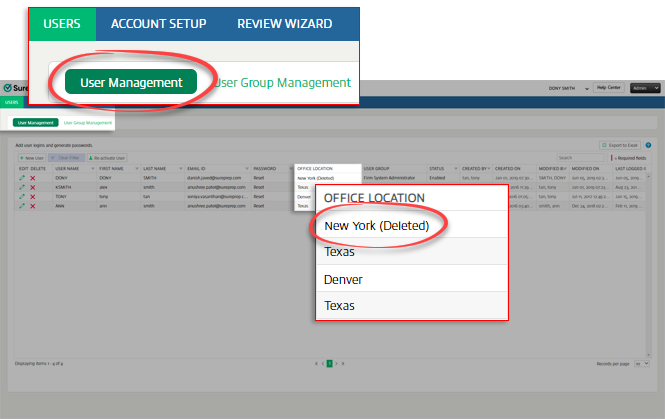
Deleted office location won’t appear as an option when creating a new user.
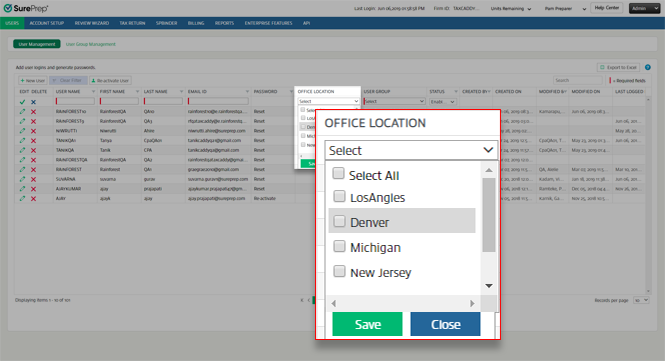
When editing a user, a deleted office location won’t appear as an option unless the user is associated with a deleted office location. Deleted office location will be suffixed with
(Deleted)
. note
Once you clear the
(Deleted)
office location checkbox then save the edit, it will no longer appear as an option on any subsequent edits. 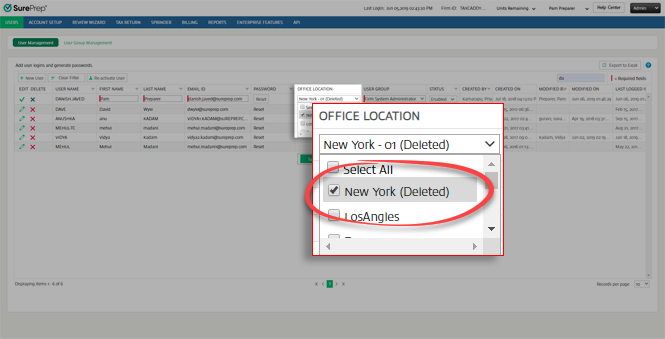
Related Content
-
About office locations
Format: Article

