
Binder status
Once a binder is submitted, it goes through a different stage of processing. The
STATUS
column in FileRoom shows you each binder's current status.Status column in FileRoom

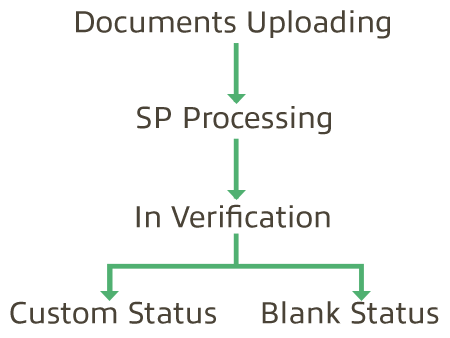
Binder submission will go through the following stages:
- Documents Uploading
- SP Processing
- SP Processing
- Custom status
- Blank status
- Flagged for Review
Documents Uploading
Documents Uploading
status appears as soon as you submit the binder. Documents Uploading
indicates that the binder is in the process of uploading the submitted documents. Document Uploading status

note
The binder can't be opened during the Document Uploading status.
SP Processing
SP Processing
status appears when the binder is in any of the following processes: - Image Processing
- Porting
- OCR
- SurePrep Service center (that is, 1040SCAN ORGANIZE, 1040SCAN PRO, SurePrep Service Center, 1040SCANverify, Outsource)
note
The binder can't be opened during the SP Processing status.
While a binder is processing documents, you can check a binder's completion progress percentage for binders of the following Service types when in the
SP Processing
status:- Outsource *
- 1040SCANverify *
- 1040SCAN PRO
- 1040SCAN Organize
- SPbinder (service)
To view the progress for a binder, select the
Refresh Progress
to get the latest update.SP Processing status

The binder's completion progress will appear updated on the
STATUS
column.
note
Outsource
and 1040SCANverify
services: SP Processing percentage shows 100% when the application
finishes processing documents; however, that does not mean the human verification/preparation has completed. You will see an information icon explaining that the binder has moved into SurePrep verification or preparation.Select the
SP Processing
tab to only see binders with the SP Processing
status. Select User Action Required
and SP Action Required
tabs to see binders that have landed in error.
In Verification
In Verification
status appears when the binder has moved through SP Processing
and is currently in the Review Wizard
process. You may begin the Review Wizard process from here. 
Custom status
If you have selected the custom status in the
Create New Binder
window, then once SP Processing
and In Verification
processes are completed, the selected custom status will display in the status column.During the preparation phase, you can change binder statuses to any custom status created by your firm.

Blank status
The
STATUS
column will be blank if you aren't using custom statuses and the binder has completed SP Processing
and In Verification
.
Re-submitted documents
If the binder is re-submitted with additional documents/notes, then the preceding processes will be followed again.
- For a binder with leads, the status will change accordingly.
- For a binder without leads, the status of the most recently submitted sub-job will appear in the status column of the main binder only after the latest job completes bothDocuments UploadingandSP Processing. Until then, the status will remain unchanged, either blank or showing the currentCustom Statusselected.

note
To know the status of additional submitted documents for a binder without leads, select the icon to expand the sub-jobs list. Each additionally submitted job (sub-job) will show its respective status.
Related Content
-
Create new binder
Format: Article

