
Binder upload status
When you submit a binder, the
Jobs in Queue
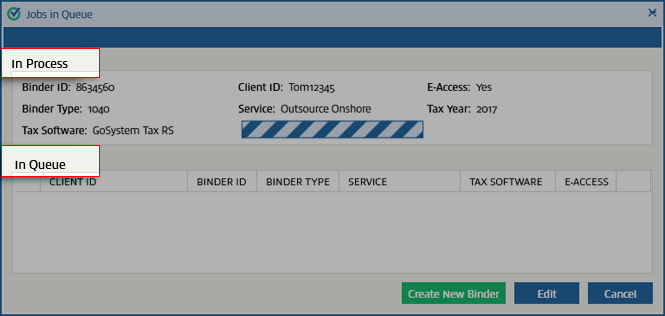
window opens displaying the upload status of the binder. The details of the binder being submitted appears under In Process
while queued binders are listed under In Queue
.
Select
Create New Binder
to submit additional binders while the 1st job is still in process.note
The option to
Create New Binder
from FileRoom is not available while the Jobs in Queue
window is open. You can submit additional jobs only through this window. 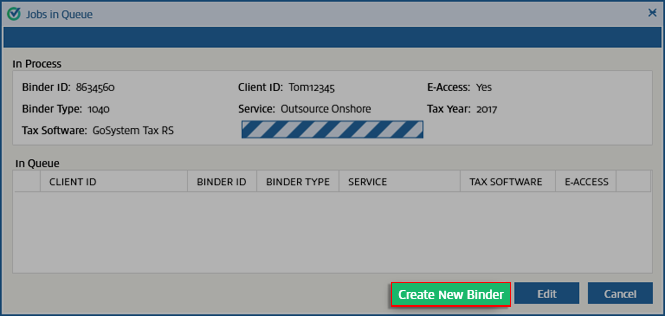
If you submit a new binder while the 1st binder is still in process, then the newly uploaded binder is queued. All binders awaiting processing (binders in a queue) is shown under the
In Queue
section.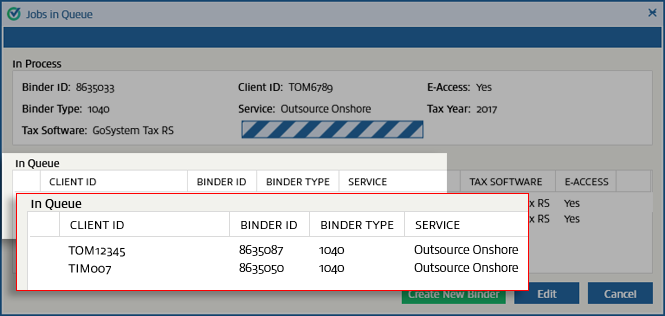
You can edit the details of any binder currently
In Queue
. To edit the details, select the binder, then Edit
, and resubmit the binder.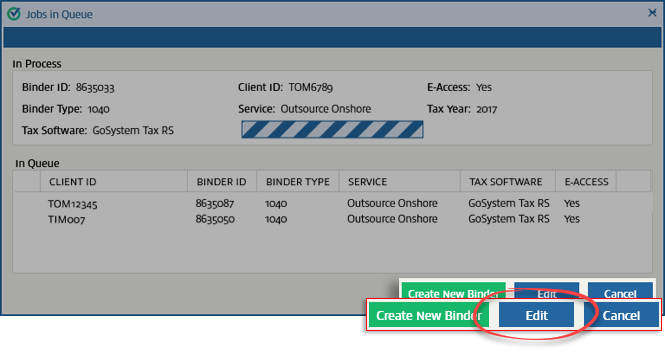
Select
Cancel
to cancel all the jobs. This will open a confirmation window. Select Yes
if you want to cancel the jobs, or No
if you made a mistake.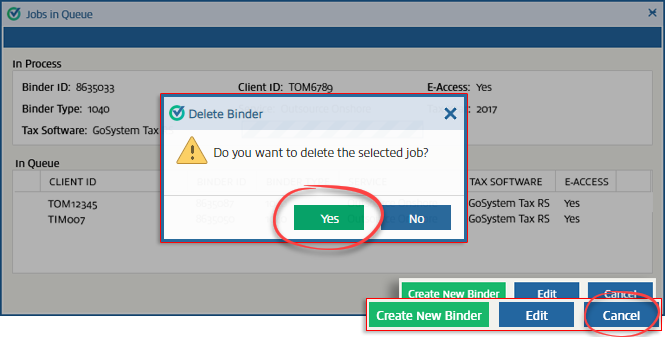
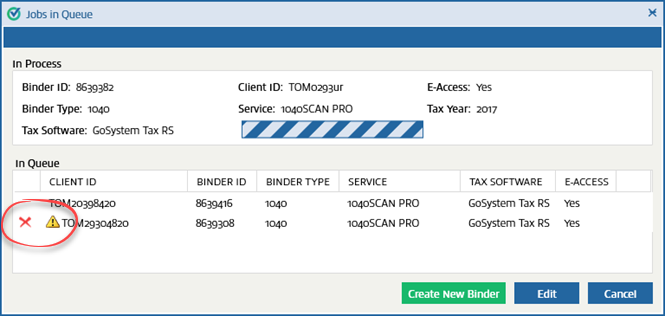
A  appears next to a binder if the binder is stuck in a process and can't be processed. To cancel that job, select the
Caution
icon appears next to a binder if the binder is stuck in a process and can't be processed. To cancel that job, select the Delete
icon note
You can't close the window unless you address the jobs that are in error.
Related Content
-
Create new binder
Format: Article

