
Binder audit log
You can open a Binder Audit Log to review a log of activity for a specific binder.
When seeking records pertaining to activity within a binder, users can view a Binder Audit Log for comprehensive activity tracking directly within FileRoom.
Opening the Binder Audit Log
Follow these steps to view a Binder Audit Log for a binder:
- Locate the binder you would like to review in FileRoom.noteYou can use FileRoom'sSearchandFilterfeatures to narrow down the listed binders.
- From theOPTIONScolumn of the selected binder, select theArrowicon, thenBinder Audit Log.
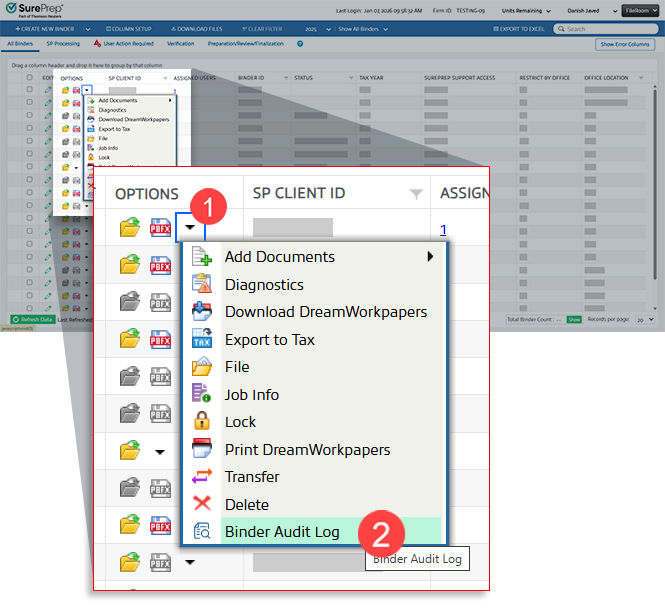
- TheBinder Audit Logpanel will appear. Here you can see the binder's activity log.
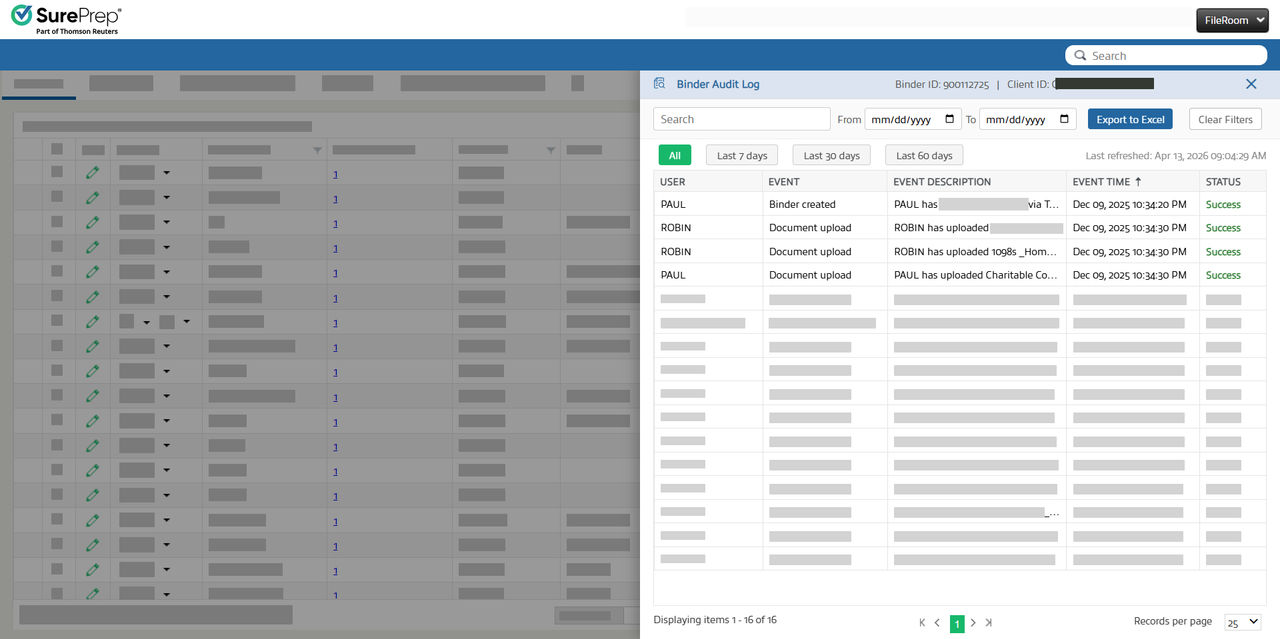
- TheBinder Audit Logwill display the following records:
- USER: The FileRoom user who performed this action.
- EVENT: A brief summary of the event performed.
- EVENT DESCRIPTION: An in-depth description of the event and who performed it.
- EVENT TIME: The date and time that the event happened.
- STATUS: An indication of whether the event was successful or not.
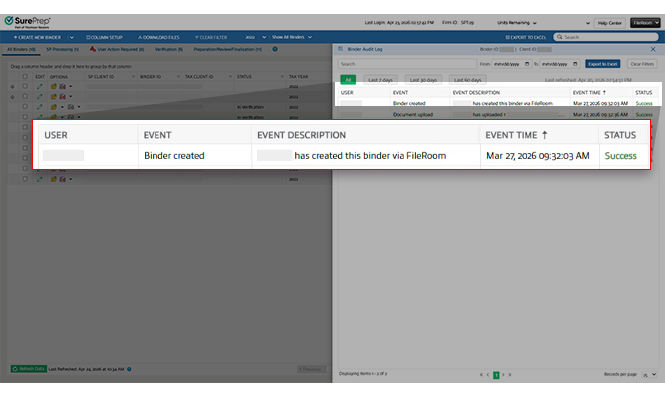
What events are logged in the Binder Audit Log?
The following events will appear in the
EVENT
column of the Binder Audit Log: Event | Event description | Example |
|---|---|---|
Binder created | A user has created this binder, along with the binder creation method (for example, FileRoom, API, TaxCaddy) | Paul Preparer has created this binder via FileRoom |
Document upload | A user has uploaded a document to this binder, along with the name of the document, the document type, the method of upload, and the page count of the document. | Paul Preparer has uploaded ABC Company.pdf (pdf) via TaxCaddy, pages: 6 |
Office location changed | A user has changed the binder's office location, along with the previous and new locations. | Paul Preparer has changed the office location from Los Angeles to New York |
Ownership changed | A user has changed the owner of the selected binder. | Paul Preparer has changed owner from Robin Reviewer to Alice Admin |
Assign member added | A user has added another firm user as an assigned member to this binder. | Paul Preparer has added Robin Reviewer as an assigned member |
note
All of these events will display the
USER
that initiated the event, along with the associated EVENT TIME
.Filter through the records
You can filter the search results using the filter and search features available above the activity log.
After you've opened the Binder Audit Log panel, you can use the
Search
bar to find a specific event. Events can be searched by:- TheUSERthat performed the event
- TheEVENTtype
- Details of theEVENT DESCRIPTION(for example, where a binder was created, an office location, etc.)
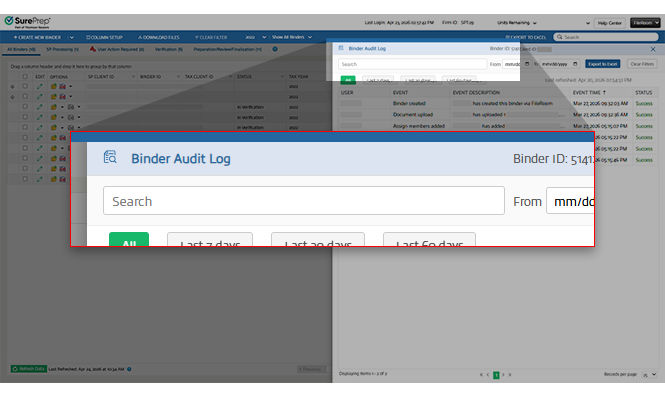
You can filter the binders by date if you're looking for events from a specific timeframe. You can select from the
From
and To
calendars to specify a timeframe for an event.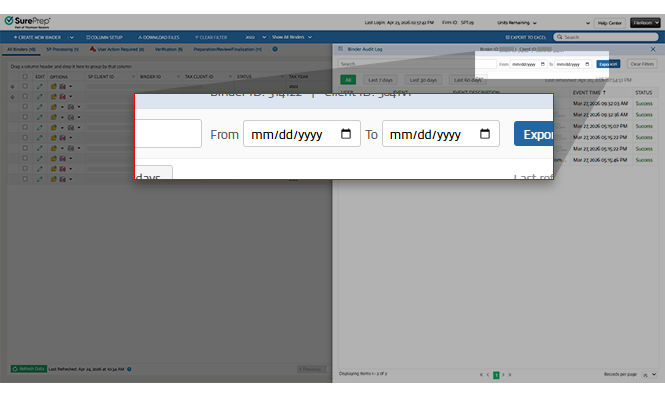
Alternatively, if you want to review events from the past
7
, 30
, or 60 days
, you can select those options below the Search
bar. 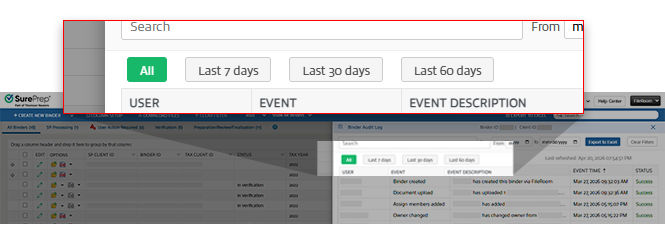
note
You can clear any filters you've applied using the 
Clear Filters
feature. Export to Excel
You can also review a Binder Audit Log offline in Excel. The Binder Audit Log will export as it is presently displayed. If you'd like to alter the records displayed, you can do so using the
Search
and Filter
features.- Open the Binder Audit Log you would like to export.
- SelectExport to Excelto download the Binder Audit Log.
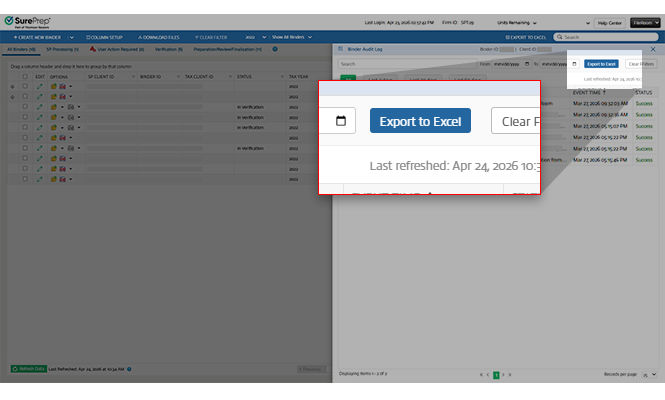
- Open the downloaded Excel file to begin reviewing offline.
Related Content
-
Manage binders from FileRoom
Format: Article

