
Delete binders
Follow these steps to delete a binder.
- Locate the binder that you want to delete.
- Go to theOPTIONScolumn, then select thePicklisticon
 for that binder.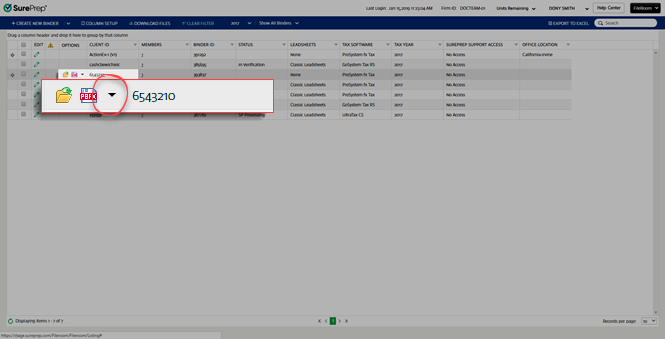
- SelectDeletefrom the dropdown menu. TheDeleteoption is not available if the binder is inDocuments UploadingorSP Processingstatus.noteYou can delete outsource binders if aCaution
 icon appears indicating that it's in error.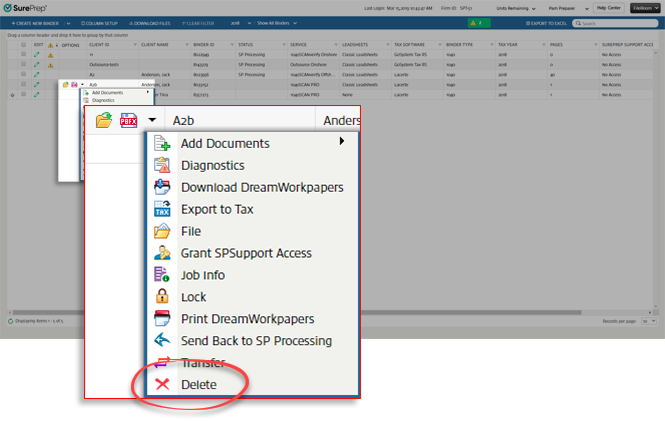
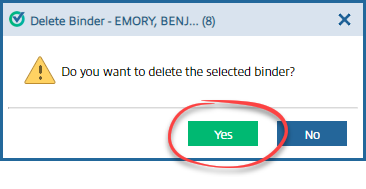
- When theDeletewindow appears, selectYesto delete the binder. SelectNoto cancel.
- SelectOK.

Delete Without Leadsheets binders
For binders without leadsheets (as in binders listed as
None
), the additional documents submitted to the binder will appear as a sub-job. Follow these steps to delete None Leadsheet binders: - Locate the binder that you want to delete.
- Binders with sub-jobs will have theExpandicon

 Select theExpandicon to view the list of sub-jobs. Select the Collapseicon
 to return back to the default view.
- Go to theOPTIONScolumn, then select thePicklisticon for that binder.
- If the selected binder contains sub-jobs, selectDeletefrom theOPTIONSmenu as previously explained. SelectDeletefrom the dropdown menu. TheDeleteoption is not available if the binder is inDocuments UploadingorSP Processingstatus.noteYou can delete outsource binders if aCaution icon appears indicating that it's in error.
- An additional window appears with a list of sub-jobs. Select the sub-job to delete by marking the checkbox next to theJob ID, then selectDelete.noteThe binder is deleted once all sub-jobs are deleted.

- In the confirmation window, selectYes.
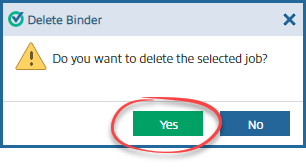
- Once your job has been deleted successfully, selectOK.

Related Content
-
Manage binders from FileRoom
Format: Article

