
Grant Support access
Granting support access lets the SurePrep Support team access your binder/PBFX. You can grant access from FileRoom as well as from SPbinder. This article discusses granting support access from FileRoom.
Grant SPSupport Access from SPbinder.
note
SurePrep Support has access to binders submitted for
Outsource
, 1040SCANverify
, and Pre-Verification
services by default. Thus, Grant access permissions don't apply for these services.Grant SPSupport access from FileRoom
- Go to theOPTIONScolumn, then select thePicklisticon
 for that binder.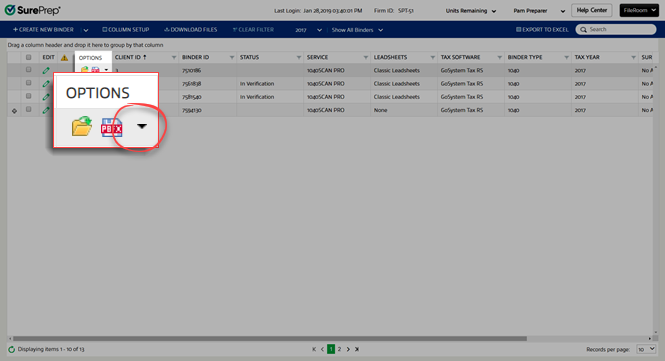
- On the dropdown menu, selectGrant SPSupport Access.
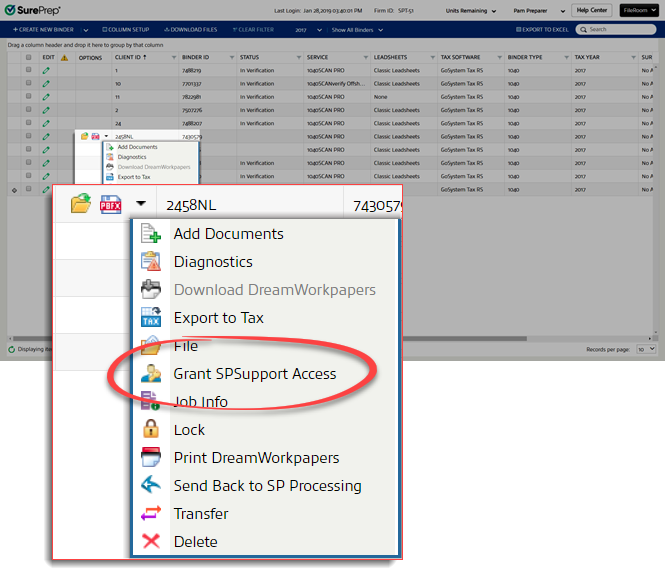
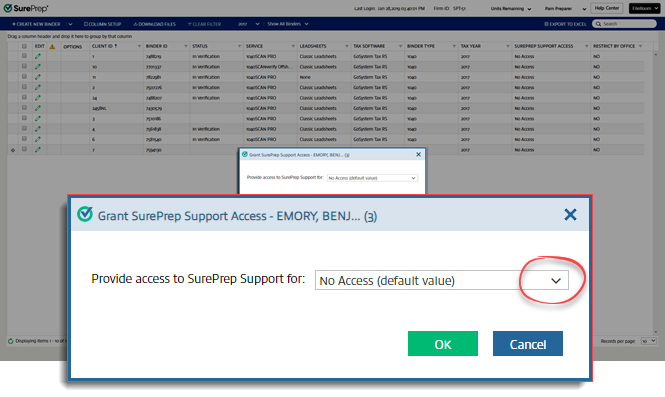
- TheGrant SurePrep Accesswindow options let you select how long access will be granted. By default, no access is granted. When theGrant SurePrep Accesswindow appears, selectNo Access (default value).
- Select the number of days you want to grant support access.noteDays are counted by calendar days, not business days.
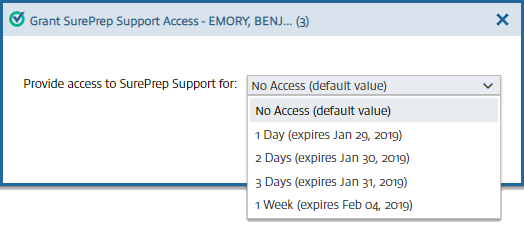
- Once you have selected the duration, selectOK.

Check access expiration on 1 binder
- Point to theOptionscolumn. Select thePicklisticon
 .
.
- SelectGrant SPSupport Access.
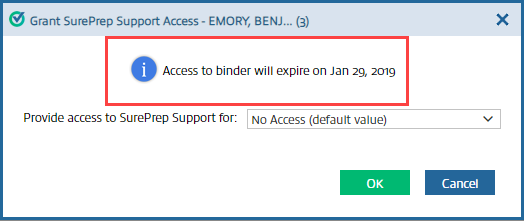
- When theGrant SurePrep Accesswindow appears, you can see when support access will expire.
Check access expiration on all binders
To check the expiration date for all binders that have been provided SPSupport access, look in the
SurePrep Support Access
column in FileRoom. You can filter the binders based on the expiration date as well.note
If this column isn't visible for you, select
COLUMN SETUP
and ensure SurePrep Support Access
is enabled.
Additional information
By default, the
Grant SPSupport Access
option is checked for all user groups in . If the option is unchecked for a user group, then that user group won’t see this option in FileRoom or SPbinder.
The Firm Administrator can check the sign in activity as well as the username of SurePrep Support personnel who accessed the binder from .
While the binder is being accessed by Support personnel, the owner or assigned member of the binder can open the binder but only in read-only mode. If they do access the binder while Support personnel is accessing it, they'll see the following message:

Related Content
-
Manage binders from FileRoom
Format: Article

