
Lock and unlock binders
You can't edit a binder when it's locked. A user-locked binder will have all binder level options turned off except
Unlock
, Grant SPSupport Access
, and Job Info
. For system-locked binders, all binder level options are available, but the binder will open only in read only mode.When you open a locked binder, you'll see a notice informing you that it will open in Read Only mode. Select
Yes
to open the binder.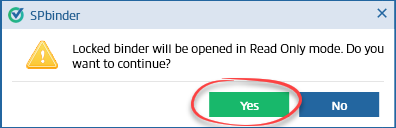
All the function buttons except
Print
, Send For Print
, Manage Predefined Workpaper
, Show Active Folders
, Expand Folders
, and Collapse All
are not available.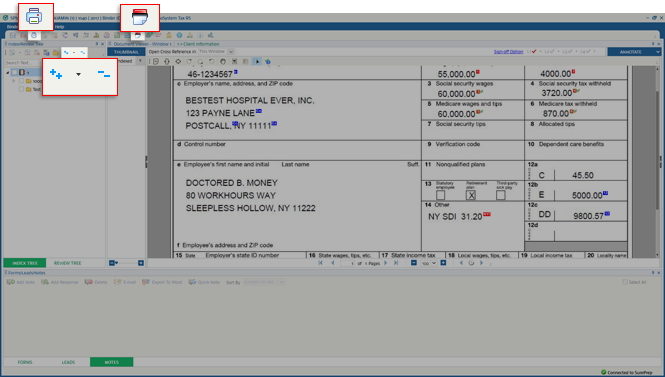
Locking binders
- Find the binder you want to lock inFileRoom.
- Go to theOPTIONScolumn, then select thePicklisticon
 for that binder.
 - SelectLockfrom the dropdown menu.
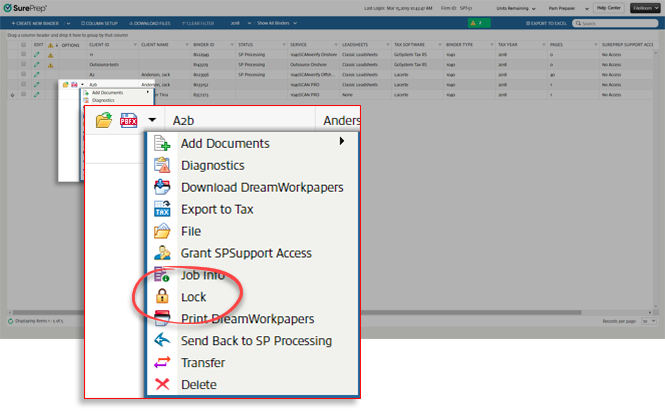
- You will see a notification that the binder is locked.

note
Only users with the
Lock/Unlock Binder
permission can lock and unlock binders. Unlock binders
Unlock binder from FileRoom
- Go to the binder you want to unlock inFileRoom.
- In theOPTIONScolumn, select thePicklisticon for that binder.
- SelectUnlockfrom the dropdown menu.
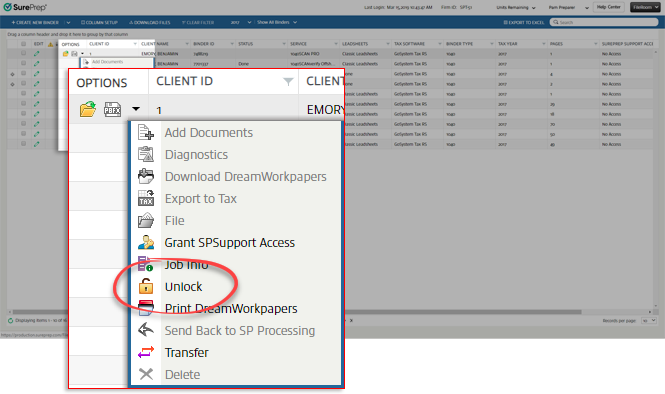
- You will see a notification that the binder is unlocked.

You can tell if a binder has been locked by checking the
Locked
column in FileRoom
. It will display Yes
for locked binders and No
for unlocked binders.
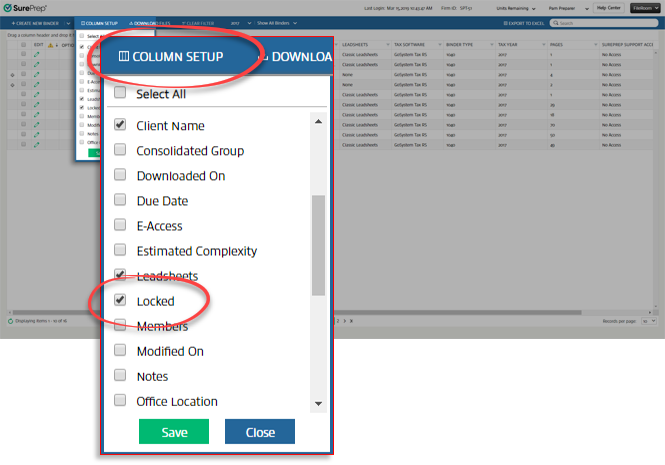
If this column isn't visible for you in
FileRoom
, select Column Setup
, mark the Locked
checkbox, then select Save
.
Unlock binder from SPbinder
You can also lock or unlock a binder manually from or from the SPbinder toolbar by selecting the  icon.
icon.
icon.
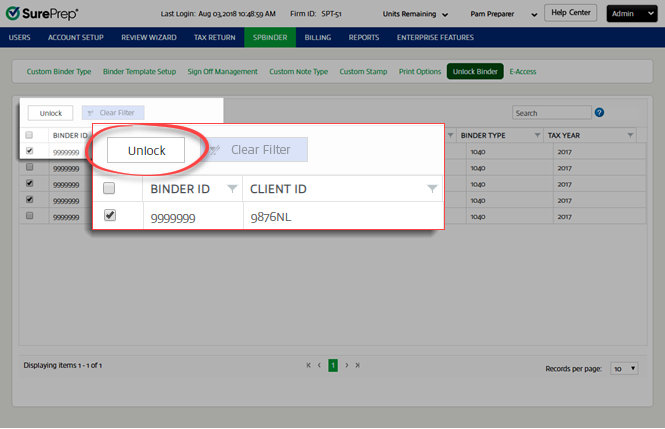
Unlock binder from Account Admin
You can unlock the system-locked binders from .
Related Content
-
Manage binders from FileRoom
Format: Article

