
Print a clean PDF (without annotations)
Binders printed with or without leadsheets may include sign-offs, annotations, stamps, and references that you may not need. Printing a clean PDF lets you create a new PDF copy without annotations and bookmarks.
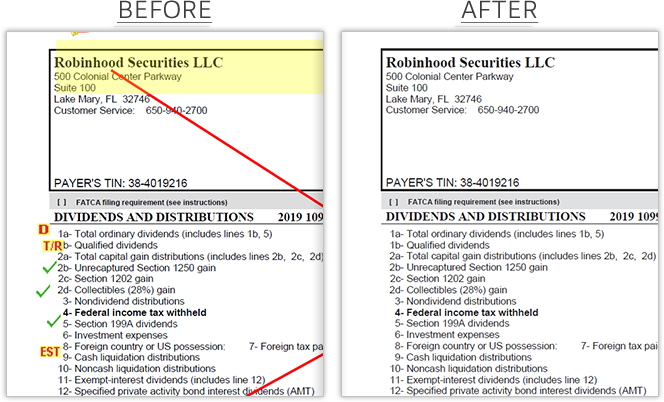
Follow these steps to print a PDF copy without annotations:
Print and download DreamWorkpapers/SPbinder PDF. Open the PDF document after it completes downloading.

On page 1, mark the
Print Clean PDF
checkbox.
Select
File
, then Print
to view print options. You can also use Ctrl
+ P
.
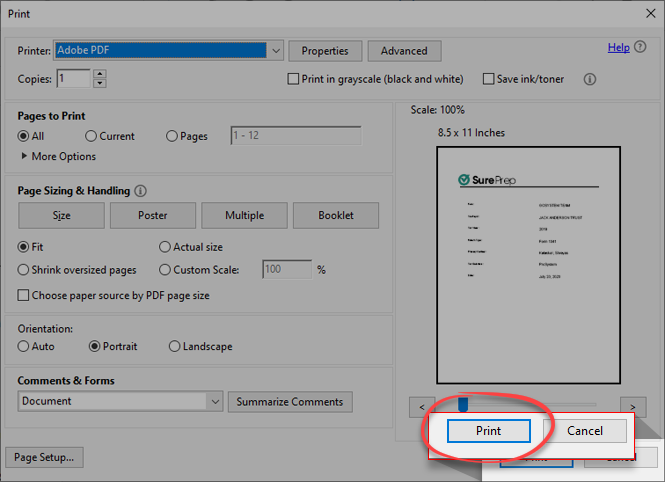
In the
Print
window, select the Printer
dropdown menu then Adobe PDF
.
Don't mark the
Print in grayscale (black and white)
or Save ink/toner
checkboxes.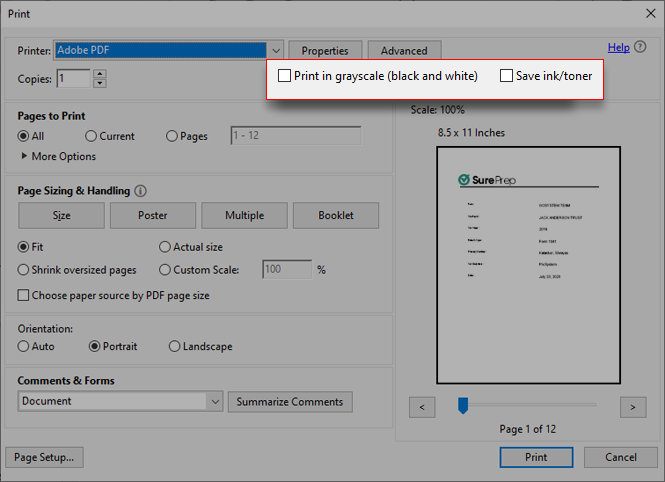
Select
All
for Pages to Print
.
Select
Fit
for Page Sizing & Handling
. This option fits oversized documents on 1 page. Don't mark the Choose paper source by PDF page size
checkbox.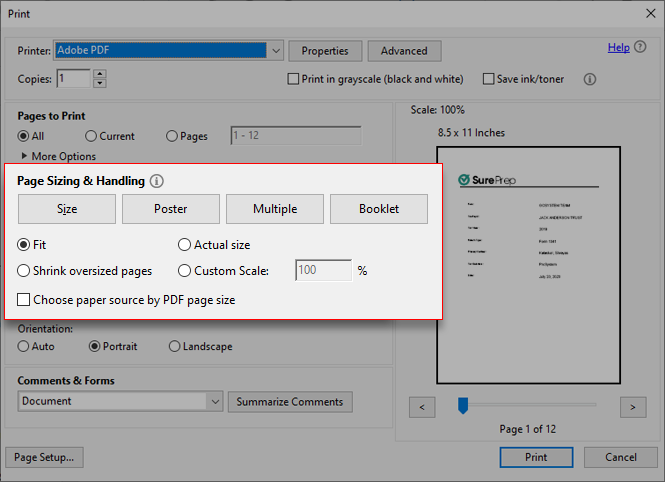
Select
Portrait
for Orientation
. If you don't select this setting, then pages in landscape orientation may print sideways. Selecting Portrait
orientation won’t squeeze the Consolidated Statement pages. Consolidated Statements will appear in landscape orientation, but they'll print in the correct orientation. 
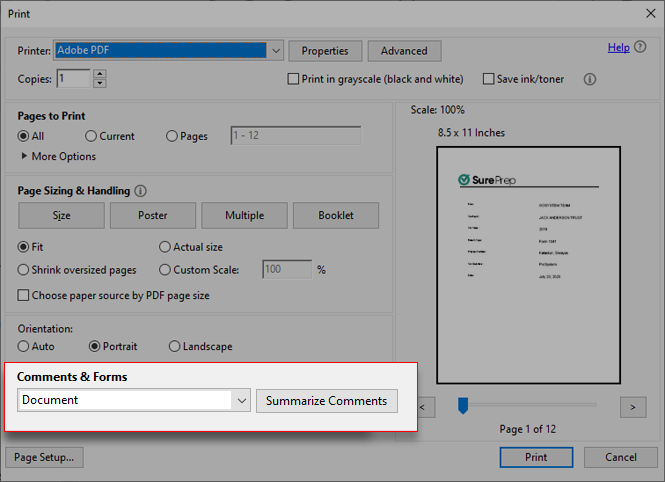
Select
Document
for Comments & Forms
.
Select
Print
.
Select
Save
to save the clean PDF copy without annotations.
note
The new PDF copy won’t include any page bookmarks or annotations. Learn more about printing binders with bookmark only:
- Print DreamWorkpapers (binders with leadsheets) with bookmarks only.
- Print SPbinder PDF (binder without leadsheets) with bookmarks only.
The
SOURCE DOCUMENT INDEX
page on the original PDF is a blank page on the printed PDF copy. 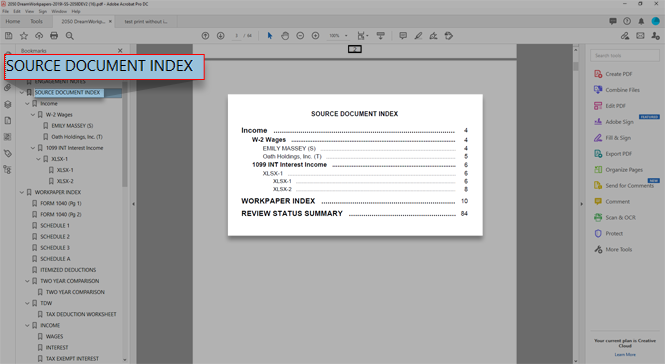
The
WORKPAPER INDEX
page on the original PDF is a blank page on the printed PDF copy. 
Related Content
-
Manage binders from FileRoom
Format: Article

