
Send binders back to SurePrep processing
You can send a binder back to SP Processing to correct certain information. For example, you might do this if the tax file doesn't match the binder.
note
When you send back a binder for any reason, all completed work is deleted. This includes data imported by OCR, data added or corrected during verification, and work done in SPbinder.
Follow these steps to send your binder back.
- Go to theOPTIONScolumn, then select thePicklist
 icon for the binder.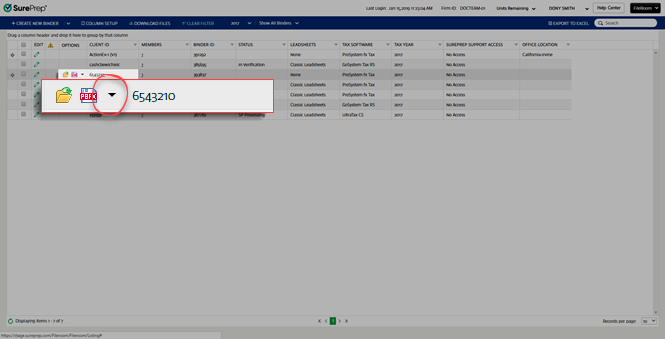
- SelectSend Back to SP Processingfrom the dropdown.noteYou can send back a binder only with the permission to do so. You can set this permission at .

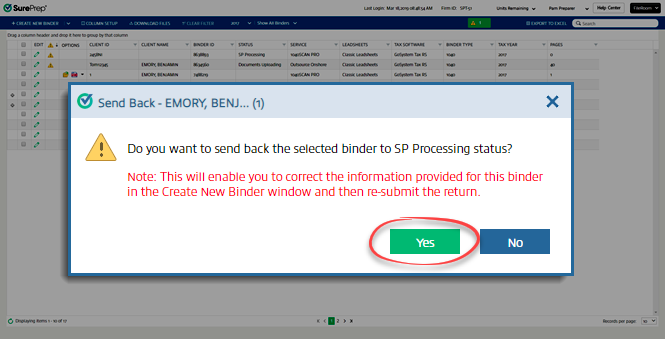
- In theSend Backwindow, selectYes.
- Enter the reason for sending the binder back in theSend Back Reasonfield, then selectSaveto send the binder back.
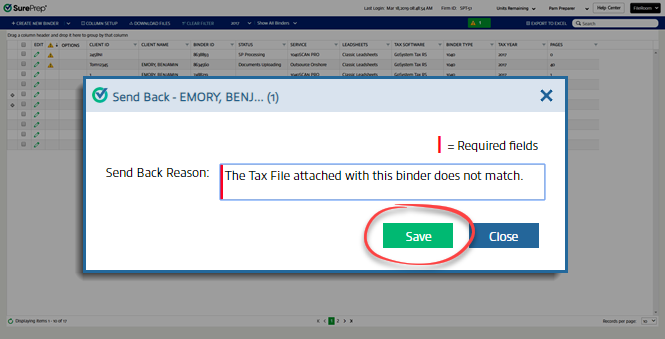 Alternatively, selectCancelif you don't want to send back this binder.
 - Once you've sent back the binder, its status will be "SP Processing." The owner of the binder will receive an email notification.ACaution
 icon displays in FileRoom for the binder that was sent back.
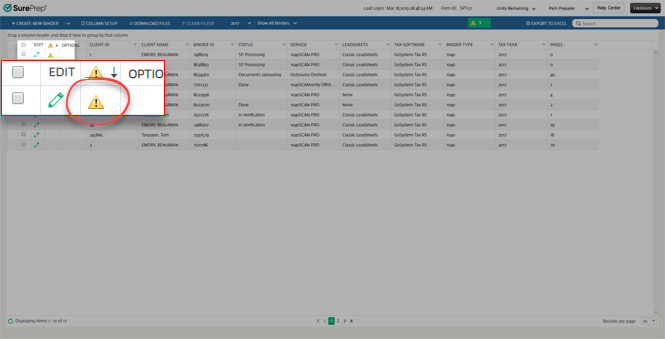 You can hover over theCaution icon to see the reason it was sent back.
 To correct the information, open the binder. TheCreate New Binderwindow will open. Correct the details then resubmit the binder.
Requirements
Services
- Classic
- Simplified
Leadsheets
Status
- In Verificationor has blank/custom status.
Related Content
-
Manage binders from FileRoom
Format: Article

