
Transfer ownership
Follow these steps to transfer the ownership of a binder to another user.
- To transfer the ownership of a binder to another user, locate the binder.
- Go to theOPTIONScolumn, then select thePicklisticon
 for that binder.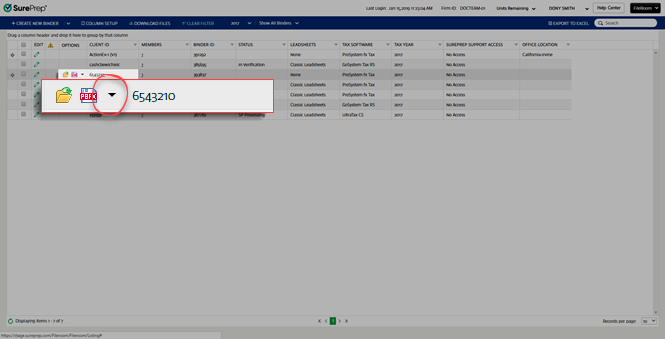
- SelectTransferfrom the dropdown menu.

- In theTransferwindow, select theOwnermenu, then select the person to whom you want to transfer the binder.

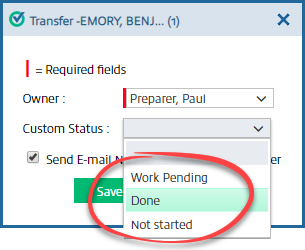
- SelectCustom Status, then the status you want to set.
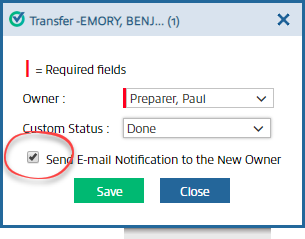
- If you want to send an email notification to the new owner, markSend E-mail Notification to the New Owner.
- SelectSave.
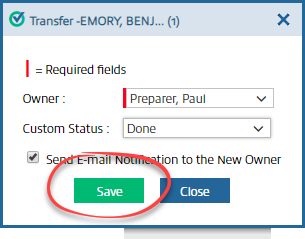
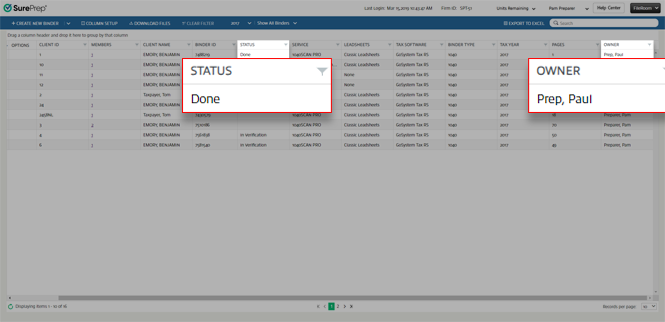
- The binder will now transfer, and you'll see the selections you chose in theStatusandOwnercolumns.
note
You can change the ownership of the binder only if the binder is not in the export process and if the review wizard for that binder isn't open.
You can also transfer ownership of a binder from SPbinder. Select
Edit
, then Transfer Ownership / Update Status
. You can also select the icon on the SPbinder toolbar.View details on Transfer Ownership from SPbinder.

note
Changing owner or assigning members will sync with TaxCaddy Client Profile and FileRoom binder.
Related Content
-
Manage binders from FileRoom
Format: Article

