
Add a document in the FileRoom File window
- Go to the binder where you want to add a document inFileRoom.
- Go to theOPTIONScolumn, then select thePicklisticon
 on that binder.
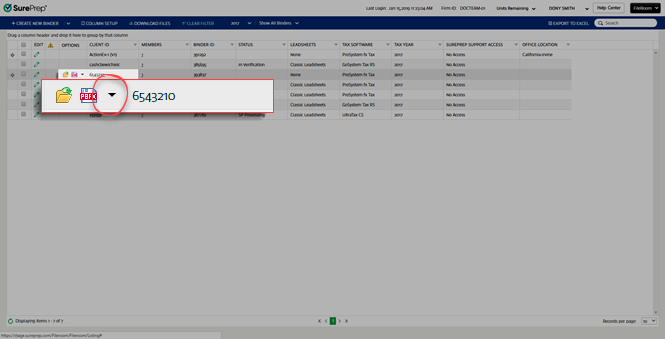
- SelectFilefrom the dropdown menu.

- In theFilewindow, select the folder where you want to add the document.

- SelectNew Document.
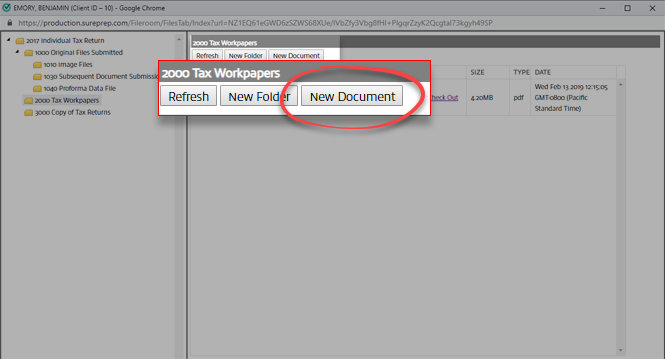
- In theAdd Documentswindow, selectChoose File.

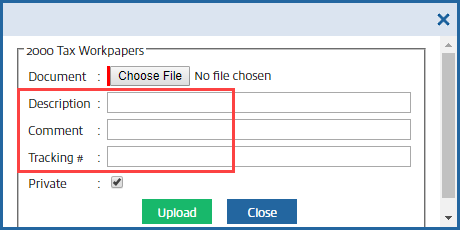
- Enter the following information.
- Enter a description of the document inDescription.
- Enter a comment inComment.
- Enter a tracking number inTracking #.
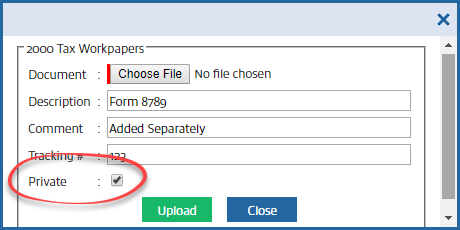
- If the document is private, mark thePrivatecheckbox.
- SelectUpload.

3000 Copy of Tax Return
: This folder contains the completed copy of the tax return in Adobe Acrobat PDF Format if the return is prepared by SurePrep. 4000 Tax Software Files Prepared by SP
This folder will contain the completed tax application file (except for GoSystem Tax RS) only if the return is prepared by SurePrep. Related Content
-
View stored binder files
Format: Article

