
Generating HAR file
Generating a HAR log file creates a network activity log that our support team can use to troubleshoot difficult issues. You may be requested to record your network activity log while the issue is occurring. Once you reproduced the issue, provide the HAR file to the support team for further analysis.
note
You only need to generate the HAR file if it is specifically requested by SurePrep Support.
You can create HAR report for the following browsers:
Chrome
Edge
Firefox
Safari
Chrome
- Open Google Chrome and go to the page where the issue is occurring.
- From the Chrome menu bar,
 select More Tools > Developer Tools.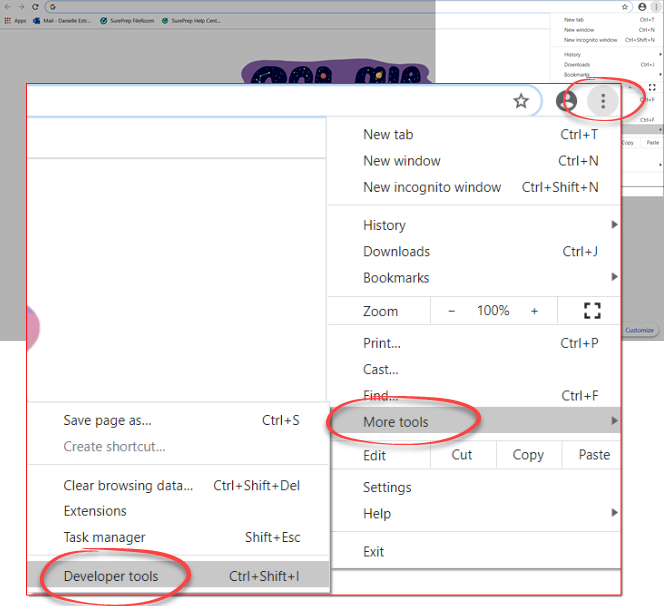
- From the panel opened, selectNetwork.
- Mark thePreserve logandDisable cachecheckboxes.
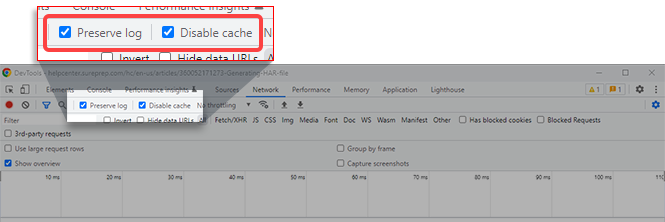
- SelectRecord
 if you haven't started recording.
 - SelectClear
 to remove any existing logs from the Network.
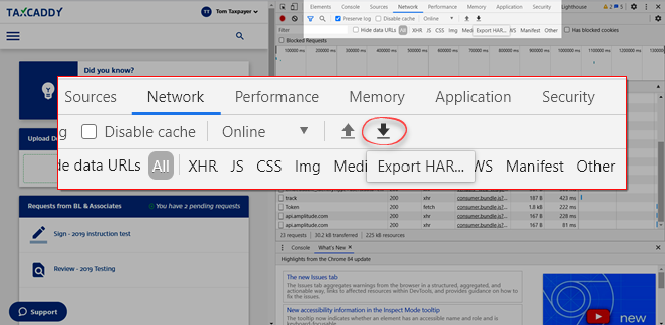
 - Reproduce the issue that you were experiencing before, while the network requests are being recorded.Once you have reproduced the issue, selectExport.
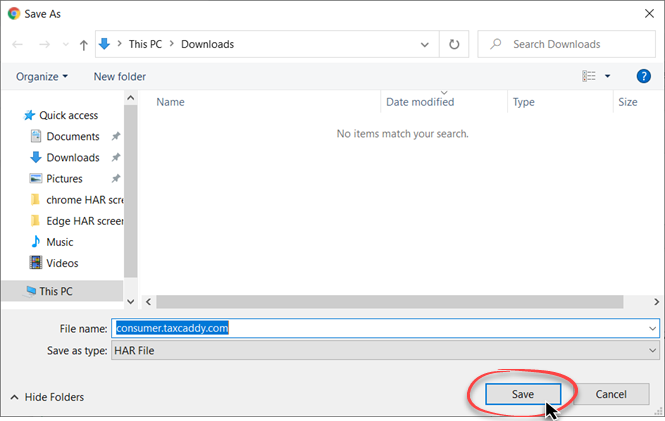
- Upload your HAR file to your ticket or attach it to your email so that our Support team can analyze it.
Edge
note
Internet explorer is not supported by TaxCaddy. Please install Microsoft Edge or any of the other supported browsers.
- Open Edge and go to the page where the issue is occurring.
- From the Edge menu bar, selectView > Developer > Developer Tools.
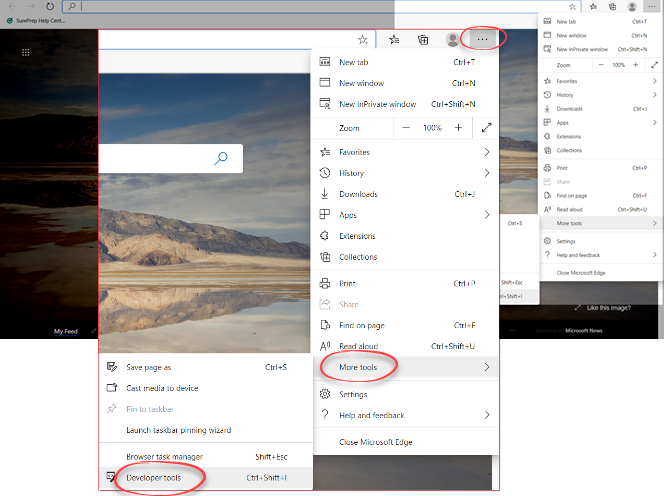
- From the panel opened, select theNetwork.If you don’t see the
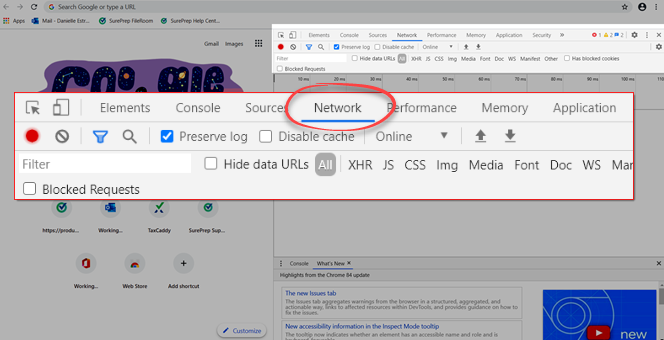 Networktab, select theMore tabs>> icon, then selectNetwork.
 - Mark thePreserve logandDisable cachecheckboxes.
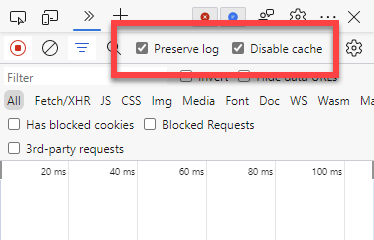
- Look for a roundRecord icon in the upper left corner of the tab, and make sure it is red. If it is gray, select it once to start recording.
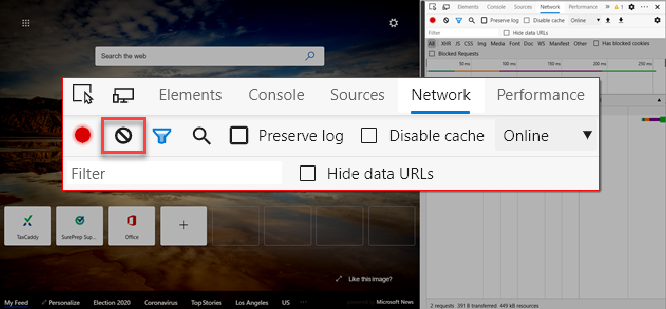
- Select theClear
 icon to clear out any existing logs from the Network tab.
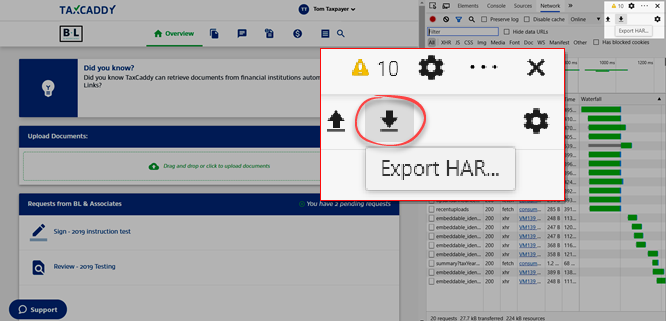
- Reproduce the issue that you were experiencing before, while the network requests are being recorded. Once you have reproduced the issue, select theExporticon.
- Upload your HAR file to your ticket or attach it to your email so that our Support team can analyze it.
Firefox
- Open Firefox and go to the page where you are experiencing trouble.
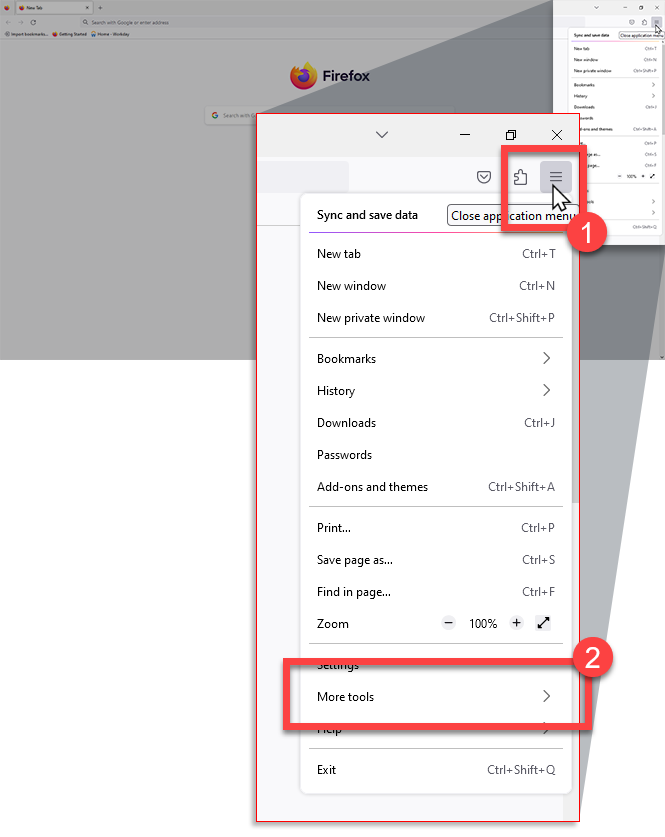
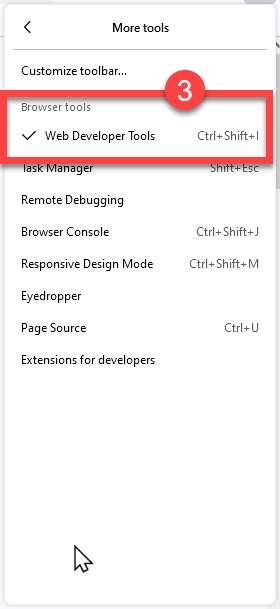
- Select the Firefox menu (3 horizontal parallel lines) at the top-right of your browser window, then selectMore tools>Web Developer Tools.
- The Developer Network Tools opens as a docked panel at the side or bottom of Firefox. Select theNetworktab.
- Mark theDisable Cachecheckbox, then selectSettings
 followed byPersist Logs.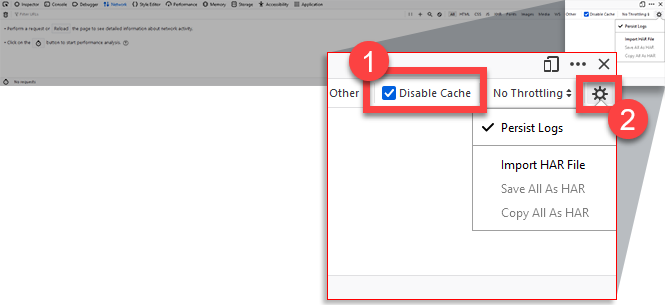
- The recording auto-starts when you start performing actions in the browser. SelectClearto remove any existing logs from the Network.
- Once you have reproduced the issue and you see that all of the actions have been generated in the Developer Network Panel (which should just take a few seconds), select theSettings icon, then select Save all as HAR.
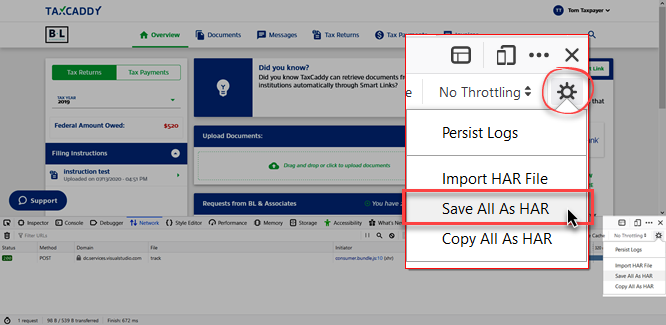
- Save the HAR file to your device.
- Upload your HAR file to your ticket so that we may analyze it.
Safari
- Go to Safari >Preferences, selectAdvanced, then selectShow Develop menu in menu bar.
- Open theDevelopmenu, selectShow Web Inspector.
- Select theNetworktab, reproduced the issue.
- Select theExporticon on the far right of theNetworktab and save the HAR file.
- Send us the file via your support ticket.
Related Content
-
Contacting Support
Format: Article,
1 min read
Article,
1 min read

