
Set PBFX files to open in SPbinder
A PBFX file is downloaded when you open an existing binder or create a new binder. Attempting to open the PBFX file for the 1st time on a Windows 11 device may require you to associate PBFX files with SPbinder. You will either see a prompt to select a software/program from a list or Windows will attempt to open the file in an incorrect software (for example, Adobe Acrobat, Microsoft Word).
Follow these steps to associate PBFX files with SPbinder:
- To open a binder, go to theOPTIONScolumn, then select theOpen
 icon.
icon.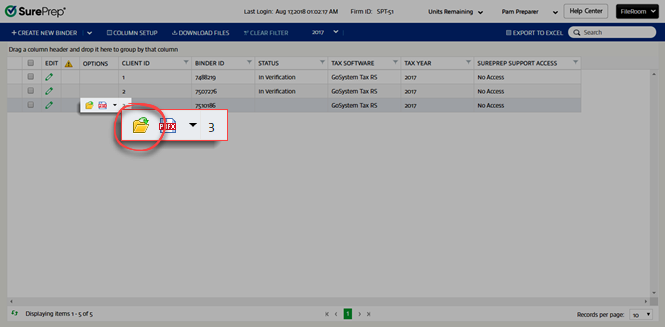 noteYou can also selectCREATE NEW BINDERto download a PBFX file.
 - Locate the downloaded .PBFX file on your device, then open the file menu and selectProperties.

- SelectChange, to associate the .pbfx file extension type with SPbinder by default.

- On the software selection window, selectMore apps.
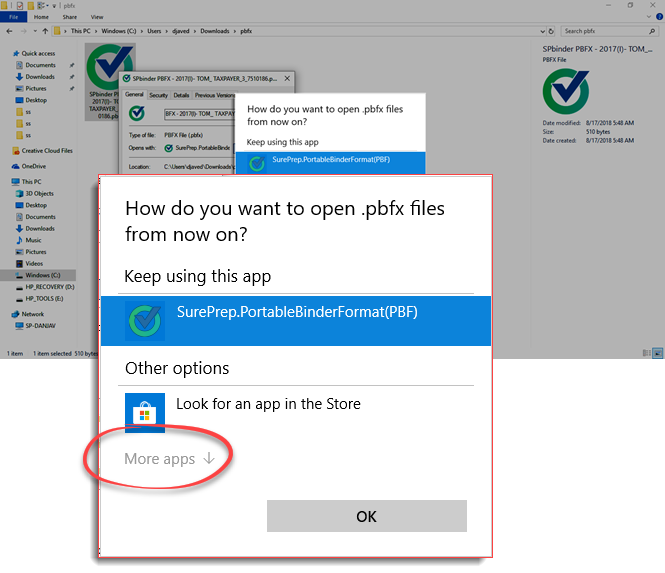
- To view additional options, selectLook for another app on this PC.

- When theOpen Withwindow appears, selectSurePrep.PortableBinderFormat(PBF)and thenOpen.noteIf you are on a local machine, thenSurePrep.PortableBinderFormat(PBF).exeis located in theProgram Files (x86)\SurePrepLLC\PBFXfolder.For example: Go toC:\Program Files (x86)\SurePrepLLC\PBFXthen selectSurePrep.PortableBinderFormat(PBF).exeIf you are on cloud environment, contact your IT team to locate your SurePrep program folder.

- Select theUnblockcheckbox, then selectApplyandOK.
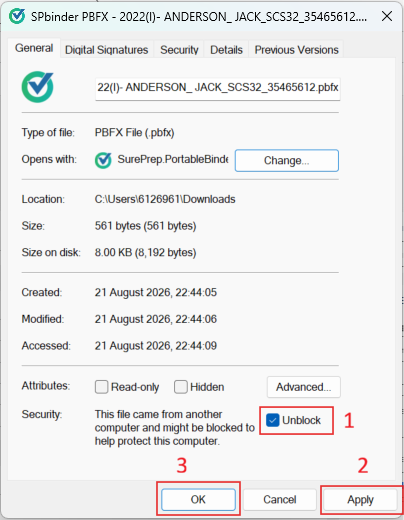
Once you have associated the .PBFX file extension type with SPbinder, you should be able to open SPbinder from SurePrep FileRoom.
Related Content
-
Create new binder
Format: Article
-
Opening Binders
Format:
Article

