
Cloud 9 installation instructions
Cloud 9 Contact info
: Phone # (888)869-0076 ext 1
Please add SurePrep as an authorized user for the firms account with Cloud9. This will allow us to troubleshoot directly with Cloud9. Once that has been completed please provide the firm's account number at Cloud9 so we have an identifier to reference for the firm.
Install steps for SurePrep user (firm)
- Go to Cloud9 user portal – view users etc.
- Submit a ticket for add 3rdparty app software
- Fill in all information (install package, version, user info)
- Provide the following link in the ticket https://production.sureprep.com/PBFXInstaller/SPbinder.exe
- The ticket then goes to Cloud9 maintenance team.
- Next, you will receive a calendar link for available install times.
- Please set up an install time when you are available to join a meeting if the Cloud9 tech has any questions.
- Advise SurePrep of the install time so that SurePrep can have a tech available to join the meeting as well.
Install steps for Cloud9
These steps need to be followed by Cloud 9 and witnessed by SurePrep Executive:
- Log in to the server.
- Put the server in install mode (Start>Run>cmd.exethenchange user /install).
- Download the .exe file at https://production.sureprep.com/PBFXInstaller/SPbinder.exe
- SelectSave aswhen prompted to download.
- Save the .exe file to your desired location.
- Run the file as an Admin once the .exe file has been fully downloaded.
- Select desired drive paths for program and download folders:
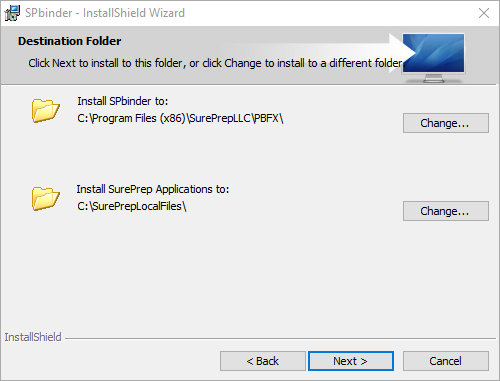
- SurePrep recommends the “Everyone” group should have full permissions to these two paths. However, “Users, Staff, or authenticated users” group are also acceptable with modified permissions.
- Sign-in to the SurePrep file room at https://production.sureprep.com/Home/Login
- Create a new binder or open an existing binder.
- Several updates may begin.
- When the submission wizard or the binder opens, the install has been done successfully.
note
If you are on a Shared Environment, we recommend changing your update settings to use a particular version of SPbinder as opposed to "
Automatic Updates
" to avoid interruptions when multiple users try accessing SPbinder at once. For such environments, we recommend the appropriate administrator manually change the selected version and perform an action such as opening a binder to apply updates during off-hours.Related Content
-
Shared environment
Format: Article

