
Troubleshoot: Adjust Windows zoom level to fix scaling issues
When using SurePrep software, your device's display settings may cause some windows to appear cut-off. The most likely cause of this display error could be in your device's display settings.
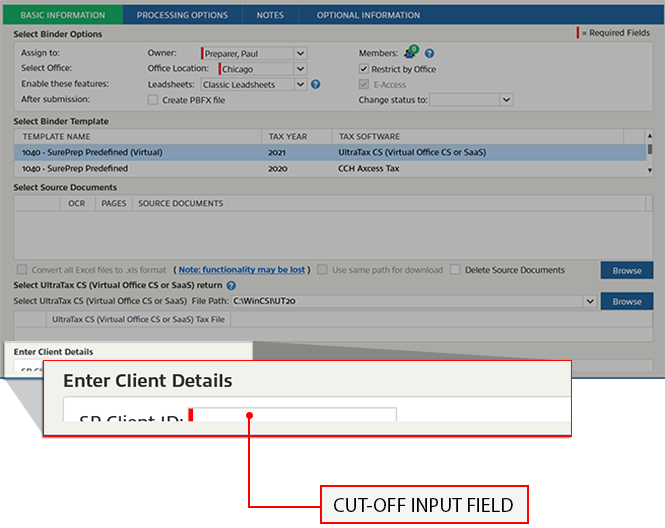
Follow these steps to select the display settings most compatible with your needs:
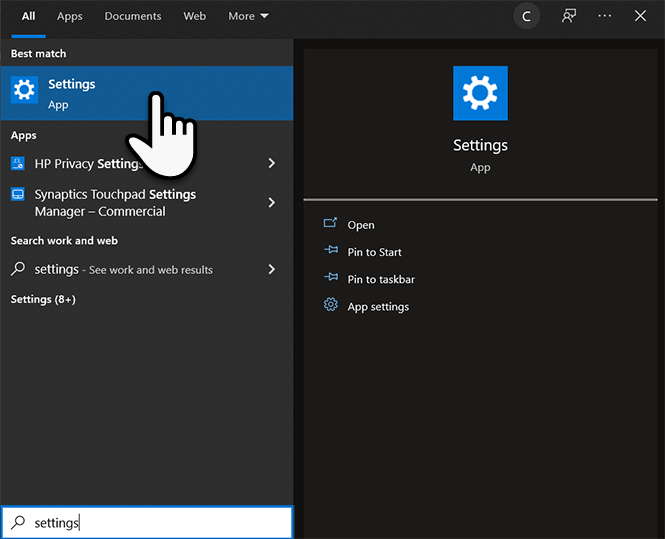
- Open your device'sSettings.
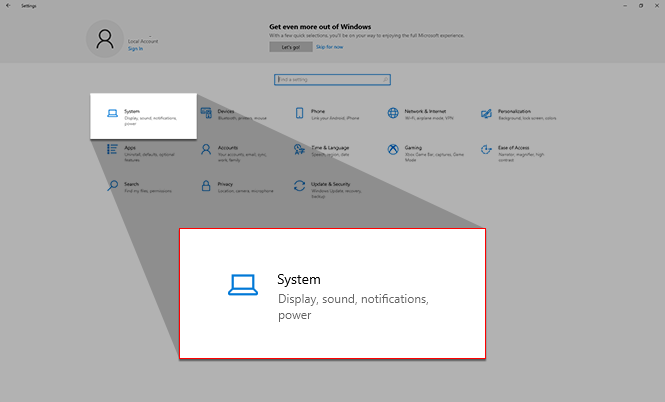
- SelectSystemto view your device's system settings.
 Displayshould open by default. If not, selectDisplayfrom the sidebar.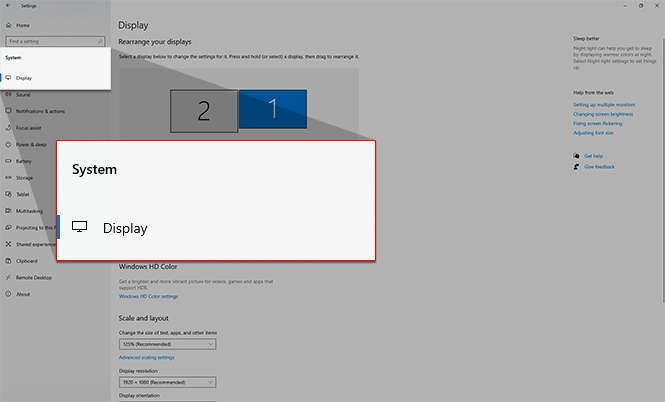
- Go to theScale and layoutsection ofDisplaysettings. Select the dropdown menu to view zoom options.
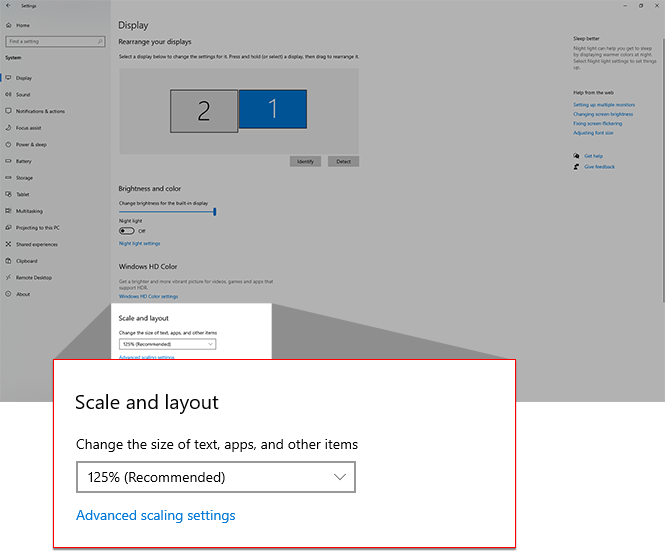
- Select a lower display percentage. You can continue experimenting with different zoom levels until you find one that best suits your needs.


