
CCH User account setup for Outsource service
Firms using CCH Axcess Tax need to perform the following steps to set up SurePrep's Outsource service.
Step 1: Create a User Account
Follow the steps below to enable a User account:
- Log in toCCH Axcess Dashboard.
- Go toApplication Links,Staff, thenStaff Manager.
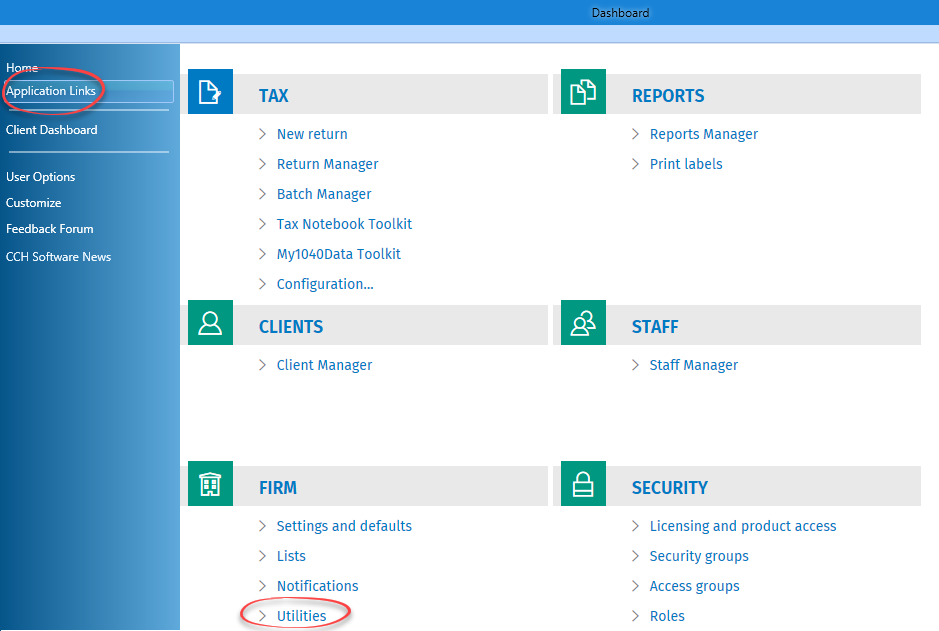 noteIf you previously created any SurePrep users, then locate the user and remove/delete the SurePrep outsource user from your firm list.
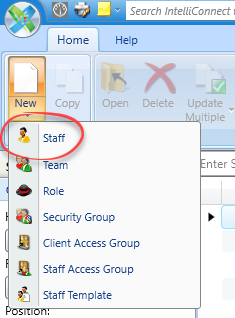
 - In theStaff Managerwindow, selectNewthenStaff.
 When theNew Staffwindow opens, choose the required template and selectContinue.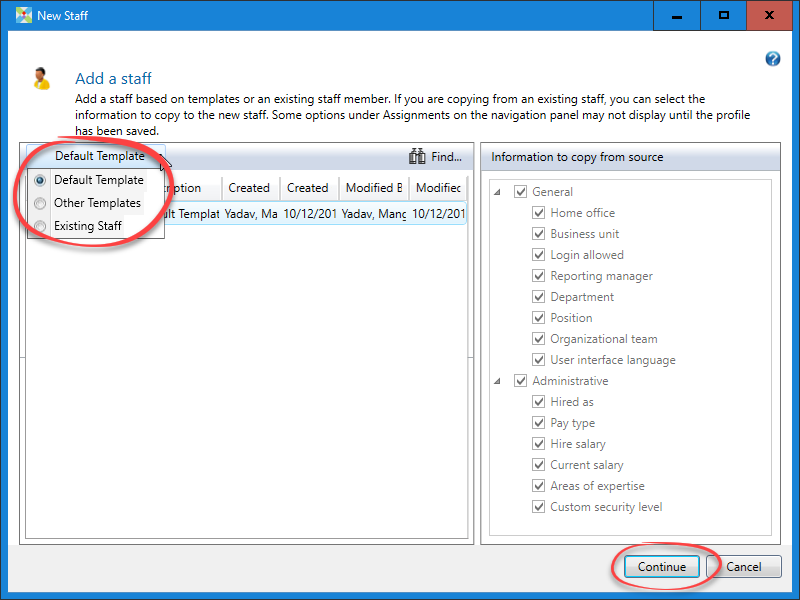
- In theStaff Profilewindow, fill all the required fields based on the information provided below.
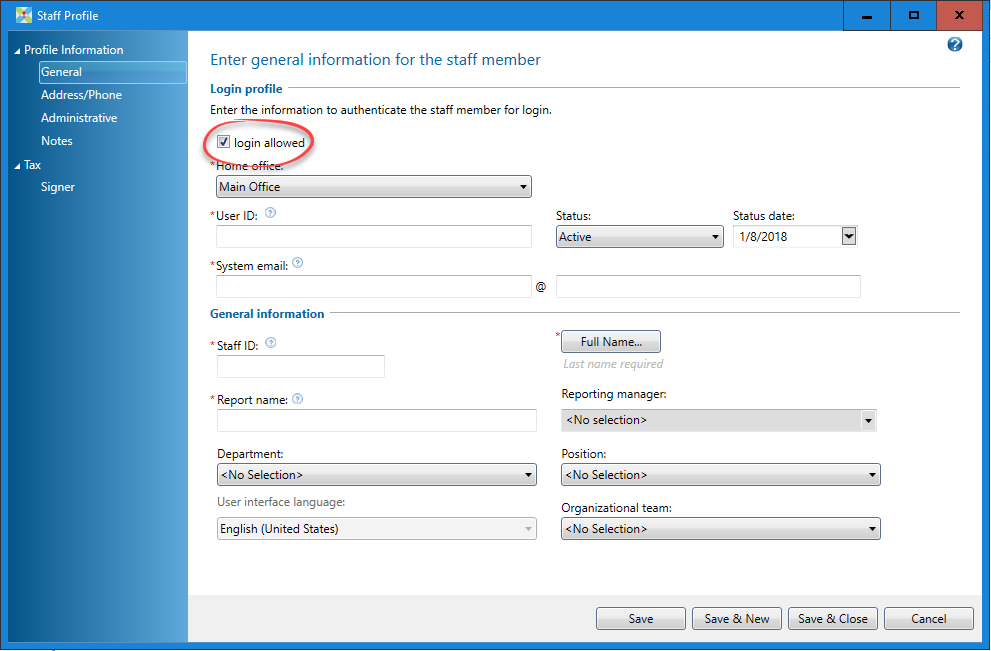
- Select theLogin allowedcheckbox.
- For theHome Officefield, select the staff member's main office location. If you only have rights to 1 office, then that office is automatically selected.
- Add a user account by filling out the remaining fields based on the following information. If you're using Outsource Onshore or Offshore, create a user ID name that includes if the user is an onshore or offshore user. For example:
- Onshore users can be OnshorePreparer1, OnshorePreparer2, etc.
- Offshore users can be OffshorePreparer1, OffshorePreparer2, etc.
User IDSystem EmailStaff IDReporter NameFirst NameLast name[Domain ID].OnshorePreparer1Create a dedicated email address at your firm as:[Domain ID]-OnshorePreparer1@[Your Firm's email domain].com[Domain ID].OnshorePreparer1Onshore/Offshore Preparer 1Onshore/Offshore Preparer 1Onshore/Offshore Preparer1Example:BL-01.OnshorePreparer1Example:BL-01-OnshorePreparer1@BL&Associates.comExample:BL-01.OnshorePreparer1Example:OnshorePreparer1Example:OnshorePreparer1Example:OnshorePreparer1If you previously created any SurePrep users, then locate the user and remove/delete the SurePrep outsource user from your firm list. - Next, set up a phone number to allow multi-factor authentication. Navigate to theProfile Informationtab and selectAddress/Phone.

- Use the following phone number according to the Outsource Onshore or Offshore returns:Phone NumbersOutsource PreparerSelect CountryPhone numberOnshoreUnited States9494183589OffshoreIndia734-973-7632

- Save and close the window.noteSurePrep will then set up a password and security question. SurePrep Support team may reach out to you if there are any issues or concerns.
- If your firm uses Tax File Activation using Credential Authentication(Login Mode), skip to creating an email rule in Outlook.If your firm uses Tax File Activation on web (for example, Token Authentication ADFS/SSO) to integrate with SurePrep, setup a Service User. After the service user is setup create an email rule in Outlook.
Additional Users
If you are requested to add additional users, then you can add them by using the following format:
- [Domain ID]. + [Onshore or Offshore] + Preparer + Incremental User Count = BL.OnshorePreparer1
Example:
User ID | System Email | Staff ID | Reporter Name | First Name | Last Name |
|---|---|---|---|---|---|
Create a dedicated email address at your firm as | |||||
[Domain ID].Preparer2 | [ Domain ID ]-OffshorePreparer2@[Your Firm's email domain ].com | [Domain ID].OffshorePreparer2 | OffshorePreparer2 | OffshorePreparer2 | OffshorePreparer2 |
[Domain ID].Preparer3 | [ Domain ID ]-OffshorePreparer3@[Your Firm's email domain ].com | [Domain ID].OffshorePreparer3 | OffshorePreparer3 | OffshorePreparer3 | OffshorePreparer3 |
Step 2: Create email rule in Outlook
Create an email rule to share incoming emails with the outsource team.
- Log in to the designated outsource email you created earlier during the user account setup process (for example, BL-OnshorePreparer1@BL&Associates.com, BL-OffshorePreparer1@BL&Associates.com).
- Right-click the email you receive from CCH Axcess, selectRulethenCreate Rule.From: noreply@cch.com
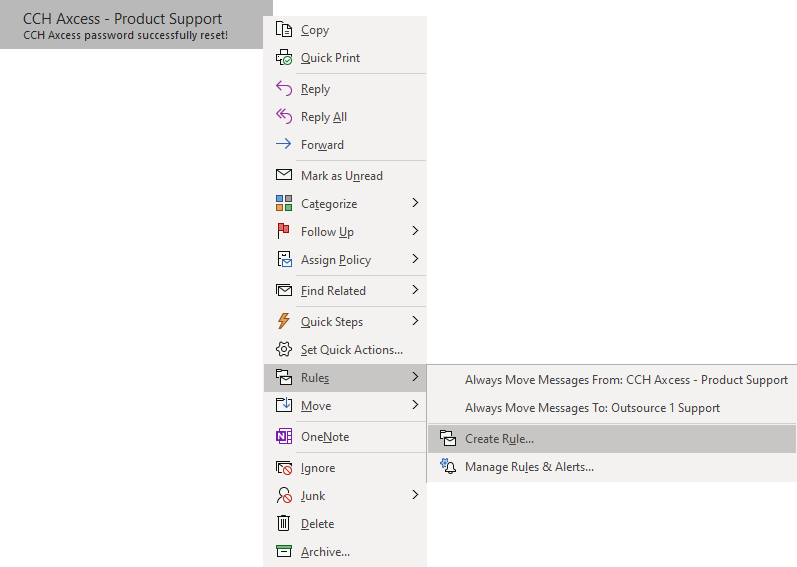
- SelectAdvanced Options...

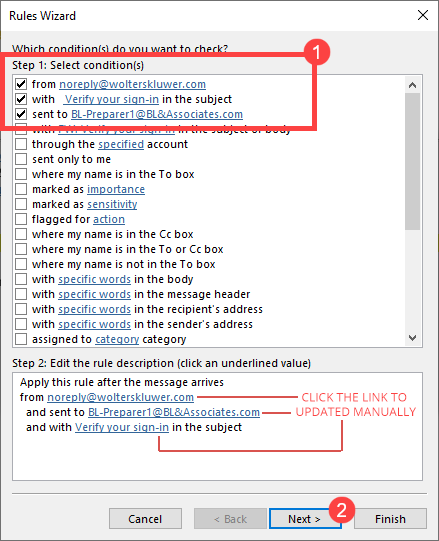
- Select theFrom,With, andSent tocheckboxes, then selectNext.

- Select theforward it to people or public groupcheckbox, then in the Step 2 section, select thepeople or public grouplink.

- In theStep 2section, you should now see the updated email address. SelectNextto continue.
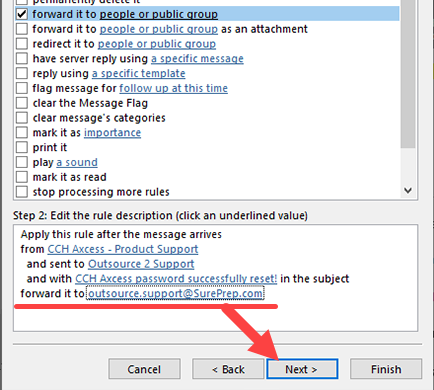
- On the next step, selectNextto skip the exception rules.

- SelectFinishto complete making the Outlook rule.
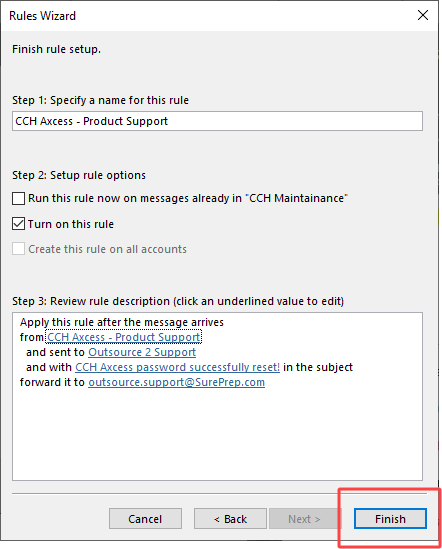
- In the same user's account setup process (for example, BL-Preparer1@BL&Associates.com), locate the following email:Subject:Verify your sign-inAfter locating the new verification email, scroll up to step 1 and follow the same steps again to create a new rule.

Step 3: Setting up a Service User (ADFS/SSO Only)
note
This section is only required if your firm uses CCH Axcess Tax- Integrated with SurePrep via Tax File Activation on web (Token Authentication) using Active Directory Federated Services(ADFS) or Single Sign-On(SSO).
Firms using ADFS/SSO for Outsource services must disable AD Sync in CCH Axcess Tax. Disabling AD sync will alter the way a firm manages their user accounts in CCH and may involve some downtime. Please contact CCH Support to disable AD Sync.
If your firm is integrated with SurePrep through login mode (e.g., providing username and password) then skip to creating an email rule in Outlook.
You only need to set up a Service User if you are using ADFS/SSO to log in. If you log into CCH using your login credentials then you don’t need to follow these instructions.
- Before starting user account setup, please make sure you are able to accessApplication Links, Firm, Utilities, then Configure Service User. If you're unable to view theConfigure Service Useroption in theUtilitieswindow, then please contact contact CCH Axcess Support to enable this option.
- Log in to theCCH Axcess Dashboardand go toApplication Links,Firm, thenUtilities.
- In the window that opens, selectConfigure Service User.
 noteIf you're unable to view this option in theUtilitieswindow, please contact CCH Axcess Tax Support to enable this option.
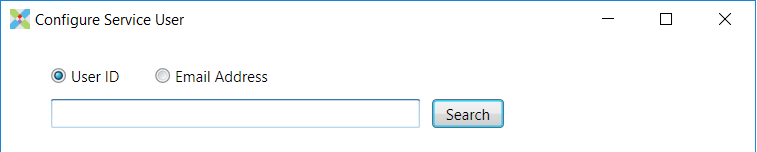
 - Search for the user using eitherUser IDorEmail Addressand then selectSearch.
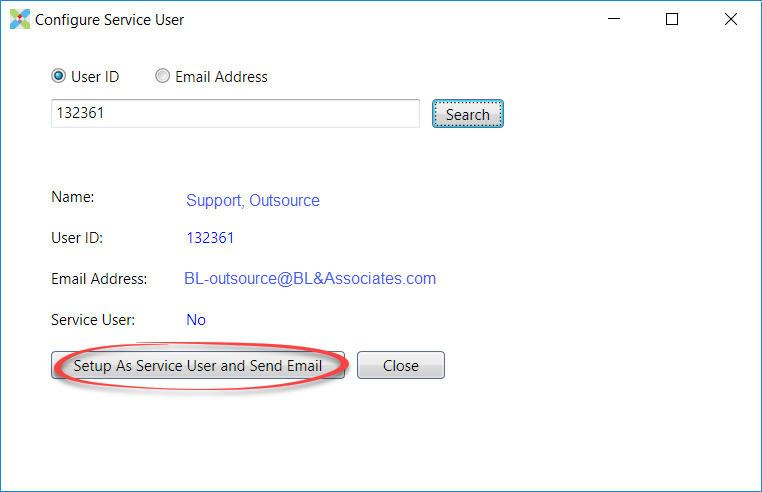
- Once the user is found, selectSetup As Service User and Send Email.
- An email will be sent with a link to download the software and run the configuration utility.
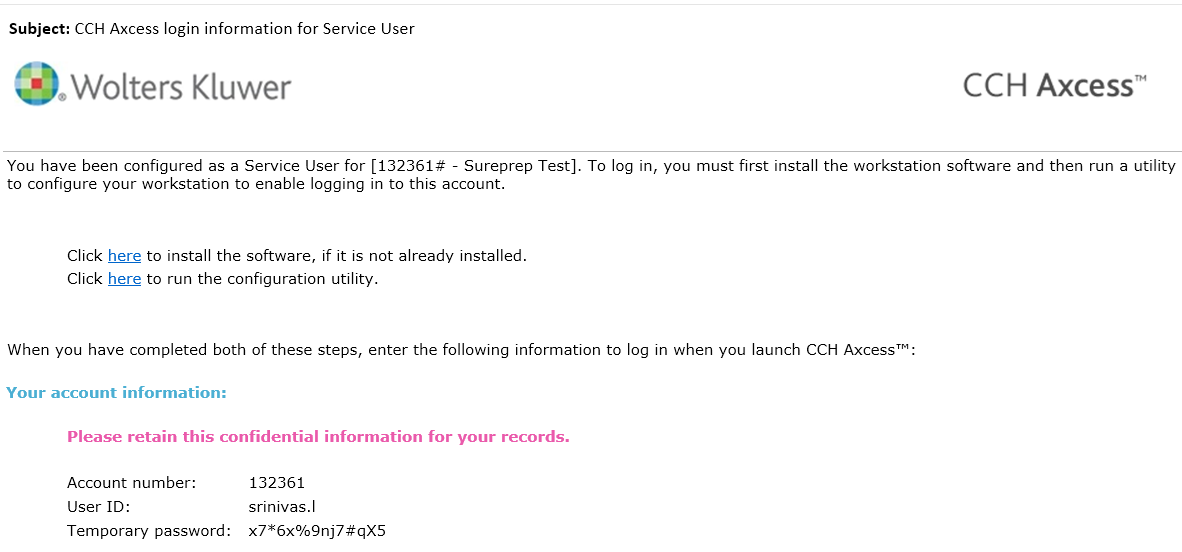
- Forward this email to SurePrep, and we’ll install the application. A SurePrep user will need to run the Service User configuration utility to enable/register the service user login on a specific machine.

