
Manage Client Table > Add a single record
When a binder is created via API, if the Tax Client ID doesn't exist in CCH Axcess Tax, SurePrep creates a tax file in CCH Axcess on your behalf.
Manage Client Table
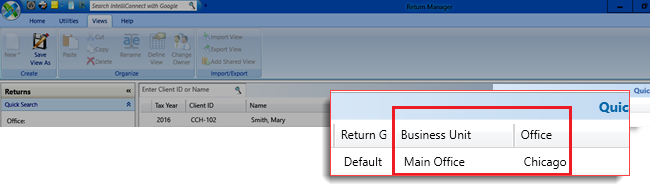
lets you configure which option needs to be selected in CCH Axcess Tax (for example, Business Units
, Return Group
, and Return Configuration
) when the tax file is created.You can set up business names and locations for CCH Axcess binders in
Admin
, Enterprise
, then Manage Client Table
. This article explains how to add a single record. However, you can also batch-upload records.Adding records to Manage Client Table
note
This feature is not enabled for all clients.
- Go toFileRoom,Admin,Enterprise Features, thenManage Client Table.

- Select theAdd Newbutton
 .
. - A blank row will appear. Type the required details inProject ID,Business Unit,Office,Return Group,andReturn Configuration.
- Once you enter the details, select theSaveicon
 to save the changes.

- You can now upload the binder through the API using the location set here. Once the binder has been uploaded, the details will be seen inCCH Axcess dashboard.
Matches found in Client Table
When a binder is created via API, SurePrep will check if certain API attributes match the
Manage Client Table
entries. If the following API attributes match the client table, the tax file will be created in CCH Axcess using the settings provided in the client table, such as Business Units
, Return Group
, and Return Configuration
.(API) CreateBinder Input Parameter | Field matched in Manage Client Table |
|---|---|
custom_Field | Project ID |
office_Location_ID | Office |
The following happens based on the match:
Custom field matches Project ID | Office location matches | Results |
|---|---|---|
Yes | Yes | Creates tax files in CCH Axcess Tax based on configurations saved in the Managed Client Table . |
Yes (multiple matches in client table) | Yes | Creates tax files in CCH Axcess Tax based on configurations saved in the first row that matches the API custom_filed with a Project ID in the Managed Client Table . |
Yes (match found but configuration missing in CCH Axcess Tax) | Yes | After the binder submission, a return is not created in CCH Axcess, and the binder remains in a stuck state. Use the GetStatus API call to check the binder details, which will specify the reason for the failure.Create a return a new binder with the Project ID configuration that also exists in the CCH Axcess. |
Yes | Yes | There are two fallback options if the custom field (Project ID) doesn’t match: 1. If default firm-level options are set:
Contact SurePrep Support to set the default values for your firm. 2. If no default firm-level options are set:
|
Yes | Yes | The binder is not created, and an error message is returned from the CreateBinder API call. |
Requirements
Firm-level settings | Contact SurePrep Support to enable this feature for your firm. When you request to enable this feature, provide default firm-level configuration options as a fallback:-
Note: These options must be available in CCH Axcess Tax. If none of the entries in the client table match the API attributes, then SurePrep will use the default options provided by you. |
Setup Manage Client Table | Add a new record for a Project ID with configurations that match CCH Axcess Tax (for example, Business Unit, Office Location, Return Group, Return Configuration) |
Office Location | Setup the same office location in:
|
API |
|

