
Access 2050 DreamWorkpapers/Tax Return Draft
For in-house binders, 2050 DreamWorkpapers can be viewed from FileRoom or GoFileRoom. For outsource binders, they can be viewed only from FileRoom. They won't be uploaded to GoFileRoom.
In-house binders
Outsource binders
In-house binders
- Once the binder has been completed from SurePrep and submitted back to GoFileRoom, open the GoFileRoom dashboard.
- Locate the binder, then select the Sureprep icon

- SelectSend For PrintinSPbinder. ThePrint Setupwindow opens. Select from the following options:
- Bookmarks with markups
- Leadsheets
- Notes
- Review Status Summary Sheet
- 2055 Dream Workpaper .xlsnoteYou can print the2055 DreamWorkpaper.xlsxfile, but you cannot send it to GFR.
- Document Sequence: Use the up and down arrows to make your selection
- Bookmarks only
- Notes
SelectPrintwhen you're done.noteAn estimated print time with show at the top of thePrint Setupwindow.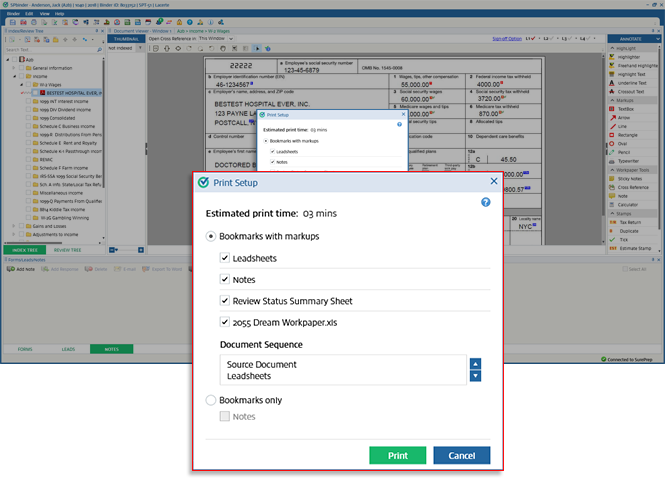
- SelectDocumentsin GoFileRoom, locate the document withDream WorkpapersunderDocument Type, then select the document.noteWhen binders are created from GoFileRoom, printing the SPbinder PDF/DreamWorkpaper on the SurePrep server will automatically upload the PDF to GoFileRoom on theDocumentstab. The printed SPbinder PDF/DreamWorkpapers will appear asDREAMWORKPAPERSon theDocument Typecolumn, irrespective of service, binder type, and Leads type.
- You'll now see the 2050 DreamWorkpapers.
Alternatively, you can also view the DreamWorkpapers from FileRoom.
- Sign intoFileRoom.
- Locate the desired binder, hover overOptions, select thedown caret, then selectFile.
- Select2000 Tax Workpaperson the left, and then select the2050 DreamWorkpaperslink under2000 Tax Workpaperson the right.
Outsource binders
For outsource binders, the printed DreamWorkpapers can be accessed from FileRoom but won’t be uploaded to GoFileRoom.
- Sign intoFileRoom.
- Locate the desired binder, hover overOptions, select thedown caret, then selectFile.
- Select3000 Copy of Tax Returnsto access the tax return draft.

