
Add a new group in GoFileRoom
Follow these steps to add a new group:
note
You'll need to have Administration privileges in GoFileRoom to implement these steps.
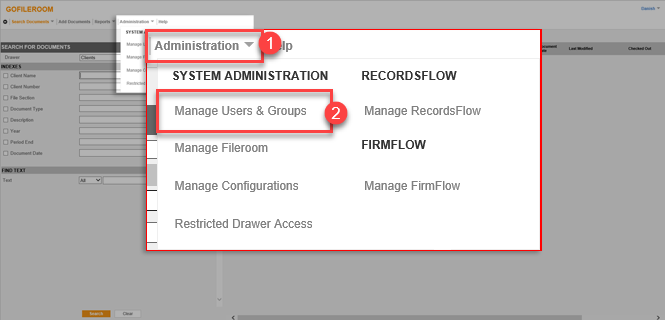
- SelectAdministrationthenManage Users & Groups.
- Go to theGroupstab.

- SelectNew Groupfrom theSelect Groupfield. You can also select an already created group if the client wants to use a particular group.
- Enter a group name in theGroup Namefield. You can enter any group name (for example, SUREPREP SUPER USER).
- In theCommentsfield, describe the purpose of the group. You can add your own description or use one of the following options:
- Drawer access permissions (Clients, HR, AP, etc.)
- Routing Pool (preparers, reviewers, etc.)
- Firm Flow Permission Group (FirmFlow Folder header, custom fields, etc.)
- System Group
- License Group
- Mark theFull Access to Document Trackingcheckbox.
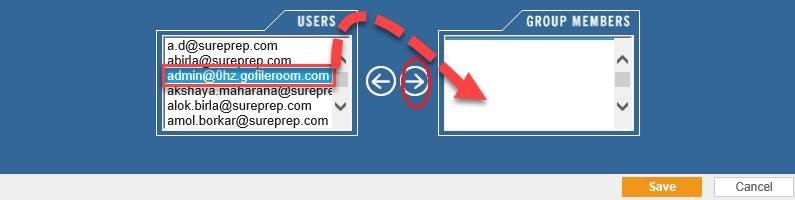
- Select the Super User from theUsersbox, then select the right arrow to add the user to the group. The name will move from theUsersbox to theGroup Membersbox. When you're done, selectSave.
- To give group permissions, go toAdministration,Manage Users & Groups, then theGroup Permissionstab. Select the group from the dropdown. You can set Read, Add, Edit, Delete, Lookup Mgmt, and Deny permissions for the following FileRooms and Drawers:
- Client
- Knowledge
- Invoices
- AR M-Tech
- Payroll
- WIP
- AP Marcum
- AP M-Tech
- AP/AR MKFS
- HR EMP
SelectSavewhen you're done.

