
Create folders, add documents, and link binders
Verify workflow type
Before you can create folders and add documents, you'll need to verify workflow type:
- SelectMy Workthen go to the Client Name column.
- Select the folder of the client you need. The client name will display with last name followed by first name.
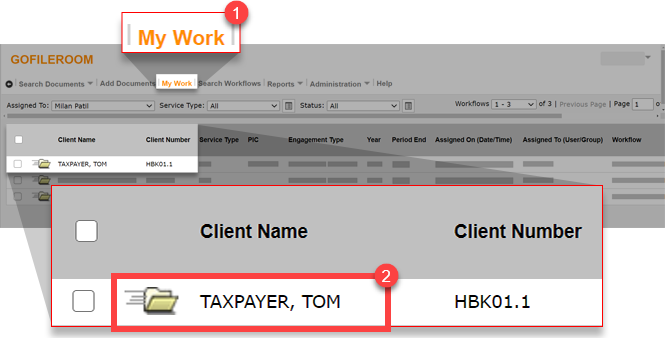
- On the Tax Folder screen, go to theWorkflowdropdown and make sure it's set toSurePrep Tax Return.
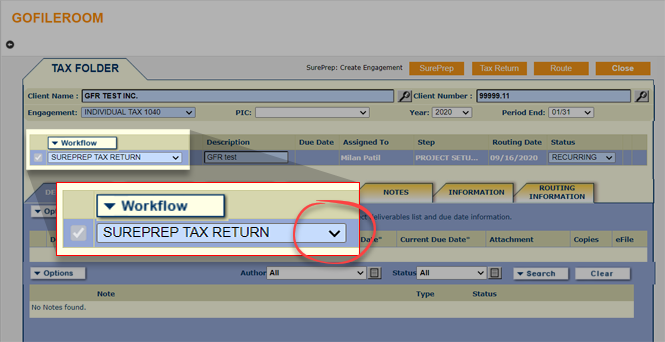 If the workflow isn't set toSurePrep Tax Return, change it toSurePrep Tax Returnbefore proceeding. Change the route to self and update.
Create a folder and add documents
- InGoFileRoom, selectMy Work.
- SelectOptionsthenCreate New Folder.
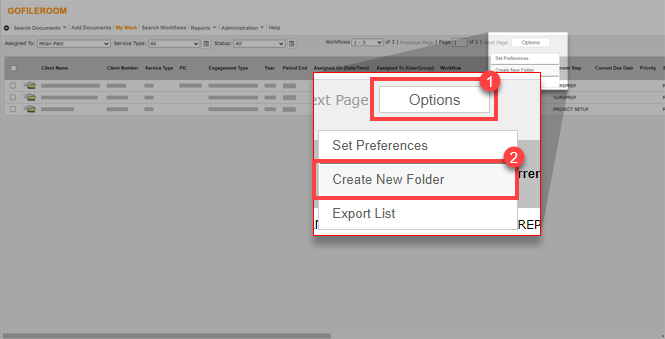
- Select the service type, then selectOKon theCreate New FirmFlow Folderwindow.

- InTAX FOLDERenter the following details then selectOK.
- Client Name
- Client Number
- Engagements
- PIC
- Year
- Period End
- Workflow
- Description
- Due Date
- Assigned To
- Step
- Routing Date
- Status
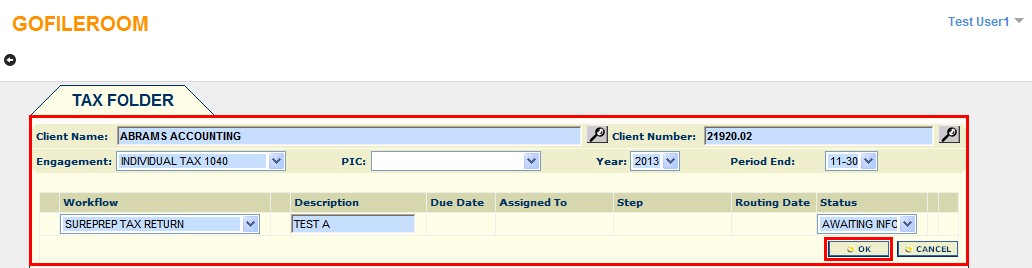
- A confirmation window opens that says "Your folder has been created." SelectOK.

- On theDocumentstab, selectOptionsthenAdd. This will allow you to add GFR documents to be submitted to SurePrep for processing.

- Go to theIndexessection and enter the information for the following:
- Client Name
- Client Number
- File Selection
- Document Type: Must beSurePrep Source Documents
- Description: Enter a description to make it easier to identify documents in theCreate New Binderwindow.
- Year
- Period End
- Document Date
SelectBrowsewhen you're done.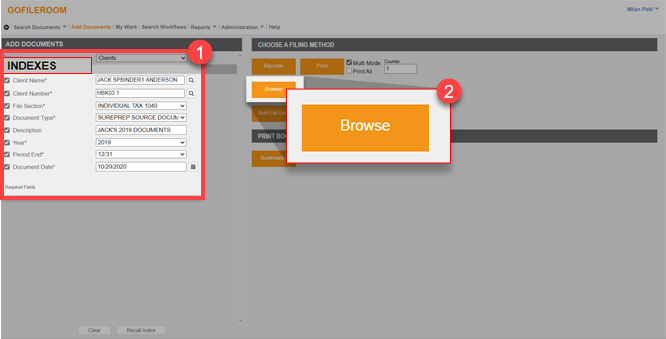 noteIf you're using Barcodes, create and print the Barcode. Documents scanned and uploaded to GFR will also be available to submit to SurePrep.
 - On theUpload a Documentwindow, selectBrowse. Select the documents to upload then selectOK.

- The files will now upload. You might get a screen that indicates the files are uploading.
- After the documents have been uploaded, select the back arrow
 to return to Tax Folder.
 - SelectSurePrepto create a new binder and submit the added documents.
- Open the PBFX file.
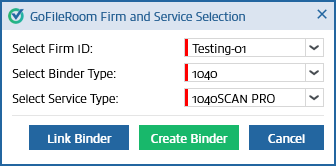
- TheGoFileRoom Firm and Service Selectionwindow will open. Make the selections you need in theSelect Firm ID,Select Binder Type, andSelect Service Typedropdowns.
- To create a new binder, selectCreate Binder. The SurePrep Create New Binder window will open.
- To link to an existing binder, selectLink Binder.
- TheLink Binderwindow opens. Enter theSP Client ID,Client Name,Binder ID,Tax Client ID,Service,Tax Software,Tax Year,orPSProjectof the binder in the search box. You'll need to include at least 3 characters.
 Use the dropdown to specify the column where the search should be performed, then selectGo.The binders matching the search criteria will be displayed. You can also use the filter option for each column to further filter the specific binder.noteBinders won't appear in theLink Binderwindow if they are inAwaiting Submissionstatus, have caution icons next to them in theFileroom, not assigned to as owners, or don't have the 7216 consent.Select the binder row to select it, and then selectLink.
 - heLink Binderwindow will appear once the binder has been linked. The binderStatuswill be on the bottom left of the window. To open the binder, selectOpen Binder.noteOpen Binderisn't available if the binder is in SP Processing status. Once the binder is linked successfully, an email notification will be sent to the owner of the return.
- The status of the linked binder will be displayed in theTax Folderwindow. You can now open the linked binder from GoFileRoom.noteIf you accidentally linked a binder that you didn't intend to link, contact SurePrep Support to unlink the binder.

