
Integration set up for GoFileRoom administrators
GoFileRoom firm administrator set up
Contact GoFileRoom Support at
800-968-0600
or thomsonreuters.com to request this integrated solution. There's no fee for enabling or using this integration, but it does require that your firm is licensed with SurePrep.When contacting GoFileRoom Support, have your SurePrep Firm IDs available, as the Support representative will need them. Most firms have 1 Firm ID. If your firm has more, you'll need to provide the primary Firm ID first, followed by the additional Firm IDs.
After GoFileRoom Support enables the new SPbinder and FirmFlow integration, your GoFileRoom Administrator will need to complete the following:
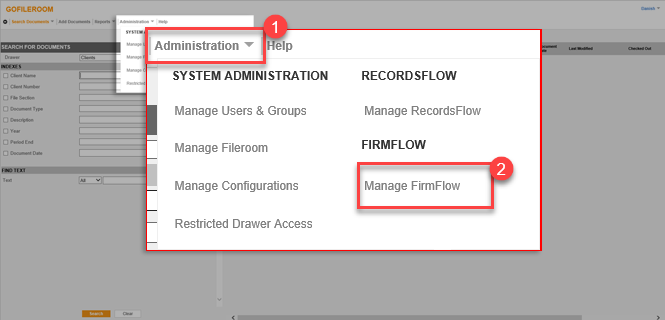
- Select theAdministrationdropdown, then selectManage FirmFlow.
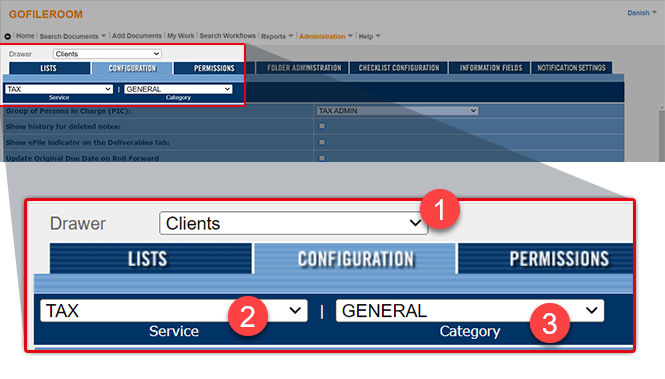
- Go to theConfigurationtab and select the following options from the dropdowns:FieldEntryDrawerClientsServiceTAXCategoryGENERAL
- Mark theEnable SurePrep Integrationcheckbox.
- This presents a new button within the FirmFlow folder.
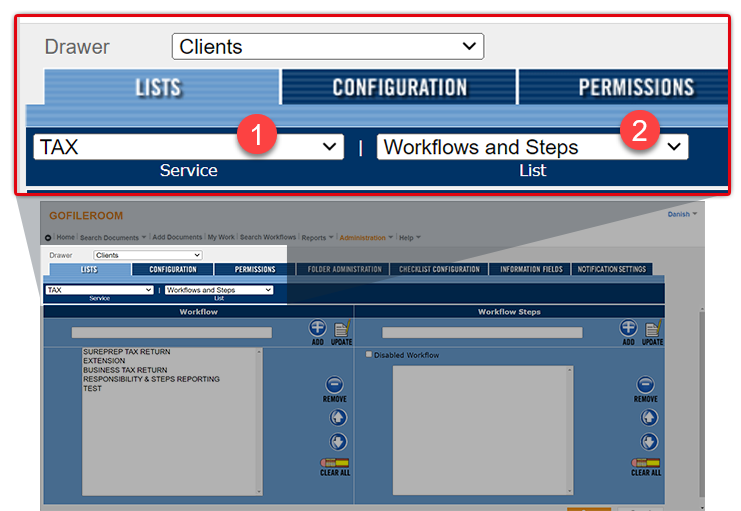
- SelectAdministration,Manage FirmFlow, thenListsand select the following options from the dropdowns:FieldEntryServiceTAXListWorkflows and Steps
- Set up a new workflow:
- The workflow must be namedSUREPREP TAX RETURN.
- Must have aSUREPREPstep.
- Must have aPREPARATIONstep.
- All other step names are optional.
- The best practiceSUREPREP TAX RETURNworkflow is as follows:
- PROJECT SETUP
- ORGANIZE
- SUREPREP
- PREPARATION
- MANAGER REVIEW
- REVIEW COMMENTS
- PARTNER REVIEW
- ASSEMBLY
- SIGNATURE
- DELIVERY
- CLIENT APPROVAL (E-FILE)
- GOV'T APPROVAL (E-FILE)
- COMPLETED
- Prior to workflows routing to the SurePrep step, a FirmFlow user must be assigned to the SurePrep and Preparation steps.
- System-generated notifications are sent to the assigned user of the steps alerting them of the SurePrep Binder status.
- When configuring theSUREPREP TAX RETURNworkflow, no step should be identified as the Scanning step and no step should be identified to receive the workflow after the Scanning step.
- Auto-routing will apply to this workflow through new technology on the backend, as part of this new integration.
noteIf your firm is looking to improve your workflow efficiency, contact your sales representative and ask about Product Optimization Consulting.
- SelectAdministration,Manage FileRoom,Lists, thenClients.
- Add new document types toFiles Section:INDIVIDUAL TAX 1040
- SUREPREP SOURCE DOCUMENTS
- DREAM WORKPAPERS
- This is required and youll need to repeat this for allFile Sectionsfor which SurePrep is used to sort the source documents, for example if you use SurePrep for any business returns.
Office Manager/Tax Department Manager set up
- SelectFirmFlow,My Work,Options, thenCreate new Folder, or alternatively you can go to an existing FirmFlow Folder and add a new workflow.
- When setting up the newSUREPREP TAX RETURNworkflow, usernames must be populated for theResponsiblefield for stepsSurePrepandPreparation.noteTheResponsiblefields can be populated with either a username or aPool name.
- There can only be 1SUREPREP TAX RETURNworkflow per FirmFlow folder.
- 1SUREPREP TAX RETURNworkflow is supported per the FirmFlow folder. If additionalSUREPREP TAX RETURNworkflows are added to the same FirmFlow folder, the integration won't work.
- CreateBarcodesin the FirmFlow folder:
- If there are going to be more than 1 set of source documents submitted to SurePrep, use theDescriptionfield to identify primary and subsequent document submissions.

