
Set up GoFileRoom service accounts
Setting up service accounts in GoFileRoom (GFR) provides SurePrep a set of robust credentials for communicating with GFR. These credentials can be used for downloading submitted documents, advancing the routing, and uploading the DreamWorkpaper/SPbinder PDF files. The service accounts ensure that processes don’t go into error due to permission failures related to the original user’s account.
An example of a common problem that occurs when there's not a service account is when temporary staff creates the documents in GFR. When the staff member departs, their GFR accounts are closed. The unintended outcome, however, is that all SurePrep interactions that used those credentials will fail. Setting up a service account fixes this and many other credential-related problems.
Follow these steps to set up service accounts in GoFileRoom:
- To assign a Super User, you'll need to create a new group or use an already created group.
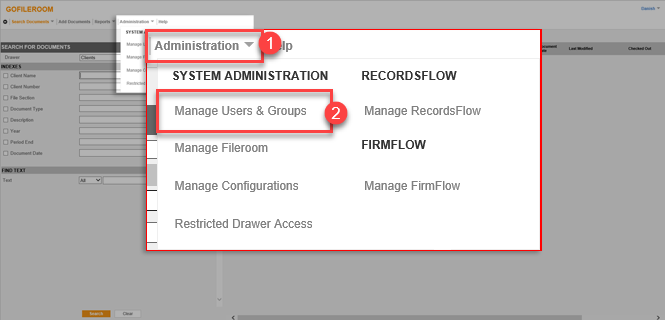
- Create a new user. On the top navigation menu, select theAdministrationdropdown then selectManage Users & Groups.
- On theUserstab, select---New User---from theSelect Userdropdown and mark theActivecheckbox.noteYou can also use an existing user. However, the user must be provided elevated rights and must not be disabled in the near future.
- Complete the following fields:FieldEntryFull NameEnter the user's full nameLicense TypeDedicatedFirmFlow UserMark the checkbox
- The new user you created should be assigned to a group with all the rights in GoFileRoom (for example, Read, Add, Route). To assign a user to be a member of the Super User group, select the group with Super User access from theGroupbox then select the right arrow. This will move the group into theMember ofbox. Once the user is a member of the group, selectSave.noteIf theSUREPREP SUPER USERgroup isn't available, you'll need to create it.

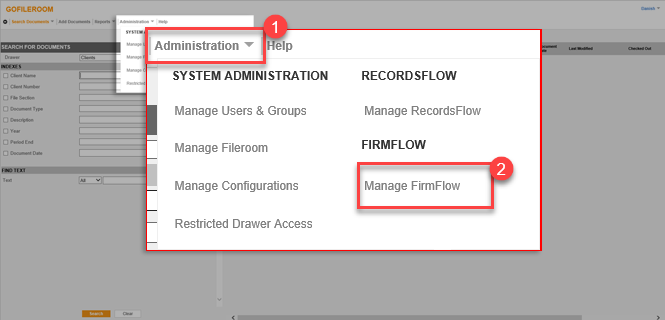
- Select theAdministrationdropdown then selectManage FirmFlowin the FirmFlow section.
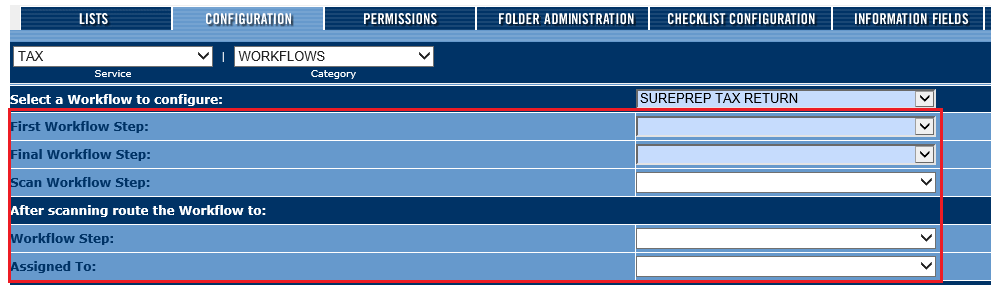
- Go to theConfigurationtab on the toolbar, which is betweenListsandPermissions.

- Complete the following fields:FieldEntryServiceTAXCategoryWORKFLOWSSelect a WorkFlow to configureSelect the workflow configuration you created.
 The following workflow steps will be configured by Firm\Domain:Select a Workflow to configure:
- First Workflow Step
- Final Workflow Step
- Scan Workflow Step
After scanning route the Workflow to:- Workflow Step
- Assigned To
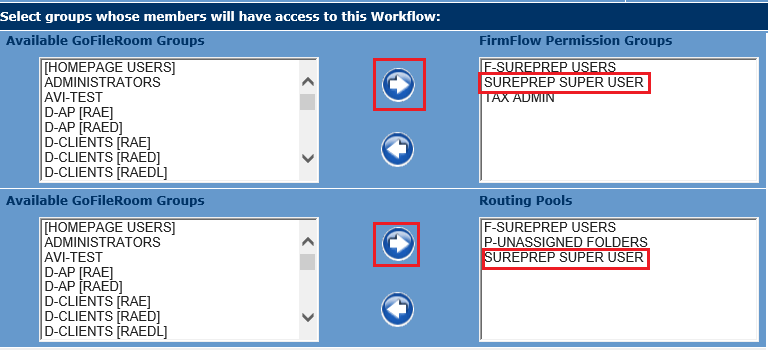
- Go to theSelect groups whose members will have access to this Workflowssection. Select the Super User group you created and add it to both theFirmFlow Permission Groupsand theRouting Poolgroup.To do this, select the group from theAvailable GoFileRoom Groupsbox, then select the right arrow button. When you're done, selectSave.
- To give FirmFlow routing permissions for the Super User group, selectAdministrationthen .
- Go to thePermissionstab, which is between theConfigurationtab and theFolder Administrationtab.

- SelectCategoryasGeneral, then select the desired group and mark the checkboxes for the following permission:
- Create New Folders
- Assigned to others
- Re-route Complete Workflows
- Route Workflows to Complete Step
- Roll Forward Folders
- Headers
- Add Workflows
- Edit Workflows
- Delete Workflows
- Edit Pre-Assignments
- Maintain Deliverables List
- Reset Checklist
When you're done, selectSave.
- Once all the steps have been completed, provide us with the Super User details so that we can have our development team incorporate this user for your account. Email the SurePrep User details to SurePrep.Support@thomsonreuters.com.

